
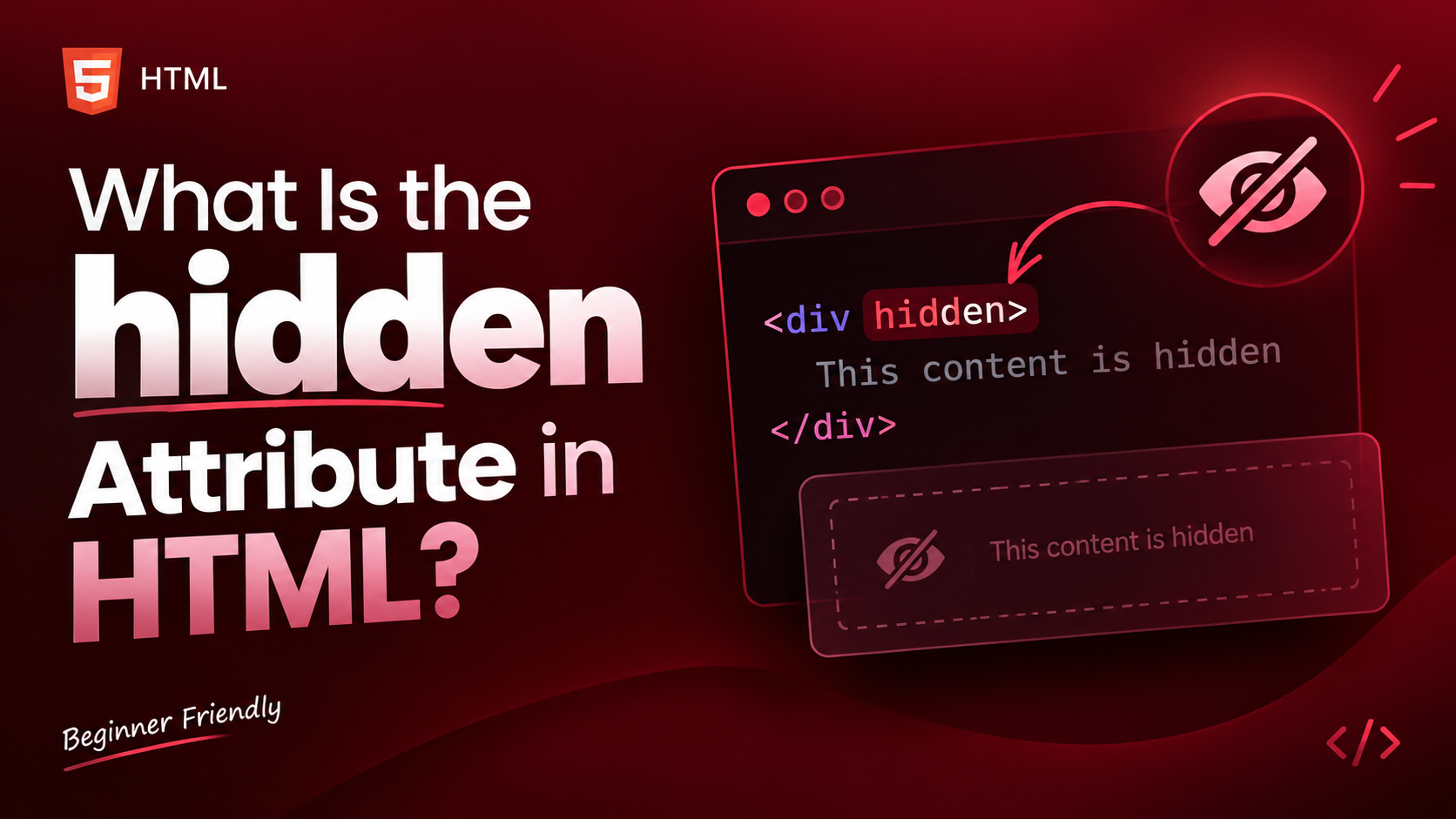
When building a webpage, there are times when you want certain content to exist in the HTML without showing it to visitors immediately. Maybe you have an element that should appear later, a message that is temporarily unavailable, or content that should remain hidden until a user performs an action.
HTML provides a simple way to handle this situation through the hidden attribute.
The hidden attribute is a global HTML attribute that tells the browser that an element is not currently relevant or should not be displayed to the user. It can be added to many HTML elements, making it a useful feature for controlling the visibility of content.
Unlike some HTML features that require JavaScript or complicated CSS, the basic hidden attribute is very easy to understand.
In this guide, we will explain what the hidden attribute does, how it works, where it can be useful, how it differs from CSS, common mistakes beginners make, and how you can practice using it in real HTML projects.
What Is the hidden Attribute in HTML?
The hidden attribute is used to hide an HTML element from the page.
When an element has the hidden attribute, the browser normally does not display that element on the screen.
For example, imagine that your webpage contains a message that you do not want visitors to see yet. You can add the hidden attribute to that message.
A simple example looks like this:
<p hidden>This message is currently hidden.</p>The paragraph still exists in the HTML document, but it will not normally appear on the webpage.
This is the basic idea behind the hidden attribute.
Why Is the hidden Attribute Useful?
At first, hiding an element might sound like a small feature. However, it becomes very useful when creating interactive webpages.
Websites often need to change what users see based on certain conditions.
For example, imagine a website with:
- A hidden success message
- An unavailable section
- Extra information that appears later
- A hidden form
- A notification
- A loading message
- Content controlled by JavaScript
Instead of deleting the content from the HTML completely, you can keep it available and hide it using the hidden attribute.
This gives your webpage more flexibility.
How the hidden Attribute Works
The hidden attribute is a Boolean attribute.
That means you do not need to give it a value such as “true” or “false.”
You simply place the attribute inside the opening HTML tag.
For example:
<div hidden>
  This content is hidden.
</div>
The presence of the hidden attribute tells the browser that the element should not currently be displayed.
If you remove the attribute, the browser can display the element normally again.
This makes the attribute very simple to use.
What Does “Hidden” Actually Mean?
When we say that an element is hidden, it is important to understand that the element has not necessarily been deleted.
The HTML element can still exist in the document.
The browser simply does not normally show it as visible webpage content.
Think of it like putting a piece of paper inside a drawer.
The paper still exists, but you cannot see it while the drawer is closed.
Similarly, an HTML element with the hidden attribute can remain part of the document while being invisible to the visitor.
The hidden Attribute Is a Global Attribute
One important thing to know is that hidden is a global HTML attribute.
Global attributes are attributes that can generally be used on HTML elements.
This means you can use hidden with many different elements.
For example, it can be used with:
<div><p><section><article><span><img><form><button><ul>
However, whether hiding a particular element makes sense depends on what you are building.
Hiding a Paragraph
One of the simplest examples is hiding a paragraph.
<p hidden>This paragraph is hidden.</p>The browser will not normally display the paragraph.
This could be useful if the paragraph is meant to appear later.
Hiding a Section
You can also hide an entire section.
<section hidden>
  <h2>Extra Information</h2>
  <p>This section is currently unavailable.</p>
</section>
Everything inside the section becomes part of the hidden area.
This can be useful when a particular part of a webpage should not be displayed yet.
Hiding a Form
The hidden attribute can also be used on forms.
Imagine a webpage where a registration form should appear only after a user clicks a particular button.
The form could initially be hidden.
JavaScript could later remove the hidden attribute and make the form visible.
This is one reason the hidden attribute is useful in interactive projects.
Hiding Images
The attribute can also be placed on an image.
For example, a website might contain an image that should only appear after a certain action.
Instead of displaying it immediately, the image can start hidden.
Later, JavaScript can reveal it when necessary.
This approach can be useful for interactive galleries and other projects.
How to Make Hidden Content Visible Again
The hidden attribute can be removed when you want the content to become visible.
For example, JavaScript can find an element and remove its hidden attribute.
The basic idea is simple:
Attribute present = hidden
Attribute removed = visible
This makes the attribute particularly useful for interactive webpages.
Using hidden With JavaScript
Although JavaScript is not required to use the hidden attribute, the two work very well together.
Imagine you are creating a login form.
When the page first loads, the form could be hidden.
A visitor clicks a “Login” button.
JavaScript can then remove the hidden attribute.
The form becomes visible.
When the visitor closes the form, JavaScript can add the hidden attribute again.
This creates a simple show-and-hide system.
A Simple Real-World Example
Imagine an FAQ page.
You might have an answer that should initially be hidden.
When the visitor clicks a question, JavaScript could reveal the answer by removing the hidden attribute.
For example, the HTML might contain:
<p hidden>
  HTML stands for HyperText Markup Language.
</p>
JavaScript could later make this paragraph visible.
This is a simple example of how HTML and JavaScript can work together.
hidden vs CSS display: none
Beginners often ask about the difference between using the hidden attribute and CSS.
CSS can also hide an element using:
display: none;Both approaches can make an element disappear from normal visual display, but they have different purposes.
The hidden attribute communicates something about the state or relevance of the HTML element.
CSS is primarily concerned with presentation and styling.
In other words:
HTML hidden → This content is currently hidden or not relevant.
CSS display: none → This element should not be displayed as part of the current design.
This distinction becomes more important as your projects become larger.
hidden vs visibility: hidden
CSS also provides another option called visibility: hidden.
This behaves differently from display: none.
An element with visibility: hidden is invisible, but its space may still remain in the page layout.
The hidden attribute generally removes the element from normal visual rendering.
Therefore, these methods should not be treated as identical.
Does hidden Delete the HTML Element?
No.
This is an important point for beginners.
The hidden attribute does not delete the HTML element from the document.
It simply tells the browser that the element should not currently be displayed.
The element can still be manipulated by scripts.
This is why it can be useful for dynamic interfaces.
Is Hidden Content Still in the HTML?
Yes.
The HTML code still contains the element.
For example:
<div hidden>
  Welcome to our website.
</div>
The browser still knows about the <div>.
It simply does not normally display it.
This allows developers to reveal it later when necessary.
Accessibility and the hidden Attribute
Accessibility is an important part of modern web development.
When content is genuinely hidden using the hidden attribute, it is generally treated as unavailable to users while it is hidden.
This means you should not use hidden simply because you want to visually hide something while still expecting assistive technologies to treat it as available content.
If content is important for accessibility but only needs to be visually hidden, you may need a different technique.
The key lesson is to think about why you are hiding the content before choosing your method.
SEO and the hidden Attribute
The hidden attribute should not be used as a way to hide large amounts of important content simply for search engine purposes.
If important information is relevant to visitors, it is usually better to present it clearly and naturally.
Search engines have their own methods for processing webpage content, and hidden content should not be treated as a shortcut for SEO.
Use the attribute because the content is genuinely not currently relevant or needs to remain hidden until a particular interaction occurs.
Common Uses of the hidden Attribute
There are many situations where the hidden attribute can be useful.
1. Success Messages
A success message can start hidden and appear after a user completes a form.
2. Error Messages
An error message can remain hidden until something goes wrong.
3. Login Forms
A login area can be hidden until the visitor chooses to open it.
4. Additional Information
Extra information can remain hidden until it is needed.
5. Interactive Projects
JavaScript applications can use hidden to switch between different interface states.
6. Multi-Step Forms
A form can contain several steps, with only the current step visible.
Common Beginner Mistakes
Although the hidden attribute is simple, beginners can still misuse it.
Mistake 1: Expecting Hidden Content to Be Visible
If you add hidden to an element, do not expect it to appear normally.
The browser is following your instruction.
Mistake 2: Adding hidden="false"
Because hidden is a Boolean attribute, writing:
<div hidden="false">does not mean the element is visible.
The presence of the attribute itself is what matters.
For beginners, the safest approach is simply:
<div hidden>When you want it visible, remove the attribute.
Mistake 3: Using Hidden Content for Everything
Not every element needs to be hidden.
If information is important and users need it immediately, hiding it may create a poor user experience.
Mistake 4: Confusing Hidden With Removed
A hidden element has not been deleted.
It is simply not being displayed normally.
This distinction becomes important when working with JavaScript.
Practice Project: Hidden Message
A great beginner project is a simple hidden-message webpage.
Start with a message that is hidden.
Then create a button labeled something like “Show Message.”
When the user clicks the button, JavaScript removes the hidden attribute.
The message becomes visible.
You can then create another button to hide the message again.
This small project teaches you several useful concepts at once:
- HTML attributes
- Buttons
- JavaScript
- DOM manipulation
- Element visibility
Practice Project: Simple Login Panel
Another good project is a basic login panel.
The login form can initially be hidden.
A user clicks a button such as “Open Login.”
The form becomes visible.
A close button can then hide it again.
This teaches you how real interfaces use visibility changes.
Practice Project: Multi-Step Form
Once you understand the basics, try creating a multi-step form.
For example:
Step 1: Personal information
Step 2: Contact information
Step 3: Confirmation
Only one step is visible at a time.
The other steps remain hidden.
JavaScript can remove and add the hidden attribute as the user moves through the form.
This is a great project for practicing DOM manipulation.
Best Practices for Using the hidden Attribute
Here are a few simple rules to remember.
Use It for Content That Is Temporarily Unavailable
If something should not currently be displayed, hidden can be a good choice.
Do Not Use It Just for Decoration
CSS is generally more appropriate for purely visual changes.
Use Clear User Interactions
If hidden content becomes visible after a button click, make sure users understand what the button does.
Think About Accessibility
Do not hide important information without considering users who rely on assistive technologies.
Keep Your HTML Organized
Use meaningful elements and clear structure so that your code remains easy to understand.
hidden Attribute vs aria-hidden
Another concept beginners may encounter is aria-hidden.
These two features should not be treated as interchangeable.
The hidden attribute is used to hide content from normal rendering.
aria-hidden is an accessibility-related attribute that communicates whether content should be exposed to assistive technologies.
They solve different problems.
For beginners, remember this simple rule:
Use hidden when an element is actually supposed to be hidden.
Do not automatically use aria-hidden as a replacement for hidden.
Browser Support
The hidden attribute is supported by modern web browsers, including:
- Google Chrome
- Mozilla Firefox
- Microsoft Edge
- Apple Safari
- Opera
It is therefore safe to use in modern HTML projects.
Why Beginners Should Learn the hidden Attribute
The hidden attribute may look like a small HTML feature, but it introduces an important web development concept: controlling what users see.
As you progress from basic HTML to JavaScript, you will frequently need to show and hide elements.
Learning hidden gives you a simple foundation for this.
It also helps you understand how HTML and JavaScript can work together.
The HTML hidden attribute provides a simple way to keep an element from being displayed on a webpage. It is a Boolean attribute, meaning that its presence is enough to tell the browser that the element should currently remain hidden.
The attribute can be used with many HTML elements and is especially useful when building interactive projects with JavaScript.
You can use it for hidden messages, login forms, multi-step forms, notifications, additional information, and many other interface features.
However, the most important thing is to understand when to use it. The hidden attribute should not simply be used to hide content without a reason. Think about the user’s experience, accessibility, and whether the content actually needs to be hidden.
Once you understand the difference between hiding content and removing content, the hidden attribute becomes much easier to work with.
For beginners, a good way to practice is to create small projects where a button shows and hides a message. After that, you can move on to login panels, FAQs, notifications, and multi-step forms.
Learning these simple concepts now will give you a strong foundation for more advanced HTML, CSS, and JavaScript projects later.
Dope article