
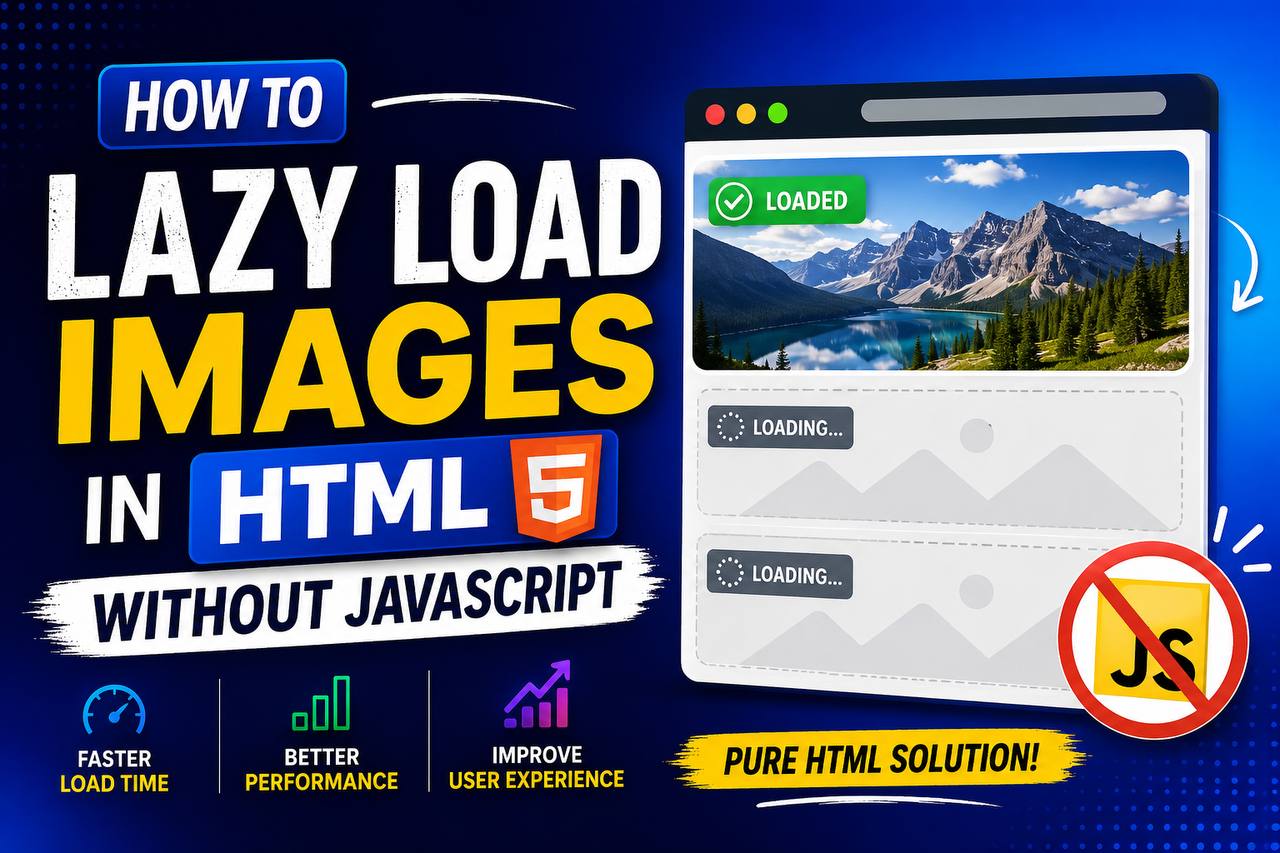
Website speed is one of the most important factors in modern web development. A fast website provides a better experience for visitors, improves search engine rankings, and reduces the amount of data users need to download. One simple technique that helps improve page performance is lazy loading images.
Years ago, developers often relied on JavaScript libraries to lazy load images. Today, modern HTML includes a built-in way to accomplish this without writing a single line of JavaScript. This makes the process much easier, especially for beginners.
If you are creating a personal portfolio, blog, online store, or business website, learning how to lazy load images can help your pages load faster and feel more responsive.
In this beginner-friendly guide, you will learn what lazy loading is, why it matters, how HTML supports it, where it should be used, common mistakes to avoid, and best practices for building faster websites.
This tutorial focuses mainly on clear explanations with only a small amount of code so you can easily understand the concept.
What Is Lazy Loading?
Lazy loading is a technique that delays loading certain content until it is actually needed.
For images, this means the browser loads only the pictures that are immediately visible on the screen when the page first opens.
Images farther down the page are loaded only when the visitor scrolls closer to them.
Instead of downloading every image at once, the browser loads them gradually.
This saves bandwidth and improves the initial loading speed of the webpage.
Why Lazy Loading Is Important
Imagine a webpage that contains:
- 5 product images
- 20 blog images
- 10 gallery photos
- 8 team member photos
Without lazy loading, the browser tries to download all of these images immediately.
This can slow down the page, especially for users with slower internet connections.
With lazy loading, only the images that the visitor can currently see are downloaded first. The remaining images load as the user continues scrolling.
How HTML Makes Lazy Loading Easy
Modern HTML provides a simple attribute called loading.
When you set this attribute to lazy on an image, compatible browsers automatically delay loading that image until it is close to entering the user’s view.
A basic example looks like this:
<img src="photo.jpg" alt="Mountain landscape" loading="lazy">
That single attribute is enough for most modern browsers to handle lazy loading automatically.
How Lazy Loading Works Behind the Scenes
Although the browser handles the technical details, the overall process is simple.
- The webpage begins loading.
- Images near the top of the page load immediately.
- Images farther down the page remain unloaded.
- As the visitor scrolls, the browser loads additional images just before they become visible.
This creates a smoother browsing experience while reducing unnecessary downloads.
Benefits of Lazy Loading Images
Lazy loading offers several advantages for both website owners and visitors.
Faster Initial Page Load
Because fewer images are downloaded at the beginning, the page becomes visible more quickly.
Visitors can begin reading your content without waiting for every image to finish loading.
Better User Experience
People generally prefer fast websites.
Lazy loading helps reduce waiting time and makes scrolling feel smoother.
This is especially important on mobile devices.
Lower Data Usage
Not every visitor scrolls to the bottom of a webpage.
Without lazy loading, they may download dozens of images they never actually see.
Lazy loading avoids downloading unnecessary files.
This helps users who have limited mobile data plans.
Improved Website Performance
Smaller initial downloads mean the browser has less work to do during page loading.
This often results in better performance and a more responsive website.
Where Should You Use Lazy Loading?
Lazy loading is useful on many different types of websites.
Examples include:
- Blogs
- News websites
- Photography portfolios
- Ecommerce stores
- Online magazines
- Travel websites
- Recipe websites
- Educational websites
Any webpage containing many images can usually benefit from lazy loading.
Images That Should Not Be Lazy Loaded
Although lazy loading is useful, it should not be applied to every image.
Images that appear immediately when the page opens should normally load right away.
Examples include:
- Website logos
- Hero banners
- Main featured images
- Above-the-fold content
These images are part of the visitor’s first impression and should appear as quickly as possible.
What Does “Above the Fold” Mean?
“Above the fold” refers to the part of a webpage that users can see without scrolling.
Everything visible immediately after the page loads is considered above the fold.
Images in this area should generally load normally.
Images farther down the page are better candidates for lazy loading.
Lazy Loading vs Normal Image Loading
Here is a simple comparison.
| Normal Loading | Lazy Loading |
|---|---|
| Loads all images immediately | Loads images only when needed |
| Uses more bandwidth | Saves bandwidth |
| Can slow large pages | Improves page speed |
| Downloads unseen images | Downloads only visible images first |
Browser Support
One reason HTML lazy loading has become popular is its wide browser support.
Modern browsers such as:
- Google Chrome
- Microsoft Edge
- Mozilla Firefox
- Opera
- Safari (recent versions)
support the loading="lazy" attribute.
This means most users can benefit without installing additional software.
Why Lazy Loading Helps Mobile Users
Mobile devices often have:
- Smaller screens
- Slower internet connections
- Limited data plans
Because mobile users usually see fewer images at once, lazy loading can significantly reduce initial downloads.
This leads to a faster browsing experience.
Real-World Example
Imagine an online clothing store with 100 product photos.
Without lazy loading:
Every product image begins downloading immediately.
With lazy loading:
Only the products visible near the top load first.
As shoppers continue browsing, additional images appear automatically.
This creates a much smoother shopping experience.
Another Example: Blog Articles
Many blog posts include:
- Featured images
- Illustrations
- Screenshots
- Charts
- Infographics
Instead of loading every image at once, lazy loading allows readers to start reading immediately while additional images load as needed.
Lazy Loading and SEO
Many beginners wonder whether lazy loading hurts search engine optimization.
When implemented correctly using the HTML loading="lazy" attribute, modern search engines can still discover and index images.
In fact, faster websites often provide a better overall user experience, which is beneficial for SEO.
However, important images—such as your main featured image—should usually load normally instead of being delayed.
Lazy Loading and Accessibility
Accessibility should always be considered.
Even when using lazy loading, every image should still include:
- Meaningful alternative (alt) text
- Appropriate file names
- Correct image dimensions where possible
Lazy loading changes when an image loads, not how it should be described.
Common Beginner Mistakes
Here are some mistakes beginners often make.
1. Lazy Loading Every Image
Not every image should be delayed.
Important images near the top of the page should load immediately.
2. Forgetting Alt Text
Every meaningful image should include descriptive alternative text.
Alt text improves accessibility and helps search engines understand the image.
3. Uploading Very Large Images
Lazy loading does not replace image optimization.
Large images should still be compressed before uploading.
Smaller files load faster.
4. Ignoring Image Dimensions
Specifying image width and height helps browsers reserve space before images appear.
This reduces layout shifts during loading.
Best Practices for Lazy Loading
To get the best results, follow these recommendations.
Use Lazy Loading for Images Below the Fold
Images that require scrolling are ideal candidates.
Compress Images First
Smaller image files improve loading speed even further.
Write Good Alt Text
Describe each image clearly and accurately.
Choose Modern Image Formats
Formats such as WebP and AVIF often provide better compression than older image formats while maintaining high quality.
Test Your Website
After adding lazy loading, check your website on:
- Desktop computers
- Tablets
- Mobile phones
Make sure images appear smoothly during scrolling.
Practice Projects for Beginners
If you want to practice lazy loading, try building these simple projects.
Personal Portfolio
Create a gallery of your projects with several screenshots.
Apply lazy loading to the images farther down the page.
Travel Blog
Display destination photos throughout a long article.
Readers will enjoy faster loading while scrolling.
Photography Gallery
Build an image gallery containing dozens of photographs.
Lazy loading helps keep the page responsive.
Recipe Website
Recipes often include multiple preparation images.
Lazy loading allows visitors to begin reading immediately while additional photos appear later.
Online Store
Display many products on a single page while reducing the initial loading time.
Lazy Loading Compared to JavaScript Solutions
Before HTML introduced native lazy loading, developers often relied on JavaScript libraries.
Today, native HTML offers several advantages.
| HTML Lazy Loading | JavaScript Lazy Loading |
|---|---|
| Built into browsers | Requires extra scripts |
| Easier to learn | More complex |
| Lightweight | Larger file size |
| Great for beginners | Better for advanced customization |
For most beginner websites, the built-in HTML solution is more than enough.
Why Website Speed Matters
Fast websites provide many benefits.
They help:
- Keep visitors engaged
- Reduce bounce rates
- Improve user satisfaction
- Make browsing more enjoyable
- Support better search performance
Lazy loading is one of several techniques that contribute to these improvements.
Lazy loading images is one of the easiest ways to improve website performance without adding unnecessary complexity. Thanks to modern HTML, you no longer need JavaScript libraries to delay image loading. A simple loading="lazy" attribute allows compatible browsers to load images only when they are needed.
For beginners, this feature is an excellent example of how HTML continues to evolve, making it easier to build fast, user-friendly websites with less code.
As you continue learning HTML, remember that performance is just as important as appearance. By combining lazy loading with optimized images, descriptive alt text, responsive layouts, and good web design practices, you can create websites that load quickly, provide a better experience for visitors, and remain useful for years to come.
Great article! I’ve been using Nano Banana 2 () for similar projects. Nano Banana 2