
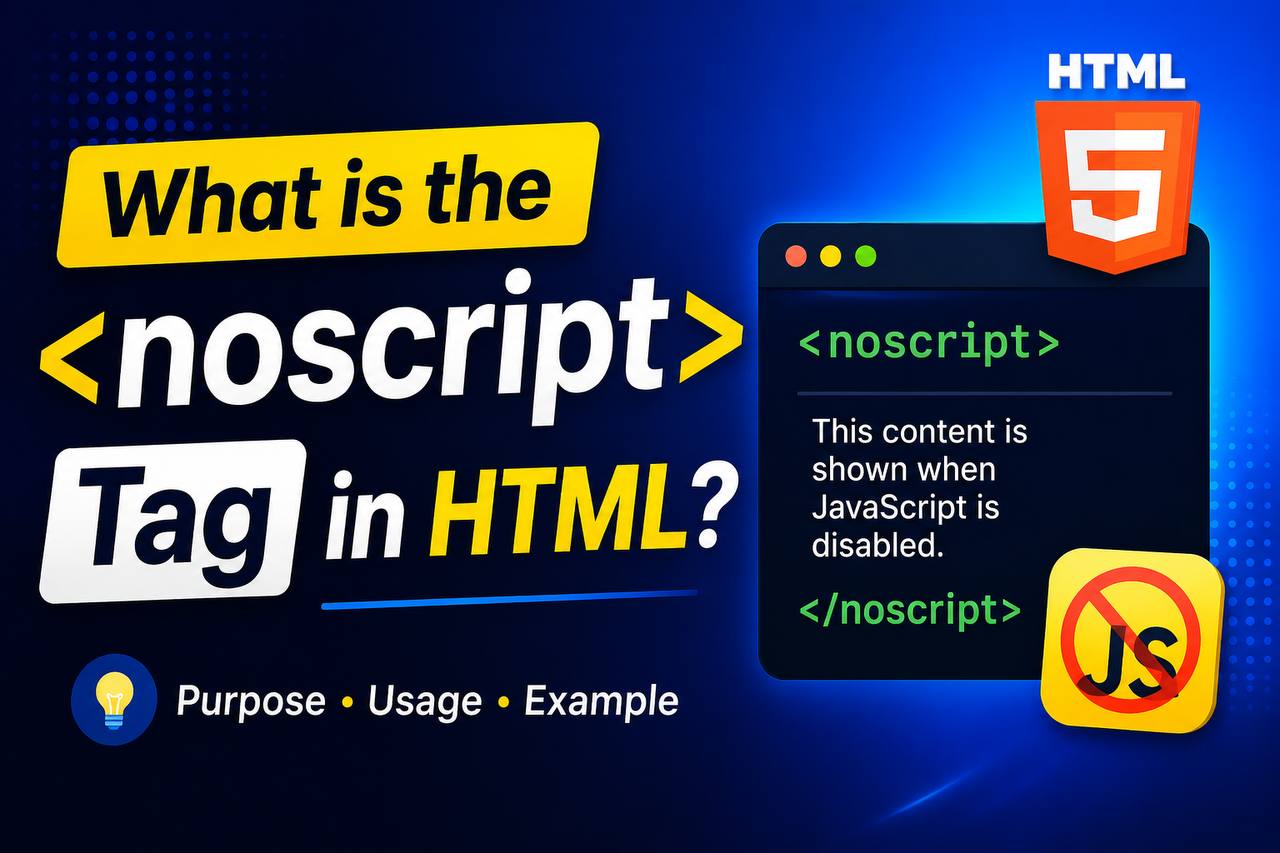
Modern websites often use JavaScript to create interactive features such as navigation menus, image sliders, online forms, shopping carts, and dynamic content. While JavaScript makes websites more powerful, not every visitor has JavaScript enabled in their browser. In some cases, JavaScript may be disabled by the user, blocked by browser settings, or fail to load because of a network problem.
This is where the HTML <noscript> tag becomes useful.
The <noscript> element allows you to display alternative content when JavaScript is unavailable or disabled. Instead of leaving visitors with a broken or blank page, you can provide helpful information, instructions, or alternative content.
Although many beginners rarely use this element in their first HTML projects, learning how it works is an important part of understanding modern web development and creating websites that work well for more users.
In this beginner-friendly guide, you’ll learn what the <noscript> tag is, how it works, when to use it, its benefits, common mistakes to avoid, and practical examples you can apply in your own HTML practice projects.
What is the HTML <noscript> Tag?
The <noscript> tag is an HTML element that displays content only when JavaScript is unavailable.
In simple words, it acts as a backup message for users whose browsers cannot run JavaScript.
Normally, if JavaScript is working correctly, the browser ignores everything inside the <noscript> element.
If JavaScript is disabled or unavailable, the browser displays the content inside the <noscript> tag instead.
Think of it as a safety net that helps visitors understand what is happening if part of your website depends on JavaScript.
Basic Syntax of the <noscript> Tag
Here is a simple example:
<noscript>
    <p>Please enable JavaScript to use all the features of this website.</p>
</noscript>
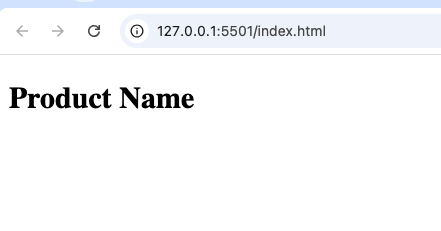
In this example, the message only appears if JavaScript is disabled.
Why is the <noscript> Tag Important?
Some beginners wonder why this tag still exists when most browsers support JavaScript.
The answer is simple.
Even though JavaScript is widely supported today, there are situations where it cannot run properly.
Examples include:
- Users manually disabling JavaScript.
- Company computers with strict security settings.
- Browser extensions blocking scripts.
- Slow or unstable internet connections.
- JavaScript files failing to load.
Without a <noscript> message, visitors might see an incomplete page and have no idea why something is missing.
How the <noscript> Tag Works
The <noscript> element works differently from most HTML elements.
Normally:
- JavaScript is enabled.
- The browser ignores everything inside
<noscript>.
If JavaScript is disabled:
- The browser displays the content inside
<noscript>. - Users receive alternative information or instructions.
This simple behavior makes it very useful for improving the user experience.
What Kind of Content Can Go Inside <noscript>?
The <noscript> element can contain many types of HTML content, including:
- Paragraphs
- Headings
- Images
- Links
- Lists
- Buttons
- Simple forms
- Navigation instructions
However, it should mainly contain helpful fallback content rather than replacing your entire webpage.
Real-Life Example
Imagine you build a weather website.
The weather forecast loads using JavaScript.
If JavaScript fails, visitors might only see an empty page.
Instead, a <noscript> message could say:
“Weather information requires JavaScript. Please enable JavaScript or try another browser.”
This immediately tells users why the content is missing.
Common Uses of the <noscript> Tag
Although the <noscript> element has a specific purpose, it can be useful in several situations.
1. Displaying JavaScript Warnings
This is the most common use.
You can inform visitors that some website features depend on JavaScript.
For example:
- Interactive forms
- Shopping carts
- Search tools
- Calculators
2. Providing Alternative Navigation
Some websites use JavaScript to create menus.
If JavaScript fails, a <noscript> section can provide basic navigation links.
This helps users continue browsing the website.
3. Offering Alternative Content
Instead of showing a blank page, you can display:
- Contact information
- Download links
- Static content
- Help pages
This improves usability.
4. Giving Troubleshooting Instructions
Sometimes the best solution is simply telling users what to do.
For example:
- Enable JavaScript.
- Refresh the page.
- Update the browser.
- Try another browser.
These instructions can save users from confusion.
When Should You Use the <noscript> Tag?
The <noscript> element is useful whenever your webpage depends heavily on JavaScript.
Examples include:
- Online stores
- Interactive dashboards
- Booking systems
- Web applications
- Learning platforms
- Online games
If JavaScript is essential for your website, adding a helpful <noscript> message is a good practice.
When You May Not Need <noscript>
Not every webpage requires this element.
For example, a simple HTML page containing:
- Headings
- Paragraphs
- Images
- Basic links
can function perfectly without JavaScript.
In those cases, a <noscript> tag may not be necessary.
Difference Between <noscript> and JavaScript
Beginners often confuse the two.
<noscript> | JavaScript |
|---|---|
| Displays fallback content | Adds interactivity |
| Works when JavaScript is unavailable | Requires JavaScript to run |
| Pure HTML element | Programming language |
The two work together rather than replacing each other.
Browser Support
The <noscript> tag has been supported for many years.
It works in all modern browsers, including:
- Google Chrome
- Mozilla Firefox
- Microsoft Edge
- Safari
- Opera
Because it is a standard HTML element, browser compatibility is excellent.
Accessibility Benefits
The <noscript> element improves accessibility by ensuring visitors still receive useful information if scripts fail.
Instead of leaving users confused, you can explain:
- Why content is missing.
- What features require JavaScript.
- What users can do next.
Good accessibility is about helping everyone use your website effectively.
SEO and the <noscript> Tag
The <noscript> element is not designed to improve search rankings directly.
However, it can contribute to a better user experience by preventing confusion when JavaScript-dependent content cannot load.
Some websites also use <noscript> to provide simple fallback content that remains readable even if scripts fail.
The goal should always be helping users rather than trying to influence search engines.
Practical Project Ideas Using <noscript>
You can practice using this tag in several beginner projects.
Personal Portfolio Website
Display a message explaining that interactive animations require JavaScript.
Online Store
Show a notice if the shopping cart depends on JavaScript.
Image Gallery
Explain that image sliders require JavaScript.
Calculator Project
Display a message if the calculator cannot function without scripts.
Weather Application
Provide instructions if weather data cannot load.
Contact Form
If form validation depends on JavaScript, display guidance for users whose browsers cannot run scripts.
Common Beginner Mistakes
Learning what not to do is just as important.
1. Placing Important Content Only Inside <noscript>
Remember that users with JavaScript enabled will never see the content inside <noscript>.
Do not place your main webpage content there.
2. Writing Unhelpful Messages
Avoid vague messages like:
“Something went wrong.”
Instead, explain the situation clearly.
For example:
“JavaScript is required to display this feature.”
3. Forgetting That Most Users Have JavaScript Enabled
Since most visitors use JavaScript-enabled browsers, your primary content should still work normally.
The <noscript> section is only a fallback.
4. Replacing Entire Pages
The <noscript> element is not meant to replace a complete website.
Its purpose is to provide helpful alternatives when necessary.
Best Practices for Using <noscript>
Here are some helpful guidelines.
Keep Messages Short
Users should quickly understand the issue.
Explain the Problem Clearly
Tell users why they are seeing the message.
Offer a Solution
Whenever possible, provide instructions.
For example:
- Enable JavaScript.
- Refresh the page.
- Use another browser.
Keep Fallback Content Useful
Even simple information can help visitors continue using your website.
Test Your Website
Try disabling JavaScript during development to ensure your <noscript> content appears correctly.
Real-World Examples
Many websites use <noscript> in subtle ways.
Examples include:
- Online banking websites
- Government portals
- Educational websites
- E-commerce stores
- Business dashboards
Most visitors never notice these messages because JavaScript usually works, but they become valuable when problems occur.
Why Every Beginner Should Learn <noscript>
The <noscript> tag teaches an important lesson about web development.
Not every visitor experiences your website in the same way.
Good developers think about:
- Browser compatibility
- Accessibility
- User experience
- Backup solutions
Learning the <noscript> element helps you build websites that are more reliable and user-friendly.
Relationship Between HTML and JavaScript
HTML provides the structure of a webpage.
JavaScript adds behavior and interactivity.
The <noscript> element connects these two by providing a fallback whenever JavaScript cannot perform its job.
Understanding this relationship helps beginners see how different web technologies work together.
The HTML <noscript> tag is a simple but valuable element that helps websites remain useful when JavaScript is unavailable. Instead of leaving visitors with broken features or blank sections, it allows you to display helpful fallback content, clear instructions, or alternative information.
Although many beginner projects may not require <noscript> immediately, learning how it works builds a stronger understanding of HTML and prepares you for creating more reliable websites in the future.
As you continue learning web development, remember that a good website should work well for as many users as possible. The <noscript> element is one small tool that helps achieve that goal by improving usability, accessibility, and the overall user experience.
The customer support is top notch. I had a small issue with my deposit and they sorted it out in minutes. Love using phtaya367.