
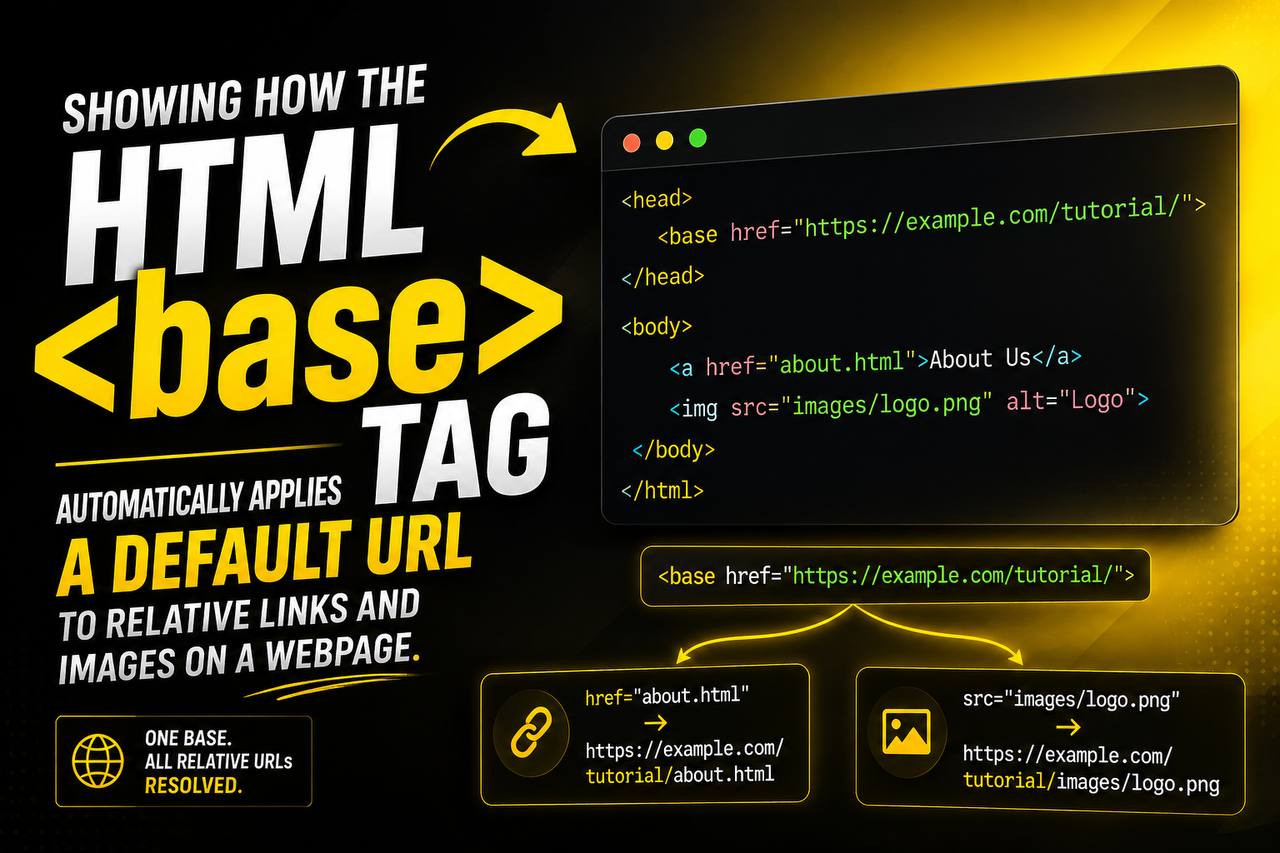
When learning HTML, most beginners focus on tags like <div>, <p>, <a>, <img>, and <form>. These tags are visible on webpages and directly affect what visitors see. However, some HTML elements work behind the scenes to help the browser understand how a webpage should behave. One of these important but often overlooked elements is the <base> tag.
The HTML <base> tag is a special element that defines a default URL or target for all relative links on a webpage. While it is not used on every website, understanding how it works can help you manage links more efficiently, especially on larger projects.
In this beginner-friendly guide, you’ll learn what the <base> tag is, why it exists, how it works, practical use cases, common mistakes, and best practices for using it correctly.
This article focuses mainly on clear explanations and real-world understanding rather than overwhelming you with lots of code.
What is the HTML <base> Tag?
The HTML <base> tag specifies a base URL for all relative URLs in a document.
In simple words, it tells the browser:
“Whenever you see a relative link on this page, start from this location.”
Normally, browsers use the current webpage’s address as the starting point for relative links.
The <base> tag allows you to override that behavior.
This can make managing links much easier in certain situations.
Basic Syntax of the <base> Tag
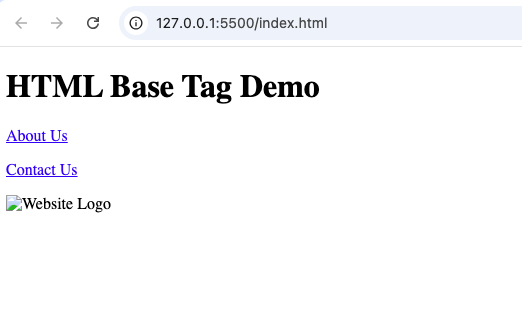
A simple <base> tag looks like this:
<!DOCTYPE html>
<html>
<head>
    <title>HTML Base Tag Example</title>

    <base href="https://example.com/">

</head>
<body>

    <h1>HTML Base Tag Demo</h1>

    <p>
        <a href="about.html">About Us</a>
    </p>

    <p>
        <a href="contact.html">Contact Us</a>
    </p>

    <img src="images/logo.png" alt="Website Logo">

</body>
</html>
This tells the browser to use that URL as the starting point for relative links.
The <base> tag is placed inside the <head> section of an HTML document.
Why Was the <base> Tag Created?
Imagine a website with hundreds of pages and links.
Without a base URL, every relative link must be carefully managed according to the page location.
This can become difficult as websites grow larger.
The <base> tag was created to simplify this process by providing a single reference point.
Instead of repeating the same path information over and over, developers can define it once.
Understanding Relative and Absolute URLs
Before fully understanding <base>, you need to know the difference between relative and absolute URLs.
Absolute URL
An absolute URL contains the complete web address.
Example:
https://example.com/products/item1
The browser knows exactly where to go.
Relative URL
A relative URL contains only part of the path.
Example:
products/item1.html
The browser must determine the starting point.
This is where the <base> tag can help.
How the <base> Tag Works
Think of the <base> tag as a home address.
Whenever the browser encounters a relative URL, it combines that URL with the base address.
For example:
Base URL:
https://kayleotech.com/
Relative URL:
about.html
The browser interprets it as:
https://kayleotech.com/about.html
This process happens automatically.
Where the <base> Tag Must Be Placed
The <base> element belongs inside the <head> section.
Example structure:
<head>

  <base href="https://example.com/">

</head>
Browsers read the base URL before processing links in the document.
This ensures all relative URLs use the correct starting point.
What Elements Are Affected by <base>?
The <base> tag can affect many elements that use URLs.
These include:
- Links (
<a>) - Images (
<img>) - Scripts (
<script>) - Stylesheets (
<link>) - Forms (
<form>) - Media files
Any relative URL may be influenced by the base URL.
Example: Navigation Links
Imagine a website with several navigation links:
- Home
- About
- Contact
- Services
Instead of writing full URLs repeatedly, a developer can define a base URL once.
This simplifies website maintenance.
Example: Image Paths
Suppose all images are stored in the same directory.
A base URL can help organize image references more efficiently.
Instead of repeatedly specifying long paths, the browser automatically uses the base location.
Benefits of Using the <base> Tag
The <base> tag offers several advantages.
1. Simplifies Link Management
Large websites often contain many links.
A base URL can reduce repetition and make updates easier.
2. Keeps Code Cleaner
Instead of writing long URLs everywhere, developers can use shorter relative paths.
This improves readability.
3. Helps with Project Organization
Projects with multiple folders can become easier to manage when a base URL is defined.
4. Reduces Repetitive Coding
Defining the starting location once eliminates the need to repeat it throughout the page.
The href Attribute
The most common attribute used with <base> is href.
The href attribute specifies the base URL.
Example:
<base href="https://example.com/">
This is the primary purpose of the <base> element.
The target Attribute
The <base> tag can also use a target attribute.
This defines the default target for hyperlinks.
Common target values include:
| Value | Meaning |
|---|---|
_self | Opens in same tab |
_blank | Opens in new tab |
_parent | Opens in parent frame |
_top | Opens in full window |
Example:
<base target="_blank">
Now all links open in a new tab by default.
Using Both Attributes Together
The href and target attributes can be combined.
Example:
<base href="https://example.com/" target="_blank">
This defines both the base URL and default link behavior.
Real-World Use Cases
Although not needed on every website, the <base> tag can be useful in certain scenarios.
1. Large Documentation Websites
Documentation projects often contain hundreds of linked pages.
Using a base URL can simplify navigation management.
2. Educational Websites
Online learning platforms frequently organize resources into structured directories.
The <base> element can help manage those paths.
3. Internal Company Portals
Large internal systems often contain numerous linked resources.
A base URL can reduce repetitive coding.
4. Static Website Projects
Static websites sometimes use a base URL to maintain consistent paths across pages.
HTML5 and the <base> Tag
The <base> element remains part of modern HTML standards.
It is supported in HTML5 and continues to work in current browsers.
Even though many modern frameworks manage URLs differently, understanding <base> remains valuable.
Browser Support
The <base> tag is supported by all major browsers, including:
- Chrome
- Firefox
- Safari
- Edge
- Opera
It has been supported for many years and is considered reliable.
Common Beginner Mistakes
Here are some mistakes beginners often make.
1. Using Multiple <base> Tags
Only one <base> element should typically be used in a document.
Browsers generally use the first one they encounter.
Adding multiple base tags can create confusion.
2. Forgetting It Affects All Relative URLs
Some beginners add a base URL and forget that it changes how every relative URL behaves.
This can lead to broken links if not planned carefully.
3. Placing It Outside <head>
The <base> element belongs inside the document’s <head> section.
Placing it elsewhere may cause unexpected behavior.
4. Using Incorrect Paths
An incorrect base URL can break navigation, images, and other resources across the entire page.
Always verify the URL carefully.
Difference Between <base> and Regular Links
Beginners sometimes confuse these concepts.
<base> | <a> |
|---|---|
| Defines a starting point | Creates a hyperlink |
| Affects multiple URLs | Affects one link |
Located in <head> | Located in page content |
| Works behind the scenes | Visible to users |
The <base> element helps browsers understand paths.
The <a> element creates clickable links.
SEO Considerations
The <base> tag does not directly improve search rankings.
However, it can help maintain proper URL structure.
Correctly functioning links contribute to:
- Better user experience
- Easier navigation
- Improved website maintenance
Broken links can negatively affect users, so proper URL management matters.
Accessibility Considerations
The <base> tag itself does not directly affect accessibility.
However, correctly functioning links help all users navigate your site effectively.
Good navigation contributes to a better experience for everyone.
When Should Beginners Use <base>?
For small projects, you may not need the <base> tag at all.
Examples include:
- Simple portfolios
- Personal blogs
- Small practice projects
As your projects become larger and more complex, understanding <base> becomes more useful.
Practice Project Ideas
To understand the <base> tag better, try these projects.
Multi-Page Website
Create several linked pages and experiment with a base URL.
Documentation Site
Build a mini documentation website with many internal links.
Resource Library
Organize files into folders and use a base URL to simplify references.
Educational Website
Create lessons with multiple linked resources and observe how the base URL affects navigation.
Best Practices for Using the <base> Tag
Here are some useful guidelines.
Use It Only When Needed
Not every project requires a base URL.
Avoid unnecessary complexity.
Place It Inside <head>
Always position the <base> element in the document head.
Test All Links
Verify that images, navigation, and resources still load correctly.
Keep URLs Organized
A clear folder structure makes base URLs easier to manage.
Document Your Decisions
If working on a team project, explain why a base URL is being used.
This helps prevent confusion later.
Why Understanding <base> Matters
Even though the <base> tag is not used as frequently as elements like <div> or <p>, it teaches an important concept:
How browsers resolve URLs.
Understanding this process helps developers:
- Build better websites
- Organize projects effectively
- Troubleshoot broken links
- Manage larger codebases
Learning less-common HTML elements expands your overall understanding of web development.
The HTML <base> tag is a powerful tool for defining a default URL or target for relative links on a webpage. While many beginner projects may not require it, understanding how it works provides valuable insight into how browsers handle navigation and resource paths.
By using the <base> element correctly, developers can simplify link management, reduce repetitive coding, and keep larger projects organized. Whether you’re building a documentation site, an educational platform, or a complex multi-page website, the <base> tag can become a useful part of your HTML toolkit.
As you continue learning HTML, understanding elements like <base> will help you move beyond basic webpage creation and gain a deeper understanding of how websites function behind the scenes.
Hey I know this is off topic but I was wondering if you knew of any widgets I could add to my blog that automatically tweet my
newest twitter updates. I’ve been looking for a plug-in like this for quite some time and was
hoping maybe you would have some experience with something like
this. Please let me know if you run into anything.
I truly enjoy reading your blog and I look forward to your new updates.