
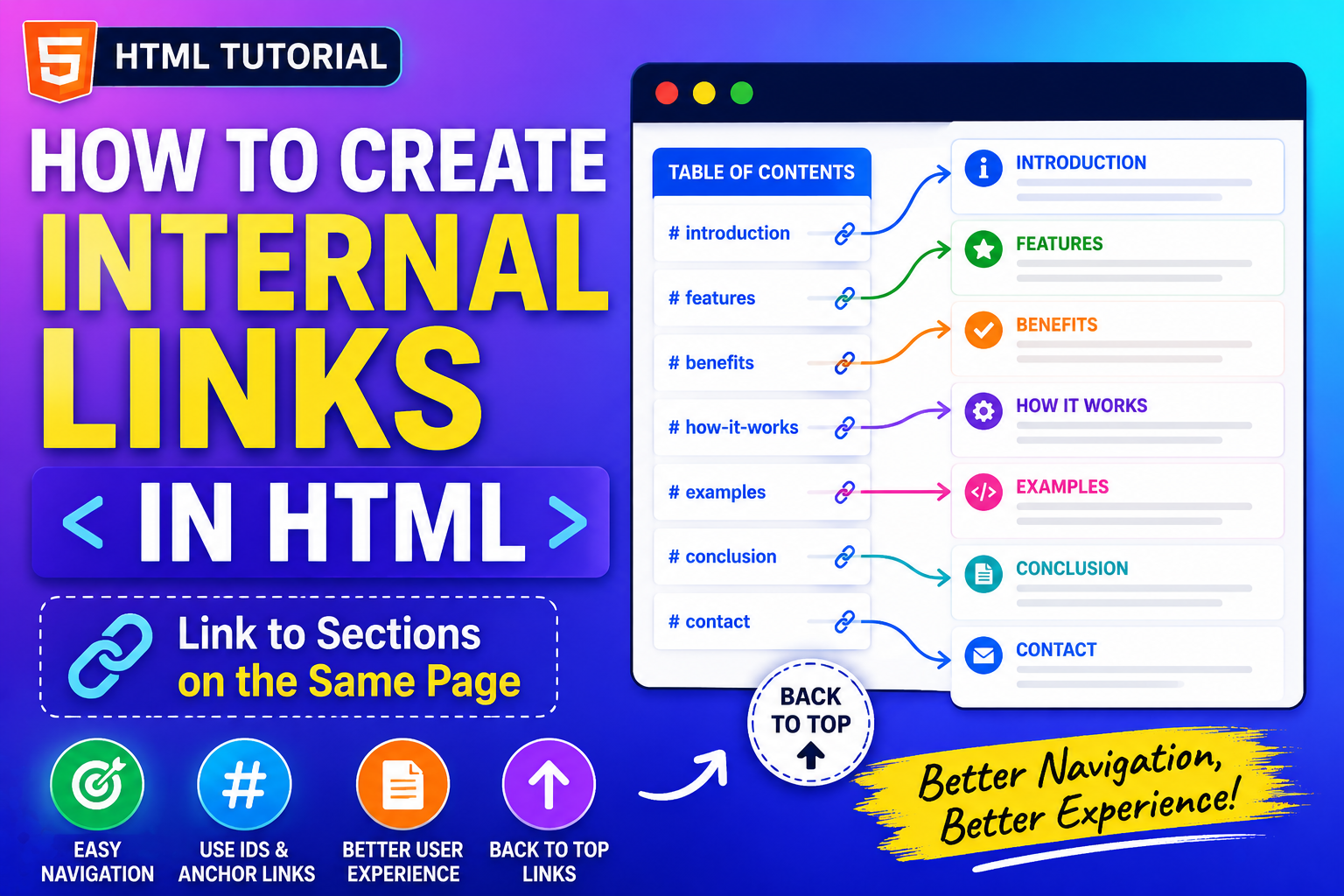
When building a website, one of the most useful features you can add is internal links. Internal links help users move around a webpage quickly without scrolling through large amounts of content. They improve navigation, make pages easier to use, and create a better experience for visitors.
If you’ve ever clicked a “Back to Top” button or selected a table of contents link that instantly jumped to a section lower on the page, you’ve already used an internal link.
The good news is that creating internal links in HTML is simple and beginner-friendly. Once you understand the basic concept, you can use internal links in blogs, tutorials, documentation websites, portfolios, and many other projects.
In this beginner guide, you’ll learn what internal links are, why they’re important, how they work, and how to use them effectively in your HTML projects.
What Are Internal Links in HTML?
An internal link is a link that points to another location within the same webpage.
Unlike regular hyperlinks that take users to another page or website, internal links help users jump to specific sections of the current page.
For example:
- Jump to a chapter in an article
- Go directly to a contact section
- Return to the top of a page
- Navigate through a long tutorial
Internal links make large webpages easier to explore.
Why Internal Links Are Important
Many websites contain long pages with lots of information.
Without internal links, users may need to scroll continuously to find what they need.
Internal links help by:
- Improving navigation
- Saving time
- Enhancing user experience
- Organizing content
- Making long articles easier to read
They are especially useful for educational websites and tutorials.
How Internal Links Work
Internal links work using two parts:
- A destination (an element with an ID)
- A link that points to that ID
Think of it like placing a bookmark inside a book.
The bookmark marks a location, and the link helps readers jump directly to it.
Basic Structure of an Internal Link
The process is simple.
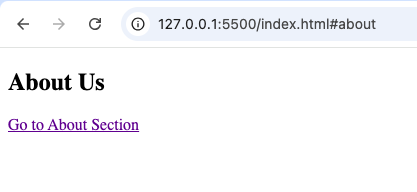
First, create an ID:
<h2 id="about">About Us</h2>
Then create a link:
<a href="#about">Go to About Section</a>
When users click the link, the page jumps to the section with the matching ID.
Understanding the ID Attribute
The ID attribute is the key to internal linking.
An ID acts like a unique label for an HTML element.
Example:
<section id="services">
This gives the section a unique name.
Links can then target that name.
Understanding the Hash Symbol (#)
You may notice the hash symbol (#) in internal links.
Example:
<a href="#services">
The hash tells the browser:
“Look for an element with this ID on the current page.”
Without the hash symbol, the link will not work correctly.
Common Uses of Internal Links
Internal links appear on many types of websites.
Let’s look at some practical examples.
1. Table of Contents
Many long articles include a table of contents at the top.
Example:
- Introduction
- Benefits
- Examples
- Conclusion
Clicking a topic jumps directly to that section.
This improves readability and navigation.
2. Back to Top Links
One of the most common internal links is the “Back to Top” button.
After reading a long page, users can quickly return to the beginning.
Example:
<a href="#top">Back to Top</a>
This is very useful on lengthy webpages.
3. FAQ Pages
Frequently Asked Questions pages often contain many questions.
Internal links allow users to jump directly to specific answers.
This saves time and improves usability.
4. Documentation Websites
Technical documentation often contains dozens of sections.
Internal links help users navigate quickly between topics.
Popular documentation websites rely heavily on internal navigation.
Internal Links vs External Links
Beginners often confuse internal and external links.
Here is the difference:
| Internal Links | External Links |
|---|---|
| Stay on same page | Go to another website |
| Use IDs | Use URLs |
| Improve navigation | Connect to external resources |
| Help organize content | Help reference outside content |
Both are useful, but they serve different purposes.
Internal Links vs Page-to-Page Links
There is another type of link many beginners encounter.
Example:
<a href="about.html">
This moves users to another page.
Internal links are different because they stay within the current page.
Example:
<a href="#contact">
This moves users within the same page.
Creating a Table of Contents
One of the best beginner projects involving internal links is a table of contents.
Imagine a tutorial containing:
- HTML Basics
- CSS Basics
- JavaScript Basics
- Final Project
Each section can have its own ID.
Users click a topic and jump directly to it.
This makes large tutorials easier to navigate.
Why Long Articles Benefit from Internal Links
Long articles can become difficult to browse.
Visitors may become frustrated if they must scroll endlessly.
Internal links solve this problem by providing shortcuts.
Benefits include:
- Faster navigation
- Better organization
- Improved user satisfaction
Many educational websites use internal links extensively.
Internal Links and User Experience
User experience (UX) refers to how easy and enjoyable a website is to use.
Internal links improve UX by:
- Reducing unnecessary scrolling
- Helping visitors find information quickly
- Creating clear navigation paths
Good navigation keeps visitors engaged.
Internal Links and Accessibility
Accessibility focuses on making websites usable for everyone.
Internal links can help users:
- Navigate more efficiently
- Access important sections quickly
- Understand page structure
When used properly, internal links contribute to a more accessible website.
Internal Links and SEO
Internal links can also support SEO.
Benefits include:
- Better content organization
- Improved user engagement
- Easier content discovery
Search engines appreciate websites that are well structured and easy to navigate.
Although internal page anchors do not directly boost rankings, they improve overall usability.
Real-World Example: Blog Articles
Many blogs include:
- Table of contents
- Jump links
- Back to top buttons
These internal links make articles easier to read.
Large tutorial websites often depend on them.
Real-World Example: Online Courses
Course pages may contain:
- Lesson 1
- Lesson 2
- Lesson 3
- Resources
Internal links help students move directly to the lesson they need.
Real-World Example: Landing Pages
Landing pages often contain sections like:
- Features
- Pricing
- Testimonials
- Contact
Navigation menus can use internal links to jump between sections smoothly.
Naming IDs Correctly
Choosing good IDs is important.
Good examples:
id="contact"
id="services"
id="pricing"
Bad examples:
id="123"
id="section1"
Descriptive IDs make code easier to understand and maintain.
Rules for IDs
Keep these rules in mind:
- IDs should be unique.
- Avoid spaces.
- Use descriptive names.
- Keep them simple.
Example:
id="about-us"
This is clear and readable.
Common Beginner Mistakes
Let’s look at some mistakes beginners often make.
1. Forgetting the Hash Symbol
Incorrect:
<a href="contact">
Correct:
<a href="#contact">
The hash symbol is required.
2. Using Duplicate IDs
Each ID should appear only once on a page.
Incorrect:
id="about"
id="about"
Duplicate IDs can create confusion.
3. Misspelling IDs
The ID and link must match exactly.
Example:
id="services"
Must match:
href="#services"
Even small spelling mistakes break the link.
4. Using Unclear ID Names
Descriptive names improve readability.
Avoid vague labels whenever possible.
Internal Links in Modern Websites
Modern websites use internal links for:
- Navigation menus
- Documentation
- FAQs
- Tutorials
- Dashboards
- Landing pages
They remain one of the simplest and most useful HTML features.
Combining Internal Links with Navigation Menus
Many navigation menus use internal links.
For example:
- Home
- About
- Services
- Contact
Clicking each menu item scrolls users directly to the corresponding section.
This approach is especially popular in single-page websites.
Internal Links and Mobile Devices
Internal links work extremely well on mobile devices.
Because mobile screens are smaller, scrolling through long content can become tiring.
Internal links help users jump directly where they need to go.
This improves mobile usability significantly.
Best Practices for Internal Links
Here are some helpful tips.
Use Clear Link Text
Users should know exactly where a link will take them.
Example:
- Go to Contact Section
is better than:
- Click Here
Keep Navigation Simple
Too many internal links can overwhelm users.
Focus on the most important sections.
Use Descriptive IDs
Meaningful IDs make maintenance easier.
Test Your Links
Always verify that links jump to the correct sections.
Consider User Needs
Think about which sections visitors may want to access quickly.
Practice Project Ideas
Here are some beginner-friendly projects.
Personal Portfolio
Create navigation links that jump to:
- About
- Skills
- Projects
- Contact
Tutorial Website
Build a table of contents linking to lessons.
FAQ Page
Allow users to jump directly to answers.
Product Landing Page
Create internal links for:
- Features
- Pricing
- Testimonials
Event Page
Link to:
- Schedule
- Speakers
- Registration
Internal links are one of the simplest yet most useful features in HTML. They help users navigate large pages efficiently by jumping directly to important sections without unnecessary scrolling.
Whether you’re creating a blog, portfolio, landing page, FAQ section, or tutorial website, internal links can greatly improve organization and user experience.
By understanding IDs, anchor links, and page navigation, you’ll be able to build websites that are easier to explore and more enjoyable to use.
As you continue learning HTML, internal links will become a valuable tool in your web development toolkit, helping you create cleaner, more user-friendly, and professional-looking webpages.
Way cool! Some extremely valid points! I appreciate you writing this article plus the rest of the site is
also really good.
Really loving the slot variety here. I hit a decent win yesterday and the withdrawal process was a breeze. jilijiliph is my new go-to for daily fun.