
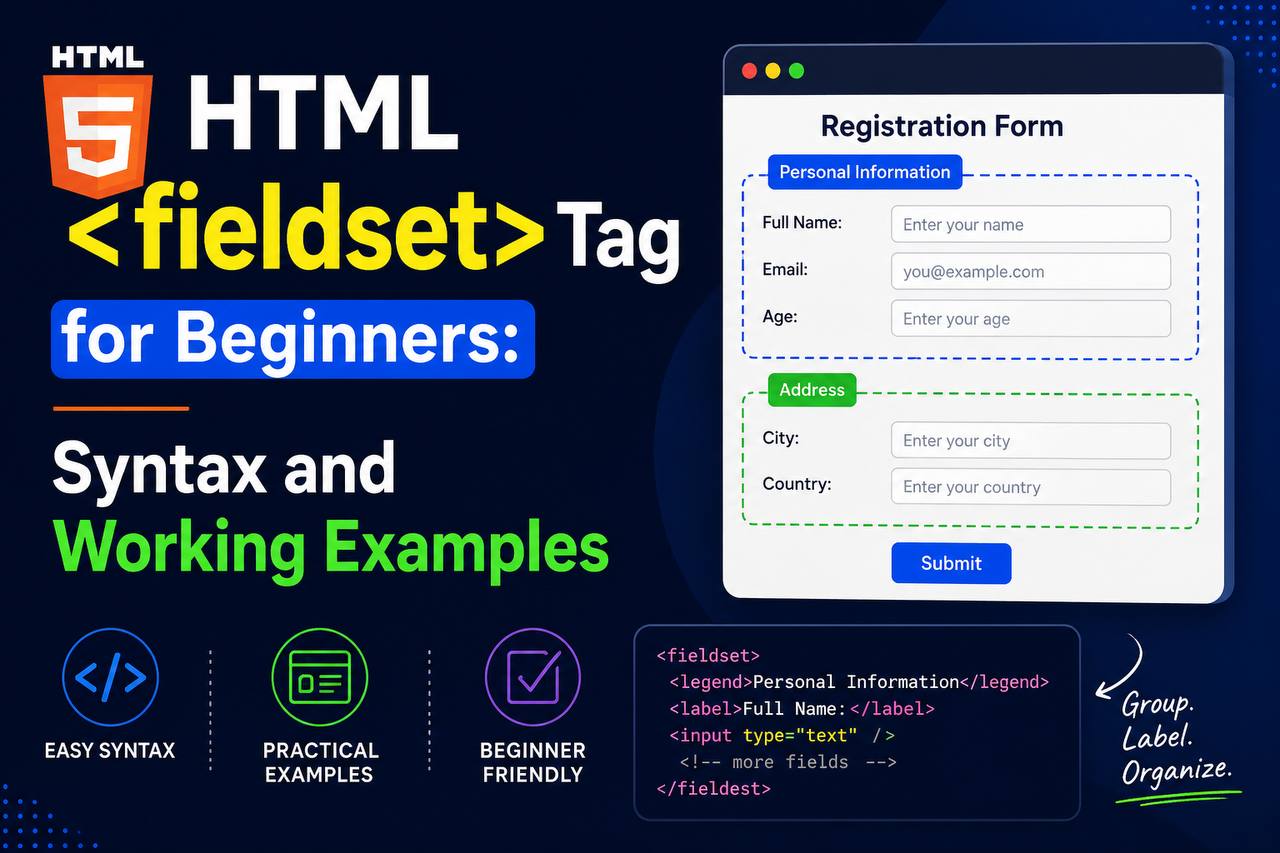
When building forms in HTML, it is common to have multiple pieces of information that belong together. For example, a registration form may ask for personal information, contact details, and account preferences. If all these fields are placed on the page without any organization, the form can quickly become confusing.
This is where the HTML <fieldset> tag becomes useful.
The <fieldset> element helps group related form controls together, making forms easier to read, understand, and complete. It also improves accessibility and creates a more organized user experience.
Although many beginners focus on form elements such as <input>, <label>, and <button>, learning how to use <fieldset> properly can make your forms look more professional and easier to manage.
In this beginner-friendly guide, you’ll learn what the <fieldset> tag is, how it works, why it’s important, and how to use it effectively in your HTML projects.
What Is the HTML <fieldset> Tag?
The <fieldset> tag is used to group related form elements together inside a form.
Think of it as a container that creates a logical section within a form.
For example, if you have a registration form, you might separate it into sections such as:
- Personal Information
- Contact Information
- Account Details
Each section can be wrapped inside its own <fieldset> element.
This helps users understand which fields belong together.
What Is the HTML <fieldset> Tag?
The <fieldset> tag is used to group related form elements together inside a form.
Think of it as a container that creates a logical section within a form.
For example, if you have a registration form, you might separate it into sections such as:
- Personal Information
- Contact Information
- Account Details
Each section can be wrapped inside its own <fieldset> element.
This helps users understand which fields belong together.
Why the <fieldset> Tag Is Important
Forms can become difficult to understand when many fields are displayed at once.
The <fieldset> element helps by:
- Organizing related information
- Improving form readability
- Making forms easier to complete
- Helping screen readers understand form structure
- Creating a cleaner visual layout
Without grouping, long forms can feel overwhelming.
Basic Syntax of the <fieldset> Tag
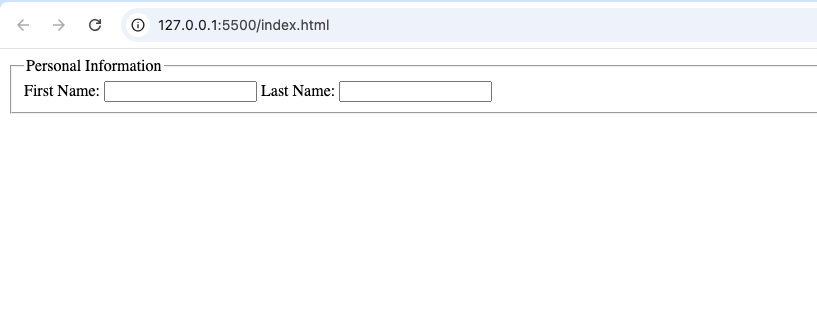
A simple example looks like this:
<fieldset>
  <legend>Personal Information</legend>

  <label>First Name:</label>
  <input type="text">

  <label>Last Name:</label>
  <input type="text">
</fieldset>
In this example:
<fieldset>creates the group.<legend>provides a title for the group.- The form fields inside belong to that section.
Understanding the <legend> Tag
The <legend> element is commonly used with <fieldset>.
It provides a caption or title for the grouped fields.
Think of the legend as a heading that explains what the section contains.
Examples include:
- Personal Information
- Shipping Address
- Billing Information
- Contact Details
Without a legend, users may not immediately understand the purpose of the grouped fields.
How the <fieldset> Tag Works
The browser automatically groups the fields contained inside a fieldset.
Most browsers display a visible border around the grouped elements.
This border helps users see that the fields belong together.
The exact appearance depends on the browser and any CSS styles applied.
Real-World Example
Imagine an online registration form.
The form asks for:
- First name
- Last name
- Email address
- Phone number
- Username
- Password
Instead of placing all fields together, you can organize them like this:
Personal Information
- First name
- Last name
Contact Information
- Email address
- Phone number
Account Details
- Username
- Password
Using separate fieldsets makes the form much easier to understand.
Benefits of Using <fieldset>
There are several advantages to using the fieldset element.
2. Improved User Experience
Large forms can feel intimidating.
Breaking forms into sections reduces confusion and improves usability.
Users can focus on one section at a time.
3. Better Accessibility
Accessibility is one of the biggest benefits of using <fieldset>.
Screen readers can identify grouped form controls and communicate their relationship to users.
This helps people with disabilities navigate forms more effectively.
4. Easier Maintenance
When form fields are grouped logically, updating the form becomes easier.
Developers can quickly find and modify specific sections.
Common Places Where <fieldset> Is Used
The fieldset tag appears in many different types of forms.
Registration Forms
Examples:
- Personal details
- Login information
- Preferences
Checkout Forms
Examples:
- Billing address
- Shipping address
- Payment information
Survey Forms
Examples:
- Personal information
- Questionnaire sections
- Feedback categories
Job Application Forms
Examples:
- Applicant information
- Work experience
- Education history
Event Registration Forms
Examples:
- Attendee details
- Ticket options
- Contact information
Difference Between <fieldset> and <div>
Beginners sometimes wonder why they should use a fieldset instead of a div.
Here is the difference:
<fieldset> | <div> |
|---|---|
| Designed for forms | General-purpose container |
| Semantic meaning | No form-related meaning |
| Improves accessibility | Mainly used for layout |
| Groups related controls | Groups any content |
A div can hold form elements, but it does not provide the same semantic meaning as a fieldset.
Difference Between <fieldset> and <section>
These elements also serve different purposes.
<fieldset> | <section> |
|---|---|
| Used in forms | Used for general content |
| Groups form controls | Groups webpage content |
| Associated with user input | Associated with content structure |
Use fieldsets for forms and sections for page content.
Nesting Fieldsets
In some complex forms, developers may use multiple fieldsets.
For example:
Main Form
- Personal Information Fieldset
- Contact Information Fieldset
- Preferences Fieldset
This creates a highly organized form structure.
However, excessive nesting should be avoided because it can make forms harder to understand.
Styling the <fieldset> Tag
The default browser style often includes:
- A border
- Padding
- A visible legend
However, CSS can completely customize the appearance.
Developers often change:
- Border color
- Border width
- Background color
- Padding
- Margins
This allows fieldsets to match the overall website design.
Why Semantic HTML Matters
The <fieldset> element is considered semantic HTML.
Semantic elements describe the purpose of their content.
Examples include:
<header><main><article><section><footer><fieldset>
Using semantic elements improves:
- Accessibility
- Code readability
- Website structure
- Developer collaboration
Accessibility Benefits in Detail
Accessibility is one reason why the fieldset element remains important.
When screen readers encounter a fieldset:
- They recognize a group of related controls.
- They announce the legend.
- Users understand the context of the fields.
Without proper grouping, screen reader users may have difficulty understanding how form controls relate to each other.
HTML5 and the <fieldset> Element
The <fieldset> tag existed before HTML5 and continues to be supported in modern HTML.
It remains one of the best ways to organize form controls.
Many newer HTML features have appeared over the years, but fieldset still plays an important role in form design.
Browser Support
The <fieldset> tag is supported by all modern browsers, including:
- Chrome
- Firefox
- Safari
- Edge
- Opera
It has been supported for many years and is considered a stable HTML element.
Common Beginner Mistakes
Here are some mistakes beginners often make.
1. Using Fieldsets for Non-Form Content
The fieldset element is specifically designed for forms.
It should not be used as a general layout container.
2. Forgetting the Legend
Although a fieldset can work without a legend, adding one usually improves clarity.
Users should understand what the group contains.
3. Overusing Fieldsets
Not every small group of inputs needs its own fieldset.
Use them when there is a meaningful relationship between fields.
4. Replacing Fieldsets with Divs
Many beginners use divs for everything.
While divs are useful, fieldsets provide additional meaning and accessibility benefits.
Example Scenarios for Practice
Here are some beginner-friendly projects where fieldsets can be used.
Student Registration Form
Fieldsets:
- Student Information
- Contact Details
- Course Selection
Online Store Checkout Form
Fieldsets:
- Billing Address
- Shipping Address
- Payment Information
Survey Form
Fieldsets:
- Personal Details
- Survey Questions
- Additional Comments
Membership Signup Form
Fieldsets:
- Account Information
- Contact Information
- Preferences
Event Registration Form
Fieldsets:
- Attendee Information
- Ticket Options
- Emergency Contact
Best Practices for Using <fieldset>
Follow these tips when working with fieldsets.
Group Related Fields Only
Only place fields together when they are logically related.
Group Related Fields Only
Only place fields together when they are logically related.
Use Clear Legends
Choose descriptive legends that explain the purpose of the section.
Examples:
- Contact Information
- Billing Address
- Account Settings
Keep Forms Organized
Avoid placing too many unrelated fields in the same fieldset.
Prioritize Accessibility
Remember that fieldsets help users who rely on screen readers.
Combine with Labels
Always use proper labels alongside form controls.
This creates a better experience for all users.
Why Every Beginner Should Learn <fieldset>
Many beginners focus on flashy website features and overlook form structure.
However, forms are one of the most important parts of web development.
Whether you’re building:
- Contact forms
- Registration forms
- Surveys
- Checkout pages
You’ll likely need to organize user input.
The <fieldset> tag provides a simple and effective way to do this.
Learning it early helps you build forms that are cleaner, more accessible, and easier to maintain.
The HTML <fieldset> tag is a valuable tool for organizing forms and improving user experience. By grouping related form controls together, it makes forms easier to understand, navigate, and complete.
Although it is sometimes overlooked by beginners, the fieldset element plays an important role in accessibility, readability, and semantic HTML.
Whether you’re building a simple contact form or a complex registration system, using fieldsets can make your forms more professional and user-friendly.
As you continue learning HTML, make it a habit to think about structure and organization. The <fieldset> element is one of the simplest ways to create forms that are both practical and easy to use.
Hey, I played the numbers, and now I´m here to speak about 51gamelottery! Nothing mind-blowing, but worth a look. I’d say give it a shot to find your lucky number here: 51gamelottery