
The <audio> tag in HTML is used to embed sound directly into a web page. It allows you to play audio files like music, voice recordings, or sound effects without needing external plugins. Everything runs in the browser.
This tag is part of HTML5, which means modern browsers support it natively. Before HTML5, developers had to rely on tools like Flash to play audio. Now, it’s much simpler and cleaner.
In this guide, you will learn what the <audio> tag is, how it works, its attributes, supported formats, and how to use it properly in real projects.
Basic Syntax of the <audio> Tag
Here is the simplest way to use the <audio> tag:
<audio src="audio-file.mp3" controls></audio>
What this means:
src→ the path to your audio filecontrols→ adds play, pause, and volume buttons
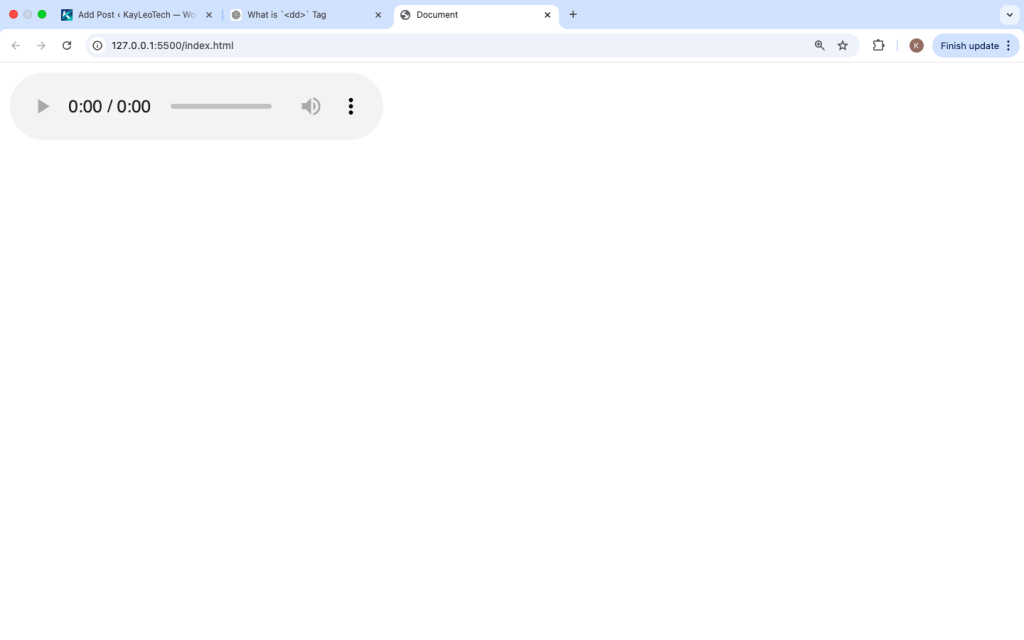
When you open this in a browser, you will see a small audio player.
Example with Multiple Formats
Different browsers support different audio formats. To make sure your audio works everywhere, you can provide multiple sources using the <source> tag.
<audio controls>
  <source src="audio-file.mp3" type="audio/mpeg">
  <source src="audio-file.ogg" type="audio/ogg">
  Your browser does not support the audio element.
</audio>
Why this is important:
If one format is not supported, the browser tries the next one.
Common Audio Formats
Here are the most commonly used formats:
- MP3 (audio/mpeg) → works in almost all browsers
- WAV (audio/wav) → high quality but large size
- OGG (audio/ogg) → open-source format, good compression
Best practice:
Always include MP3 and OGG for maximum compatibility.
Important Attributes of <audio>
The <audio> tag comes with several useful attributes.
1. controls
<audio src="song.mp3" controls></audio>
This shows default player controls.
2. autoplay
<audio src="song.mp3" autoplay></audio>
Audio starts playing automatically when the page loads.
⚠️ Note: Most browsers block autoplay unless muted.
3. loop
<audio src="song.mp3" controls loop></audio>
Audio will repeat continuously.
4. muted
<audio src="song.mp3" controls muted></audio>
Audio starts with no sound.
5. preload
<audio src="song.mp3" preload="auto"></audio>
This tells the browser how to load the audio.
Options:
auto→ load full audiometadata→ load only info (duration, etc.)none→ do not preload
How the <audio> Tag Works
When a browser loads a page with an <audio> tag:
- It checks the file source
- It loads the audio file
- It displays controls (if added)
- It allows the user to play the audio
If multiple <source> tags are used, the browser selects the first supported format.
Adding Audio with JavaScript
You can control audio using JavaScript.
Example:
<audio id=”myAudio” src=”song.mp3″></audio>
<button onclick=”playAudio()”>Play</button>
<button onclick=”pauseAudio()”>Pause</button>
<script>
var audio = document.getElementById(“myAudio”);
function playAudio() {
audio.play();
}
function pauseAudio() {
audio.pause();
}
</script>
What this does:
- Plays audio when button is clicked
- Pauses audio when needed
Custom Audio Controls
Instead of using default controls, you can build your own UI.
Example:
<audio id=”audioPlayer” src=”song.mp3″></audio>
<button onclick=”document.getElementById(‘audioPlayer’).play()”>Play</button>
<button onclick=”document.getElementById(‘audioPlayer’).pause()”>Pause</button>
This gives you full control over design and layout.
Accessibility Tips
To make your audio accessible:
- Always include fallback text
- Provide transcripts for spoken content
- Use clear labels for controls
Example:
<audio controls>
<source src=”speech.mp3″ type=”audio/mpeg”>
Your browser does not support audio playback.
</audio>
<p>Transcript: Welcome to this audio lesson…</p>
Browser Support
The <audio> tag works in all modern browsers:
- Chrome
- Firefox
- Safari
- Edge
Older browsers may not support it, which is why fallback text is important.
When to Use the <audio> Tag
Use the <audio> tag when you want to:
- Add music to a webpage
- Include podcasts
- Play sound effects
- Add voice instructions or narration
When NOT to Use It
Avoid using the <audio> tag when:
- You need advanced streaming features
- You are building a large music platform
- You need DRM (Digital Rights Management)
In those cases, use more advanced tools or APIs.
Common Mistakes to Avoid
1. Using only one format
<audio src="file.wav" controls></audio>
This may not work in all browsers.
✔ Fix: Add multiple formats.
2. Forgetting controls
<audio src="song.mp3"></audio>
Users cannot play audio.
✔ Fix: Add controls
3. Autoplay misuse
Auto-playing audio can annoy users.
✔ Fix: Use autoplay only when necessary and consider muted playback.
Best Practices
- Use compressed formats like MP3 for faster loading
- Provide multiple formats
- Always include controls unless custom UI is built
- Avoid autoplay unless needed
- Keep file sizes small
Real-Life Example
Here is a complete example:
<!DOCTYPE html>
<html>
<head>
  <title>Audio Example</title>
</head>
<body>

<h2>Listen to this audio</h2>

<audio controls>
  <source src="music.mp3" type="audio/mpeg">
  <source src="music.ogg" type="audio/ogg">
  Your browser does not support the audio element.
</audio>

</body>
</html>
This is clean, simple, and works in most browsers.
Difference Between <audio> and <video>
Both tags are similar, but:
| Feature | <audio> | <video> |
|---|---|---|
| Media type | Sound only | Sound + visuals |
| File size | Smaller | Larger |
| Use case | Music, podcasts | Movies, tutorials |
SEO and Performance Tips
- Use descriptive file names (e.g.,
podcast-episode1.mp3) - Compress audio files
- Avoid large files that slow down your site
- Add text content (like transcripts) for SEO
The <audio> tag is a simple and powerful way to add sound to a web page. It removes the need for plugins and works across modern browsers.
By understanding how to use its attributes, provide multiple formats, and follow best practices, you can create a smooth audio experience for users.
Whether you are building a blog, tutorial site, or music page, the <audio> tag is an essential tool in modern web development.