
Fonts play a big role in how a website looks and feels. The default fonts available in browsers are limited, and many websites need more attractive typography to match their design style.
That is where web fonts come in.
One of the most popular ways to use custom fonts on a website is by importing fonts from the free font library provided by Google. These fonts are hosted online and can be added to any website using simple code.
This guide explains how to import and use web fonts step by step, even if you are completely new to CSS and HTML.
What Does “Importing a Font” Mean?
Importing a font means loading a font from an external source so your website can use it.
Instead of installing the font on your computer, the browser downloads it automatically when someone visits your page.
That means:
- visitors see the correct typography
- no manual font installation needed
- design looks consistent everywhere
This is called a web font.
How Font Loading Works
Here is what happens behind the scenes:
- Your webpage requests a font file
- Browser downloads the font from a server
- Browser applies the font to text
This process happens automatically when you add the correct code.
Step 1 — Choose a Font
First, you need to choose a font from the online font library.
When selecting a font, you usually choose:
- font family (the style name)
- font weight (thin, regular, bold, etc.)
- font styles (italic or normal)
Different weights allow flexible typography design.
Step 2 — Copy the Font Embed Code
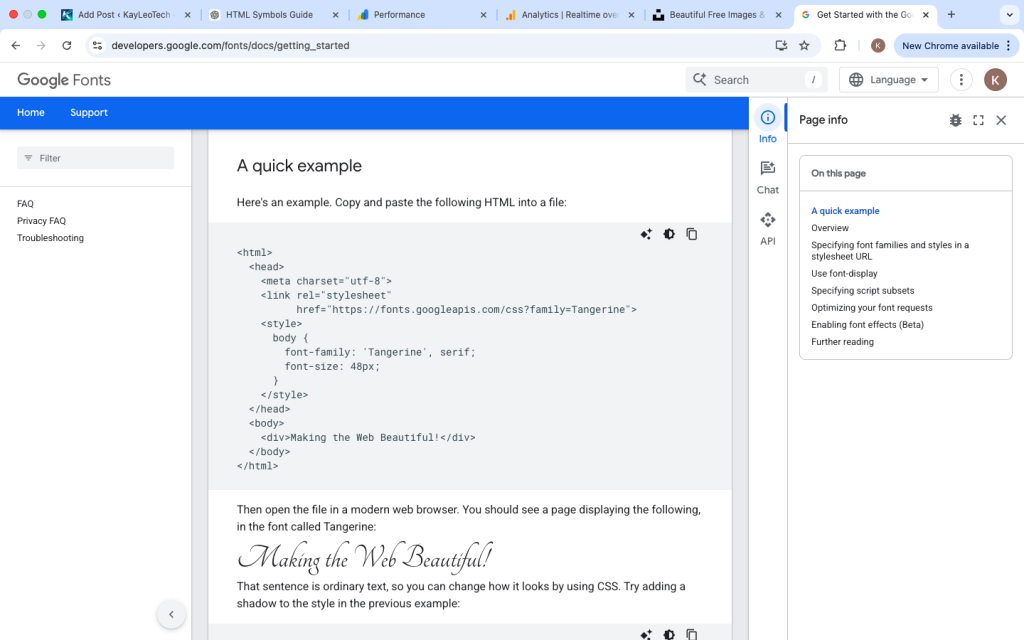
After choosing a font, you will be given code to connect that font to your website.
There are two common ways to import fonts:
- HTML
<link>method - CSS
@importmethod
Both load the same font. The difference is where the code is placed.
Method 1 — Import Font Using HTML Link (Recommended)
This is the most common and fastest method.
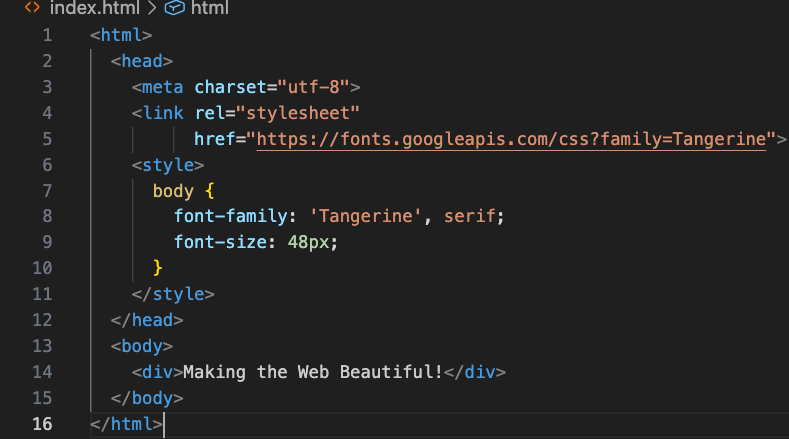
You paste a <link> tag inside the <head> section of your HTML file.
Example:

This tells the browser to load the font before displaying content.
Where to Place the Link
Inside your HTML file:

The <head> section loads resources like stylesheets and fonts.
Step 3 — Apply the Font in CSS
Importing the font does not automatically apply it.
You must tell CSS where to use it.
Use the font-family property.
Example:

Now all text uses the new font.
Why a Backup Font Is Included
You will see a second font name after the main font.
Example:

This is a fallback font.
If the custom font fails to load, the browser uses the backup.
Always include fallback fonts.
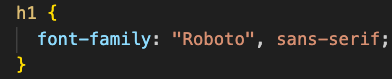
Applying Font to Specific Elements
You do not need to apply fonts to the entire page.
Example — headings only:
Example — paragraph text:

Different fonts can be used for different sections.
Method 2 — Import Font Using CSS @import
Another way to load fonts is directly inside your CSS file.
Example:
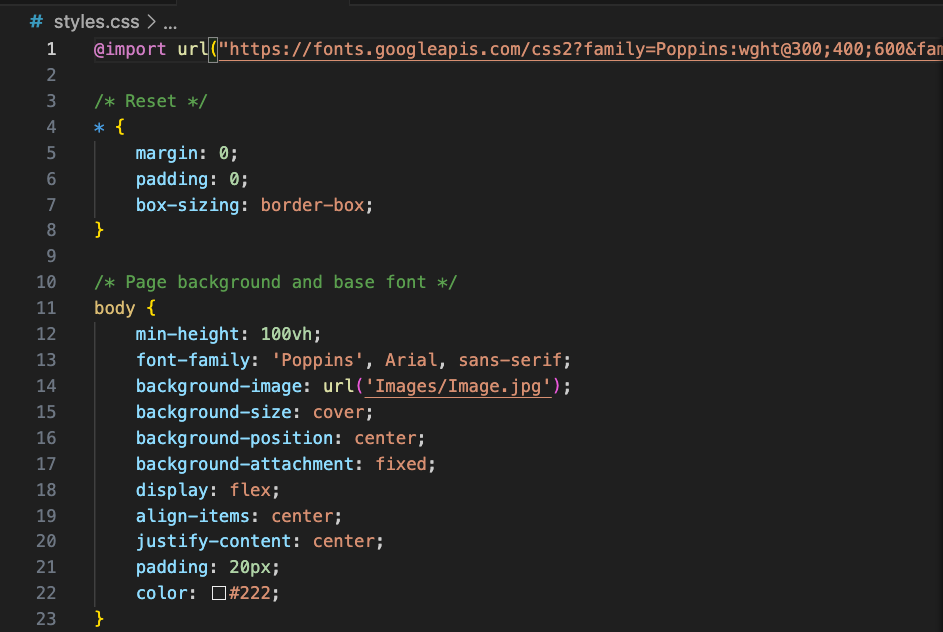
This line must be placed at the top of your CSS file.
After that, you use font-family normally.
Which Import Method Is Better?
Both methods work, but HTML link is usually preferred.
Why?
- loads faster
- cleaner performance
- recommended for production sites
CSS import is simpler but slightly slower because browser loads CSS first, then loads font.
Step 4 — Using Multiple Font Weights
Fonts often include multiple weights like:
- 300 light
- 400 regular
- 700 bold
You must select these weights when generating embed code.
Then you can use them in CSS.
Example:
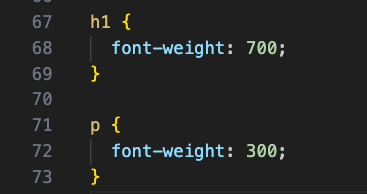
This creates visual hierarchy.
Step 5 — Combining Multiple Fonts
Many websites use more than one font.
Example:
- heading font
- body font
Example CSS:
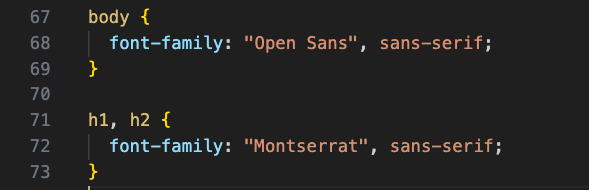
This improves visual contrast.
Step 6 — Testing Font Loading
After importing, confirm the font works.
Check:
- font appearance changed
- browser inspector shows new font
- text rendering matches preview
If font does not appear, troubleshoot.
Common Beginner Problems
Font Not Changing
Possible causes:
- wrong font name in CSS
- missing link tag
- CSS not connected
- page not refreshed
Font Name Spelling Error
Font names must match exactly.
Example:
Wrong:

Correct

mport Code Placed Incorrectly
HTML link must be inside <head>.
CSS @import must be first line in stylesheet.
Internet Connection Required
Web fonts load online.
No connection → font may not load.
Fallback font will display instead
Performance Tips When Using Web Fonts
Loading many fonts can slow page speed.
Best practice:
- use only needed font weights
- limit number of font families
- avoid unnecessary styles
Fewer fonts = faster website.
Understanding Font Display Behavior
When fonts load slowly, browsers may temporarily show fallback text.
This is normal behavior.
Some font settings control how text appears during loading, but beginners usually do not need to adjust this.
Best Practices for Typography
Choose readable fonts.
Maintain contrast between text and background.
Use consistent font hierarchy.
Avoid too many font styles.
Typography should improve readability, not distract.
Real Example — Full Setup
HTML:

CSS
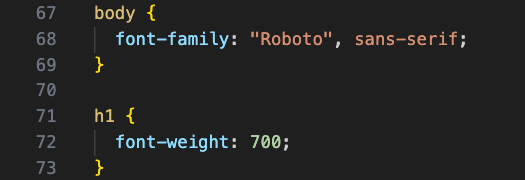
Result:
- custom font loads
- headings bold
- clean typography
Practice Exercise
Try this simple project:
- import one font
- apply to body
- import second font
- apply to headings
- adjust weights
Observe how design changes.
Practice builds confidence.
Why Custom Fonts Matter
Fonts influence:
- brand identity
- readability
- user experience
- professional appearance
Typography is a major design element.
Good font choice improves entire website feel.
Key Concepts to Remember
Import loads font from external server.
HTML link is fastest method.
CSS font-family applies font.
Always include fallback fonts.
Limit number of font weights.
These five ideas cover most real usage.
Importing web fonts allows you to move beyond default browser typography and create visually appealing websites with consistent design.
The process is simple:
Choose a font.
Copy embed code.
Import it into your page.
Apply it with CSS.
You can load fonts using an HTML link or CSS import, then style specific elements using font-family and font-weight.
Most problems come from incorrect placement of import code, spelling errors, or misunderstanding how fonts are applied.
Once you understand this process, adding custom typography becomes a quick and reliable part of your design workflow.
Web fonts help transform plain pages into polished, professional interfaces that match modern web design standards.