
The HTML <head> tag is one of the most important parts of a web page, even though it is not visible to users. It contains information about the page that helps browsers, search engines, and other tools understand how the page should work.
Many beginners focus only on what appears inside the <body> tag, but the <head> tag controls things like the page title, character encoding, responsive layout, SEO metadata, and linked files like CSS.
This article explains the HTML <head> tag in a simple and direct way, with clear examples and practical usage.
What Is the HTML <head> Tag?
The <head> tag is a container for metadata. Metadata is information about the document, not the visible content.
The <head> tag sits between the <html> tag and the <body> tag.
Basic structure:
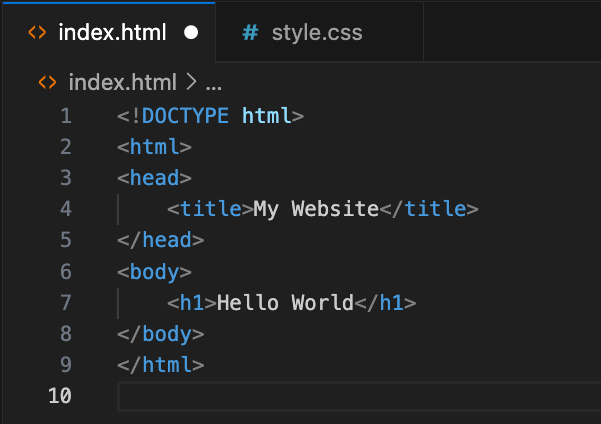
Everything inside <head> helps the browser understand how to display and process the page.
Why the <head> Tag Is Important
The <head> tag is important because it controls:
- Page title shown in browser tabs
- Character encoding
- Mobile responsiveness
- SEO and search visibility
- Linking CSS and fonts
- Browser behavior and performance
Without a proper <head> tag, a website may still load, but it may not work correctly or rank well in search engines.
Common Elements Inside the <head> Tag
The <head> tag can contain several elements. Not all are required, but some are strongly recommended.
Common elements include:
<title><meta><link><style><script><base>
Each one has a specific role.
The <title> Tag
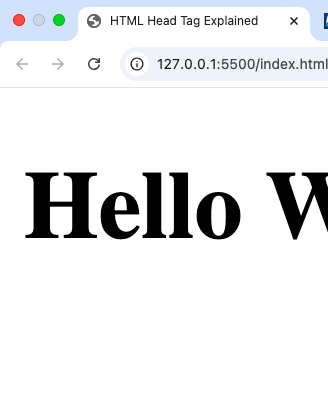
The <title> tag defines the title of the page.
Example:

This title appears:
- In the browser tab
- In search engine results
- When the page is bookmarked
Best practices:
- Keep it short and clear
- Describe the page content
- Avoid repeating the same title on multiple pages
The <meta> Tag
The <meta> tag provides metadata about the document. It does not have a closing tag.
Character Encoding
This is one of the most important meta tags.

It tells the browser how to read text characters. UTF-8 supports almost all languages and symbols.
Always place this near the top of the <head> tag.
Viewport Meta Tag
This tag controls how the page looks on mobile devices.

Without this tag, websites may appear zoomed out or broken on mobile screens.
This tag is required for responsive design.
Description Meta Tag
The description meta tag is used mainly for SEO.

Search engines may display this text under your page title in search results.
Tips:
- Write a clear summary
- Keep it around 150–160 characters
- Make it readable for humans
Keywords Meta Tag (Optional)

Most search engines no longer use this tag heavily, but it does not break anything if included.
The <link> Tag
The <link> tag is used to link external resources, mostly CSS files.
Example:

This tells the browser to load an external CSS file.
Other uses of <link>:
- Linking fonts
- Linking icons
- Preloading resources
Favicon Using <link>
A favicon is the small icon shown in the browser tab.

This improves branding and recognition.
The <style> Tag
The <style> tag allows you to write CSS directly inside the <head> tag.
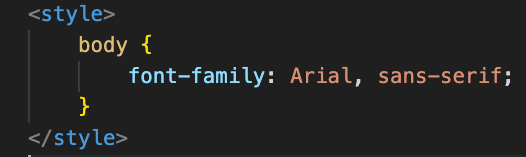
This is useful for:
- Small projects
- Quick testing
- Single-page layouts
For large websites, external CSS files are better.
The <script> Tag in the <head>
The <script> tag is used to add JavaScript.
Example:

Scripts in the <head> load before the page content.
This can:
- Block page rendering
- Slow down page load
To avoid this, use:

The defer attribute tells the browser to load the script after HTML is parsed.
Order of Elements in the <head> Tag
While browsers are flexible, a good order helps readability.
Recommended order:
<meta charset><meta viewport><title><meta description><link>(CSS, icons)<style><script>
This makes your code clean and predictable.
Example of a Complete <head> Tag
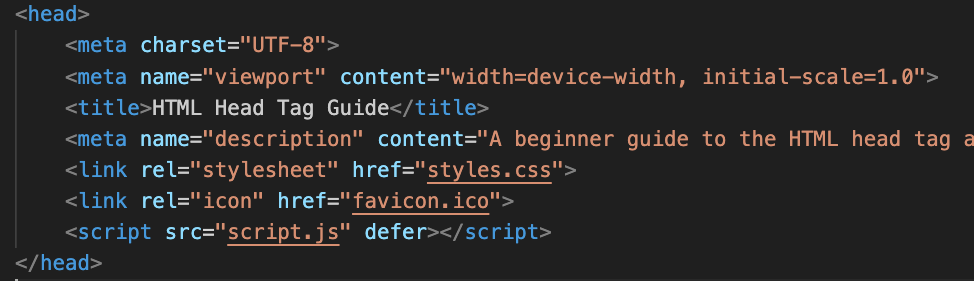
This setup works well for most websites.
Common Mistakes to Avoid
- Forgetting
<meta charset> - Missing viewport meta tag
- Using too many inline styles
- Blocking scripts without
defer - Duplicating titles across pages
- Placing content tags inside
<head>
Only metadata and links should be inside <head>.
<head> Tag and SEO
Search engines use the <head> tag to understand your page.
Important SEO elements:
<title><meta description>- Proper encoding
- Structured linking
A clean <head> tag improves:
- Search ranking
- Click-through rate
- Page loading behavior
esting the <head> Tag in VS Code
Steps:
- Open your HTML file in VS Code
- Add or update
<head>elements - Save the file
- Open in browser
- Inspect using Developer Tools
Check:
- Title display
- Mobile layout
- Console errors
Best Practices for Using the <head> Tag
- Keep it simple
- Use only what you need
- Always include charset and viewport
- Use external files for CSS and JS
- Comment your code if needed
- Test on mobile and desktop
The HTML <head> tag may not be visible on the page, but it plays a major role in how a website works. It controls layout, behavior, SEO, and performance. Understanding how to use the <head> tag correctly is a key step in becoming a good web developer.
Once you master the <head> tag, your pages will load better, look correct on all devices, and perform well in search engines.