Fonts play a very important role in how a website looks and feels. The right font can make content easy to read, professional, and visually appealing. The wrong font can make even good content feel uncomfortable or hard to follow.
This is where Google Fonts comes in. Google Fonts is one of the most popular tools for web designers and developers because it is free, easy to use, and works well on all devices.
In this article, you will learn what Google Fonts is, why it is useful, and how to use Google Fonts step by step on a website. Everything is explained in a simple way so beginners can follow along easily.
What Is Google Fonts?
Google Fonts is a free online library of fonts provided by Google. It allows you to use high-quality fonts on your website without paying for licenses or worrying about compatibility.
All fonts in Google Fonts are:
- Free to use
- Open-source
- Optimized for the web
- Supported by all modern browsers
You can use Google Fonts for:
- Websites
- Blogs
- Web apps
- Personal and commercial projects
Why Google Fonts Is Important for Websites
Using Google Fonts has many benefits, especially for beginners.
First, it improves readability. Google Fonts are designed to display clearly on screens of all sizes.
Second, it improves design consistency. Fonts load the same way across devices and browsers.
Third, it improves performance. Google Fonts are hosted on fast servers and are optimized for speed.
Finally, it saves time and effort. You do not need to download font files or worry about font licensing.
How Google Fonts Works
Google Fonts works by serving font files from Google’s servers. When a user visits your website, the browser downloads the required font files and displays the text using those fonts.
You can:
- Browse fonts on the Google Fonts website
- Select one or more fonts
- Add them to your website using a link or CSS import
- Apply them using CSS
Step 1: Visit the Google Fonts Website
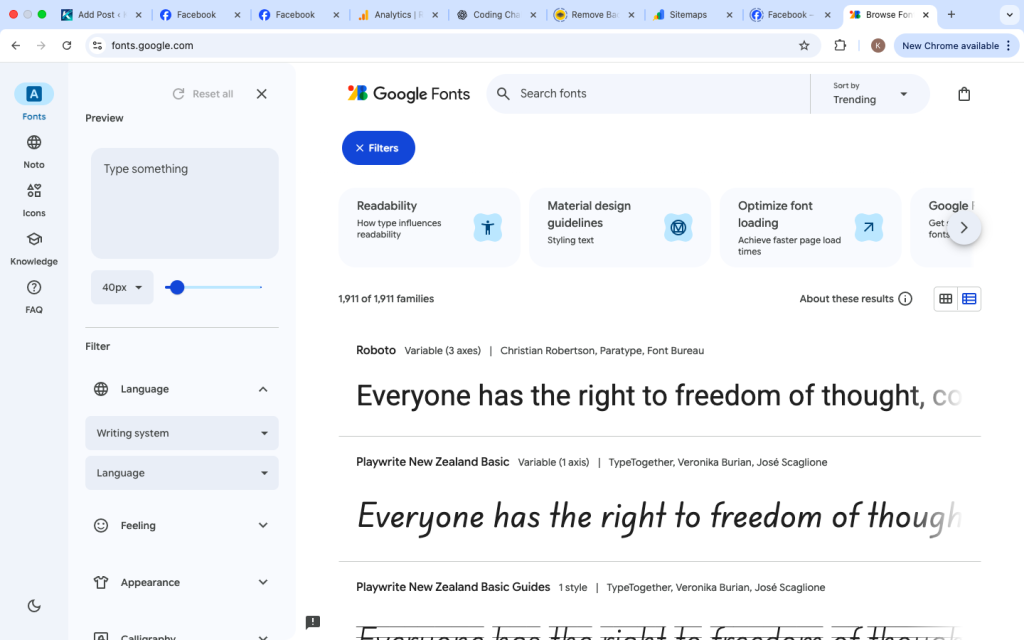
Go to the official Google Fonts website.
You will see:
- A list of available fonts
- A search bar
- Filters for font categories and styles
Step 2: Browse or Search for a Font
You can scroll through the list or search for a specific font name.
Google Fonts allows you to filter fonts by:
- Serif
- Sans-serif
- Display
- Handwriting
- Monospace
You can also preview text and adjust the font size to see how it looks.
Take your time here. Choose a font that matches your website’s purpose. For example:
- Blogs work well with clean serif or sans-serif fonts
- Tech websites often use modern sans-serif fonts
Step 3: Select a Font
Once you find a font you like:
- Click on the font name
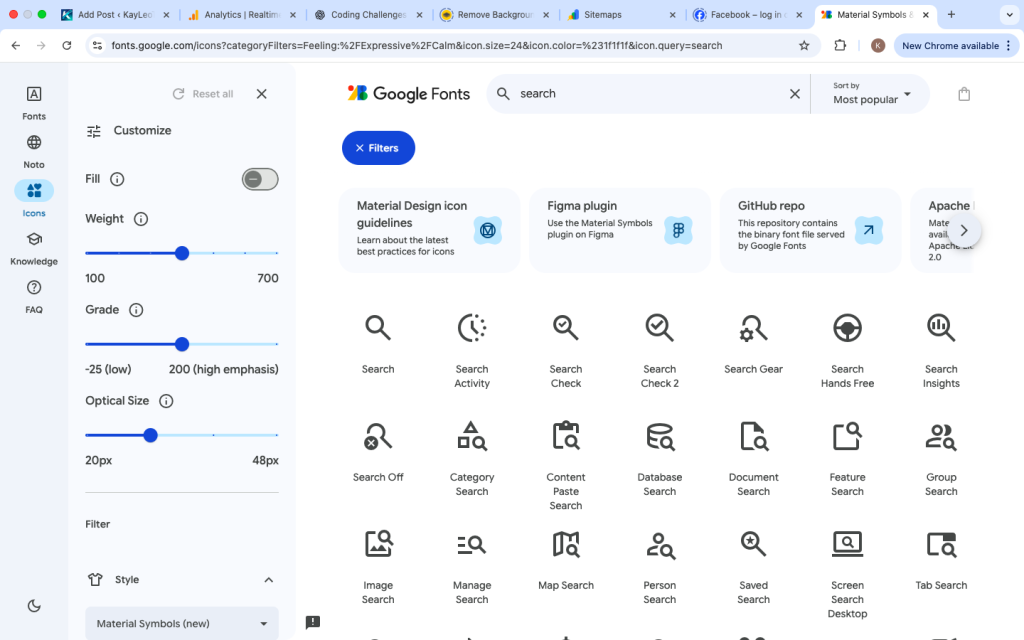
- You will be taken to the font’s details page
Here you can see:
- Different font weights
- Style variations
- Example text previews
Step 4: Choose Font Styles and Weights
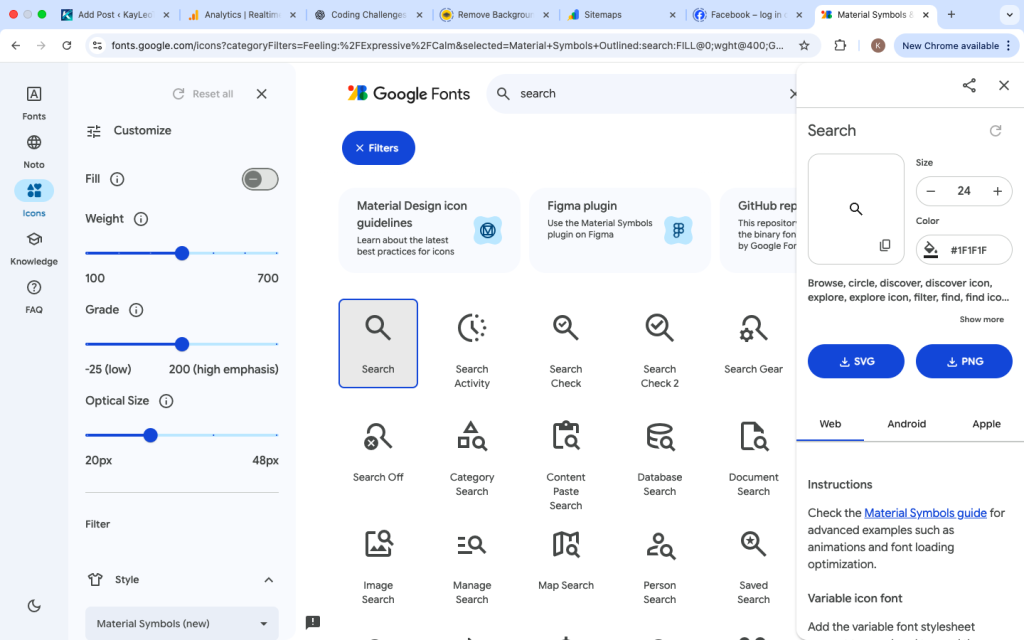
Fonts come in different styles such as:
- Regular
- Bold
- Italic
- Light
Select only the styles you actually need. Loading too many font weights can slow down your website.
For most websites:
- Regular
- Medium
- Bold
are enough.
Step 5: Get the Google Fonts Embed Code
After selecting the styles:
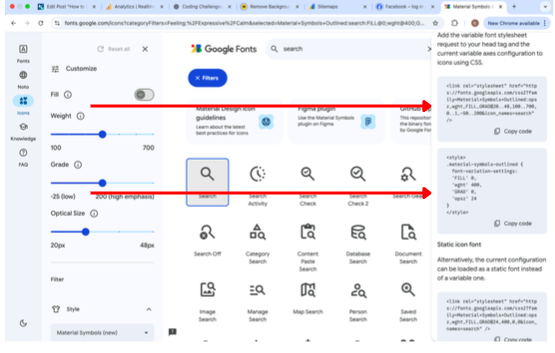
- Look for the “Get font” or “Embed” option
- Google will generate a link code for you
This code is what you will add to your website.
Step 6: Add Google Fonts to Your Website (HTML Method)
The most common way to use Google Fonts is by adding a link inside the <head> section of your HTML file.
Example:

Place this line inside the <head> tag before your CSS file.
This tells the browser to load the font before rendering the page.
Step 7: Apply the Font Using CSS
After adding the font link, you need to apply it using CSS.
Example:
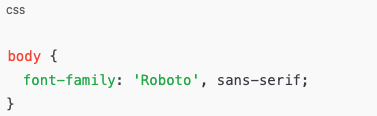
Now your website text will use the selected Google Font.
You can apply fonts to:
- The whole website
- Headings only
- Paragraphs only
- Buttons or menus
Step 8: Use Different Fonts for Headings and Body Text
A common design practice is to use:
- One font for headings
- Another font for body text
Example:
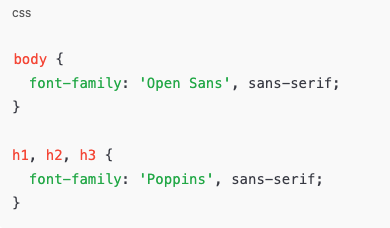
This improves visual hierarchy and readability.
Step 9: Using Google Fonts with CSS Import (Optional)
Another way to load Google Fonts is using @import in CSS.
Example:

This method works but is slightly slower than using the <link> tag. The link method is generally recommended.
Step 10: Using Google Fonts in WordPress
If you use WordPress, you can add Google Fonts in different ways:
- Using a theme customizer
- Using a plugin
- Adding the font link manually
Most modern themes already support Google Fonts, so you can select fonts from the theme settings without writing code.
Step 11: Optimizing Google Fonts for Performance
To keep your site fast:
- Load only required font weights
- Avoid loading too many fonts
- Use
display=swapto prevent invisible text
Example:

This ensures text is visible even while the font loads.
Common Mistakes to Avoid
Many beginners make these mistakes:
- Loading too many fonts
- Using too many font weights
- Forgetting to apply the font in CSS
- Mixing too many font styles
Keep it simple. One or two fonts is enough for most websites.
Best Font Pairing Tips
When pairing fonts:
- Combine serif with sans-serif
- Avoid pairing similar fonts
- Make sure both fonts are readable
Google Fonts often suggests good font pairings automatically.
Accessibility and Readability Considerations
Choose fonts that:
- Are easy to read
- Have good spacing
- Work well at small sizes
Avoid overly decorative fonts for long text content.
Readable fonts improve user experience and accessibility.
Why Google Fonts Is Beginner-Friendly
Google Fonts is ideal for beginners because:
- No payment required
- No license confusion
- Simple integration
- Works everywhere
It removes many technical barriers from web design.
Learning how to use Google Fonts is a valuable skill for anyone building a website. Fonts affect how users feel about your content, how long they stay on your site, and how professional your website appears.
By following these steps, you can confidently choose, load, and apply Google Fonts without confusion. Keep your font choices simple, focus on readability, and always test how fonts look on different devices.
Once you master Google Fonts, your website will instantly feel more polished and modern.