
Google Chrome is one of the most popular web browsers in the world, but many people only use it at a basic level. If you use Chrome without adjusting its settings, you may be missing out on better speed, stronger security, improved privacy, and smarter productivity features.
In this guide, you’ll learn how to use Google Chrome like a pro, even if you are a beginner. We’ll walk through important settings you should change, explain why they matter, and show step-by-step instructions you can follow easily.
This article is written in a simple and helpful way so anyone can understand and apply the tips.
Why You Should Optimize Google Chrome Settings
Most users install Chrome and start browsing immediately. While that works, Chrome comes with powerful tools that are often hidden inside settings.
By optimizing Chrome, you can:
• Browse faster
• Protect your personal data
• Reduce ads and pop-ups
• Save passwords securely
• Improve battery life
• Work more efficiently online
Let’s break everything down step by step.
- Keep Google Chrome Updated (Very Important)
An outdated browser can be slow, insecure, and buggy.
Why this matters
Chrome updates fix:
• Security vulnerabilities
• Website compatibility issues
• Performance problems
How to update Google Chrome
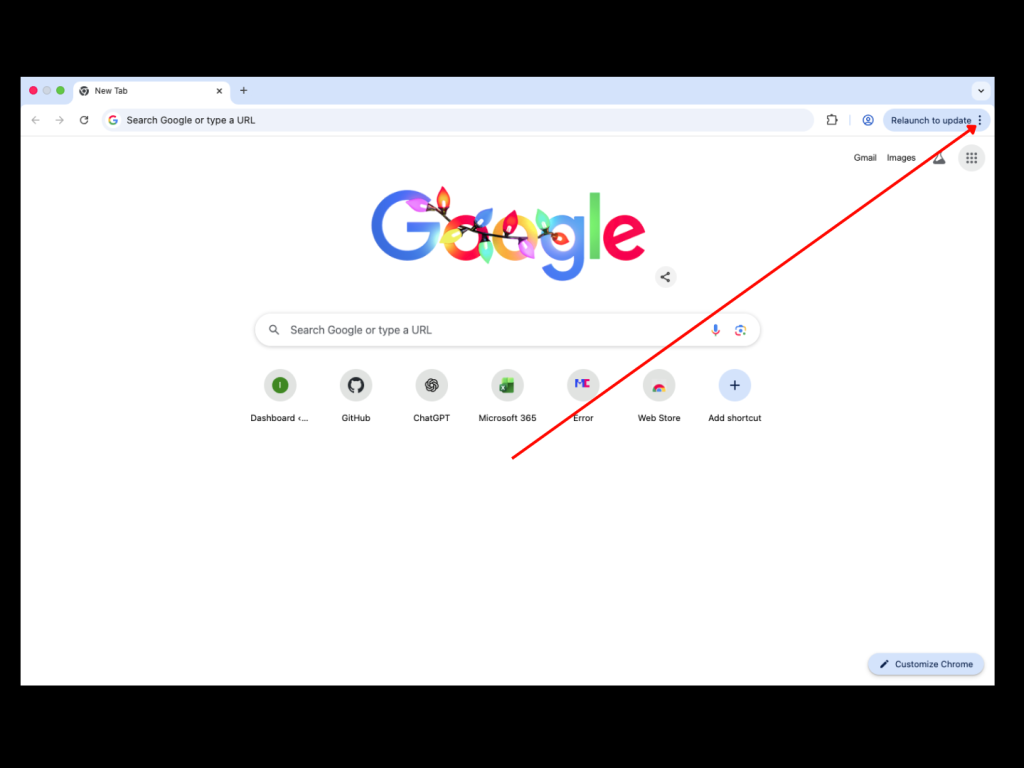
Open Google Chrome and Click the three dots (⋮) at the top-right
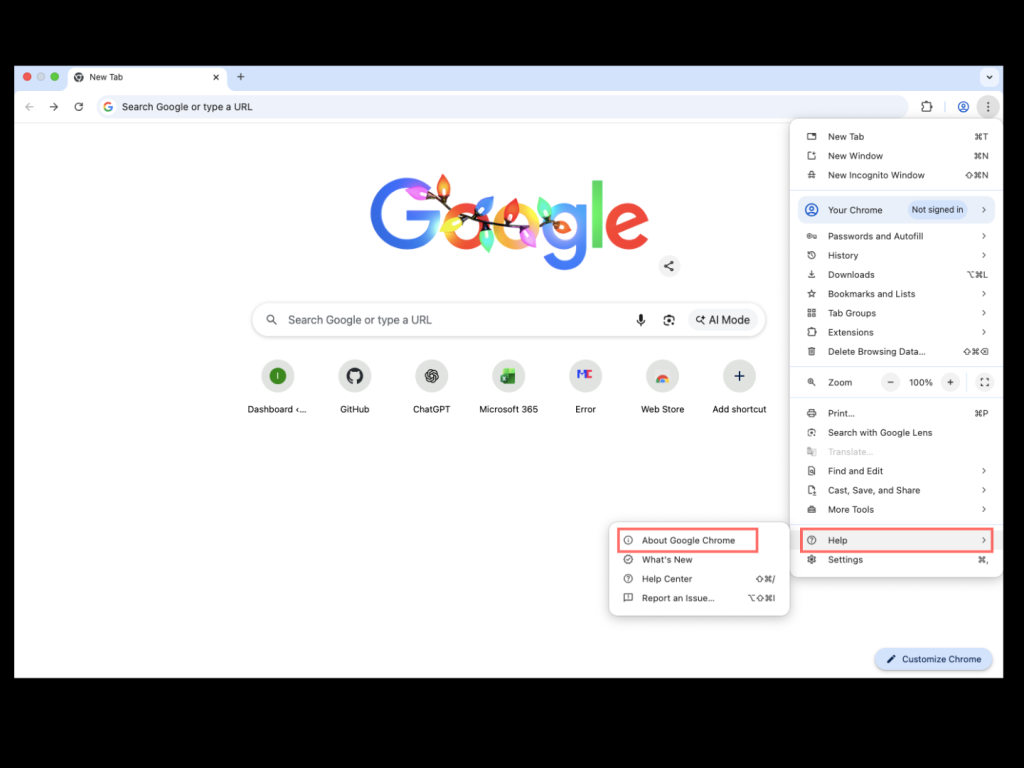
Go to Help and click About Google Chrome
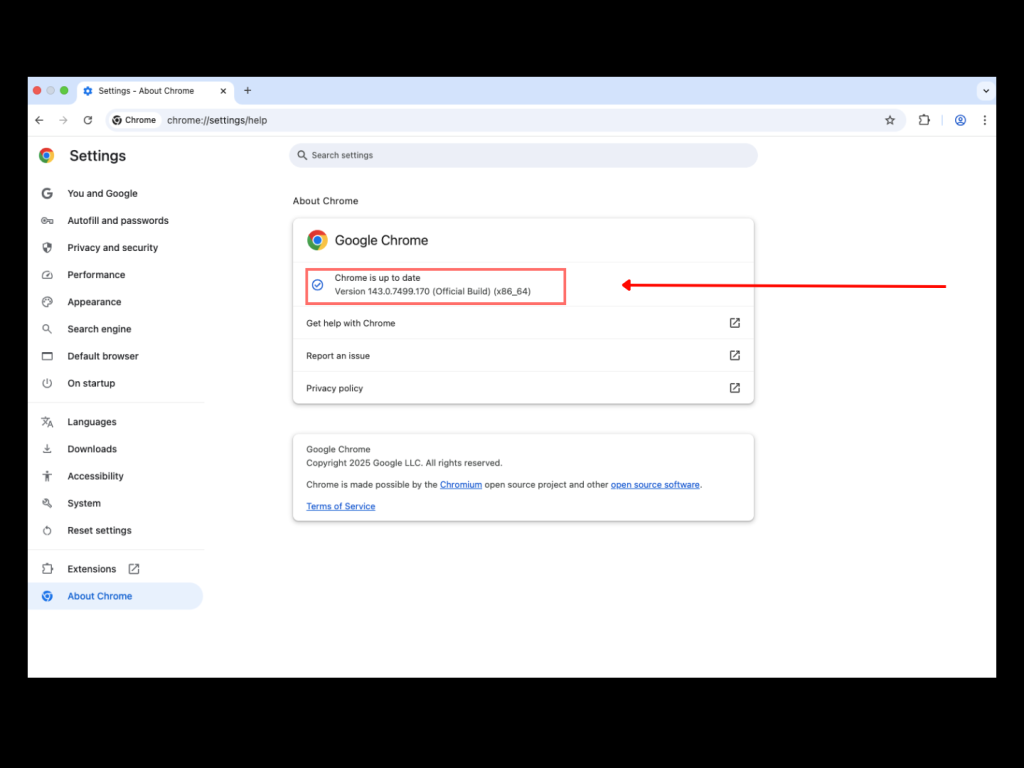
Chrome will automatically check for updates
Restart Chrome if prompted.
2.Sign In to Chrome and Enable Sync
Signing in allows Chrome to sync your bookmarks, passwords, and settings across devices.
Benefits of Chrome Sync
• Access bookmarks on any device
• Restore data if you change phones or laptops
• Save passwords securely
Steps to turn on sync
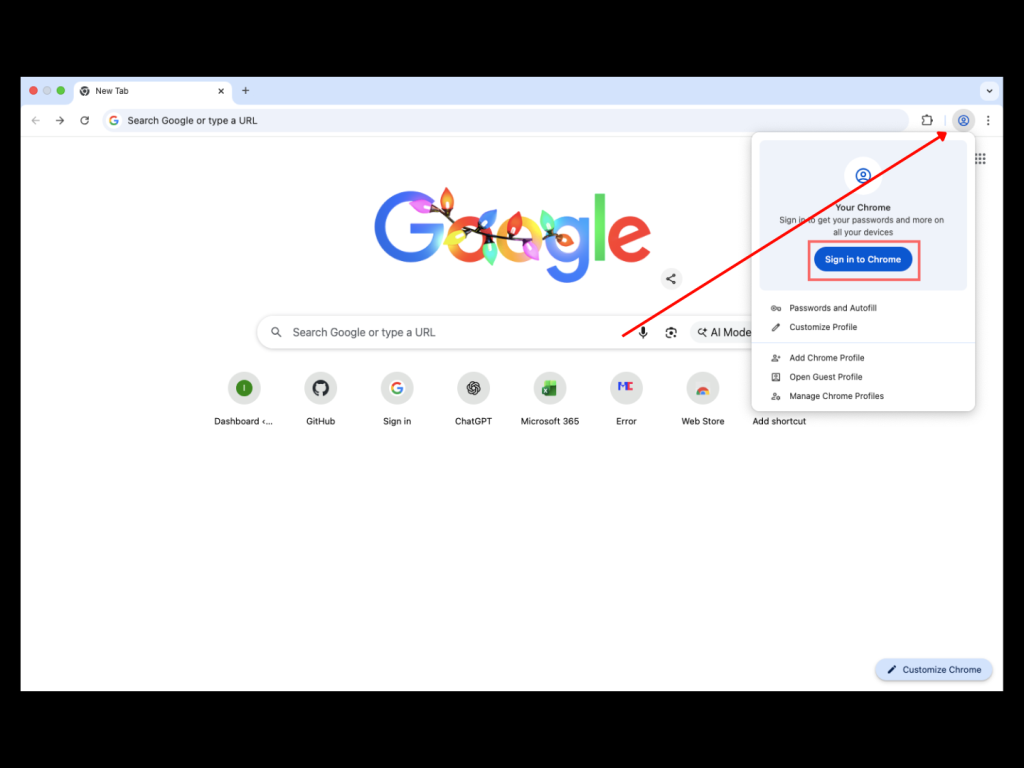
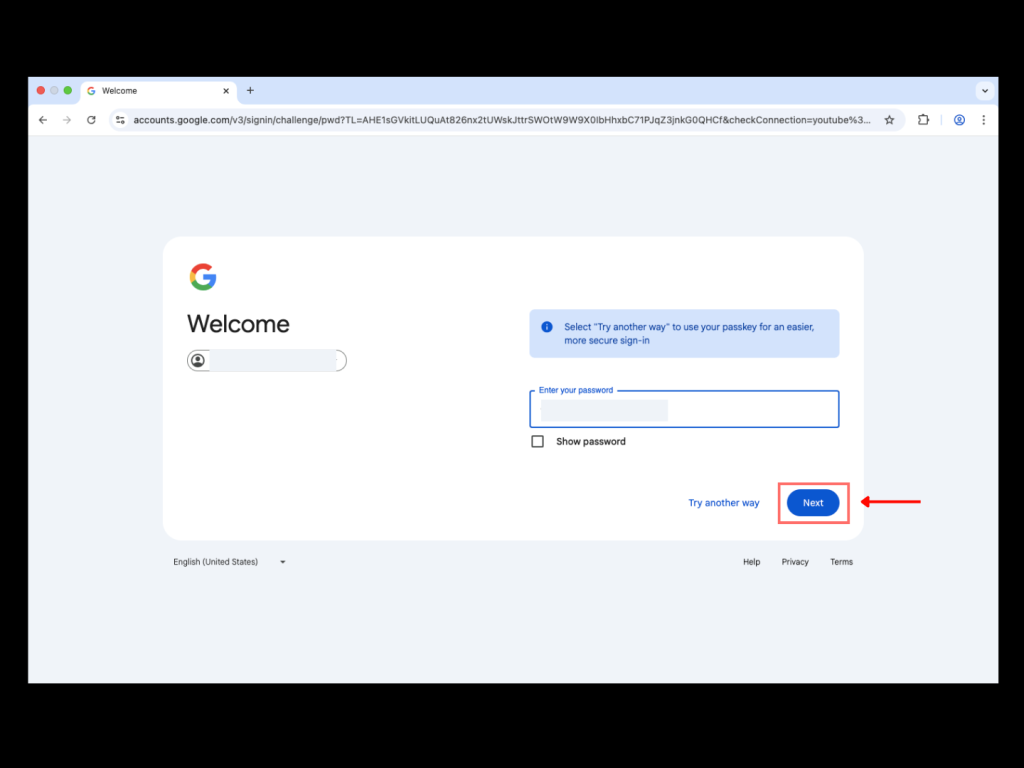
Sign in with your Google account
3.Change Privacy and Security Settings
Chrome gives you control over how your data is handled.
Steps for security settings
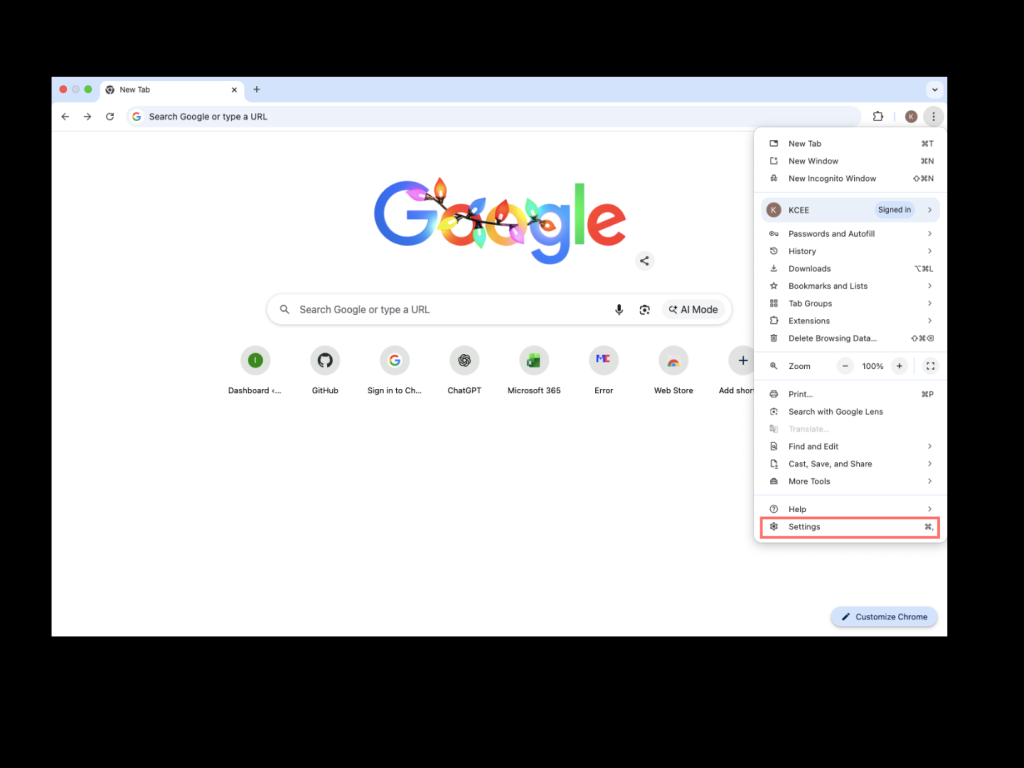
Go to Settings
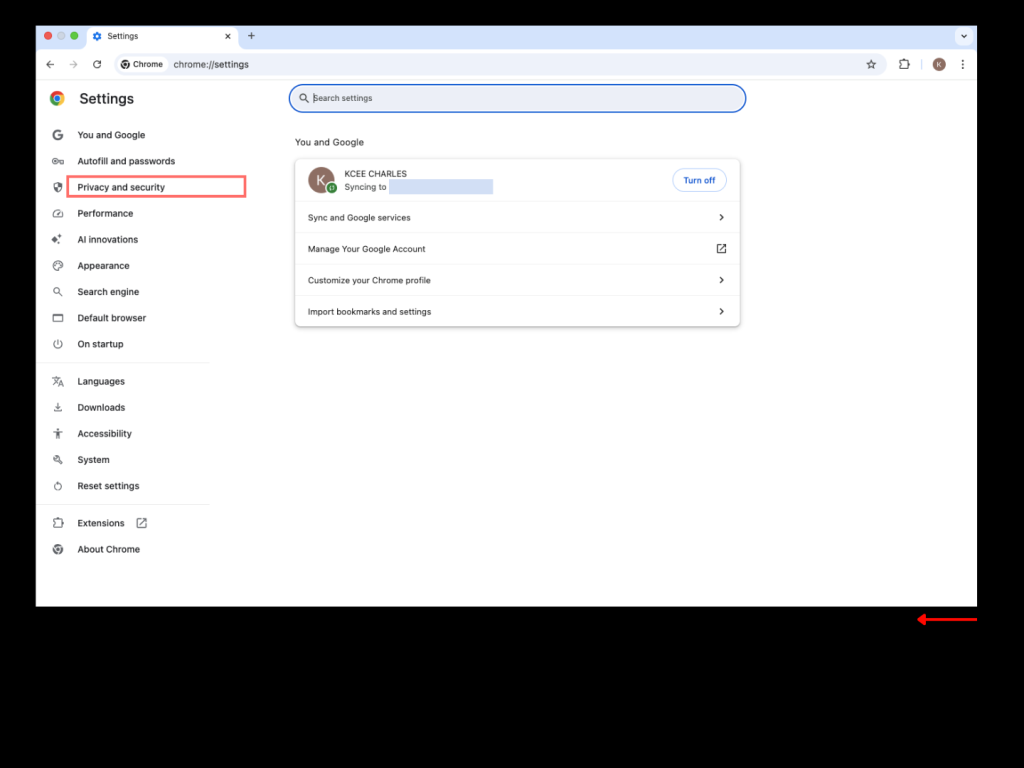
Click Privacy and security
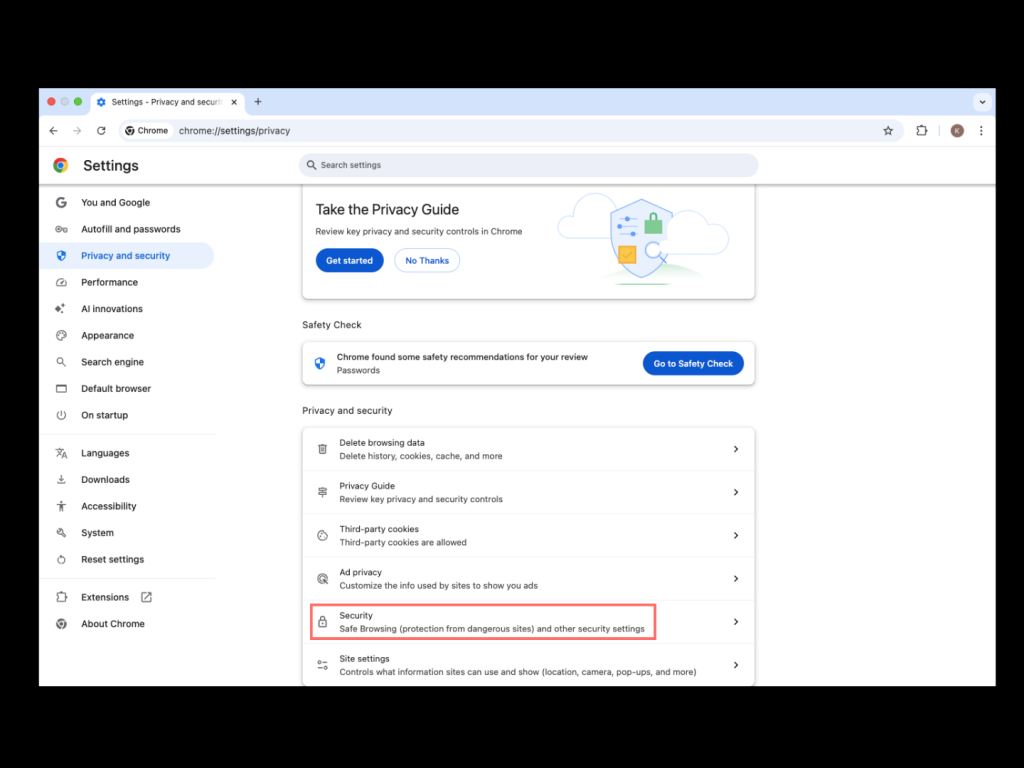
Select Security
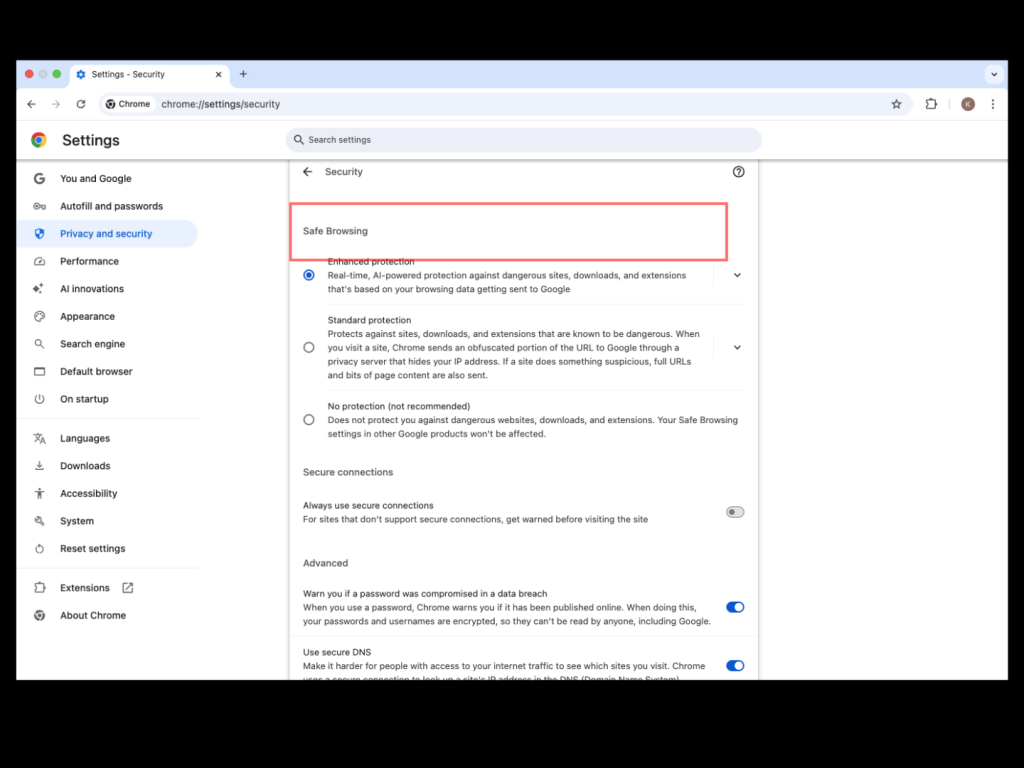
Choose Enhanced protection
This helps Chrome:
• Warn you about dangerous websites
• Protect against phishing
• Scan downloads for threats
4. Block Annoying Pop-Ups and Unwanted Notifications
Pop-ups and notification spam can ruin your browsing experience.
How to control site permissions
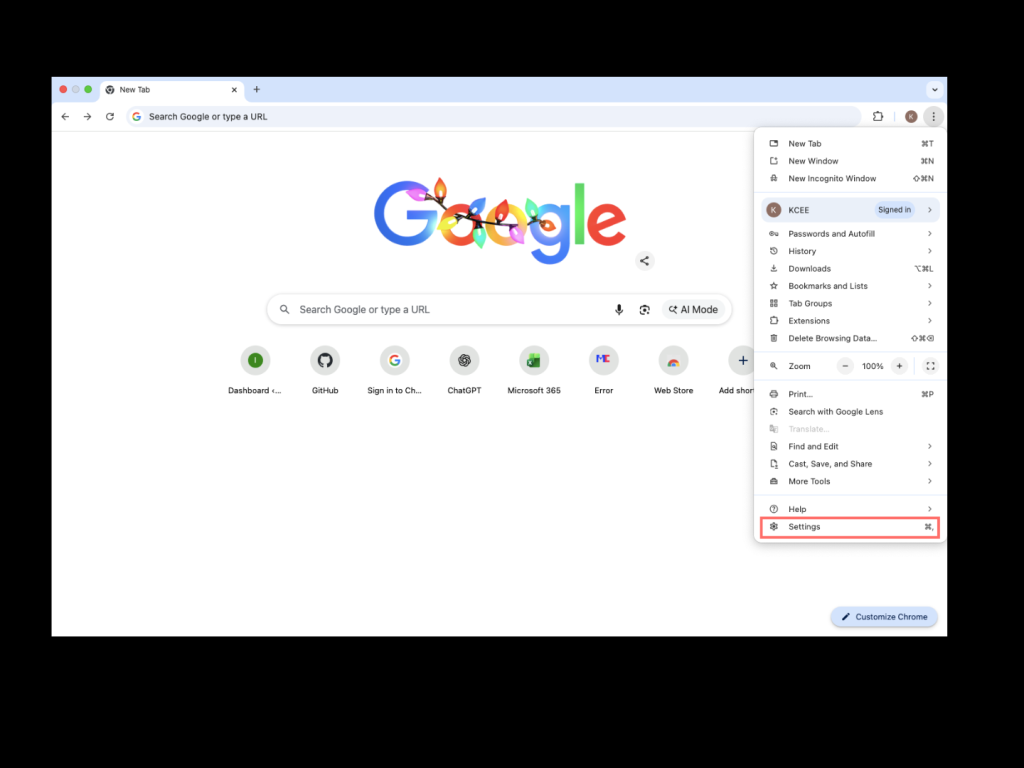
Go to Settings
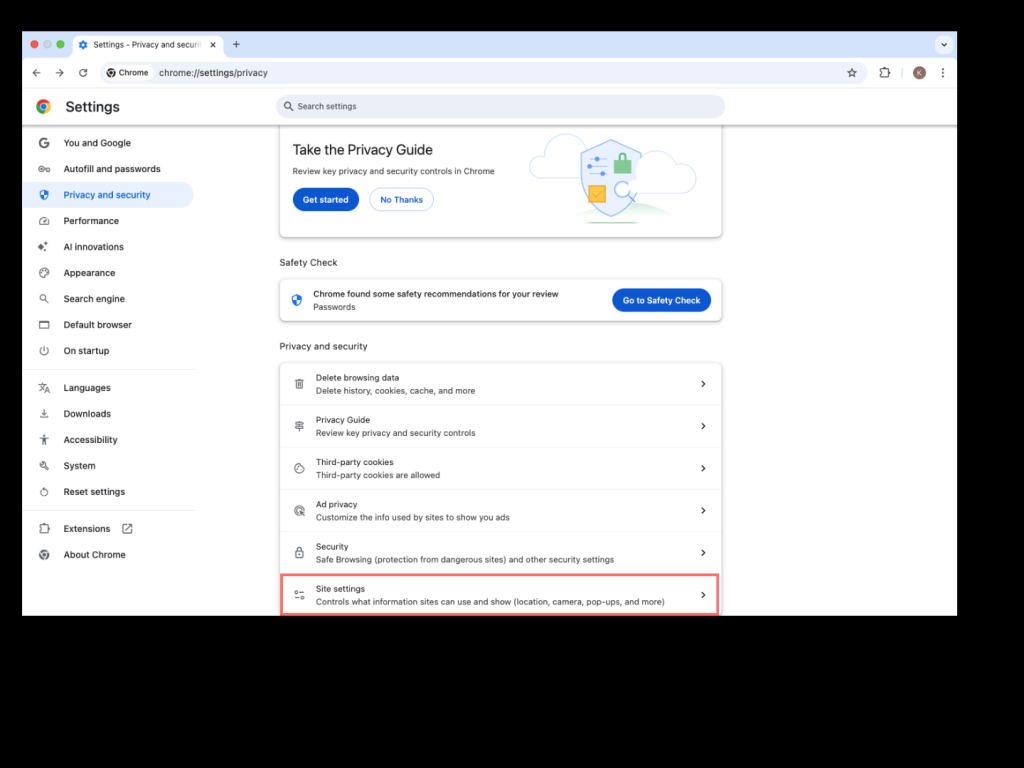
Select Site settings
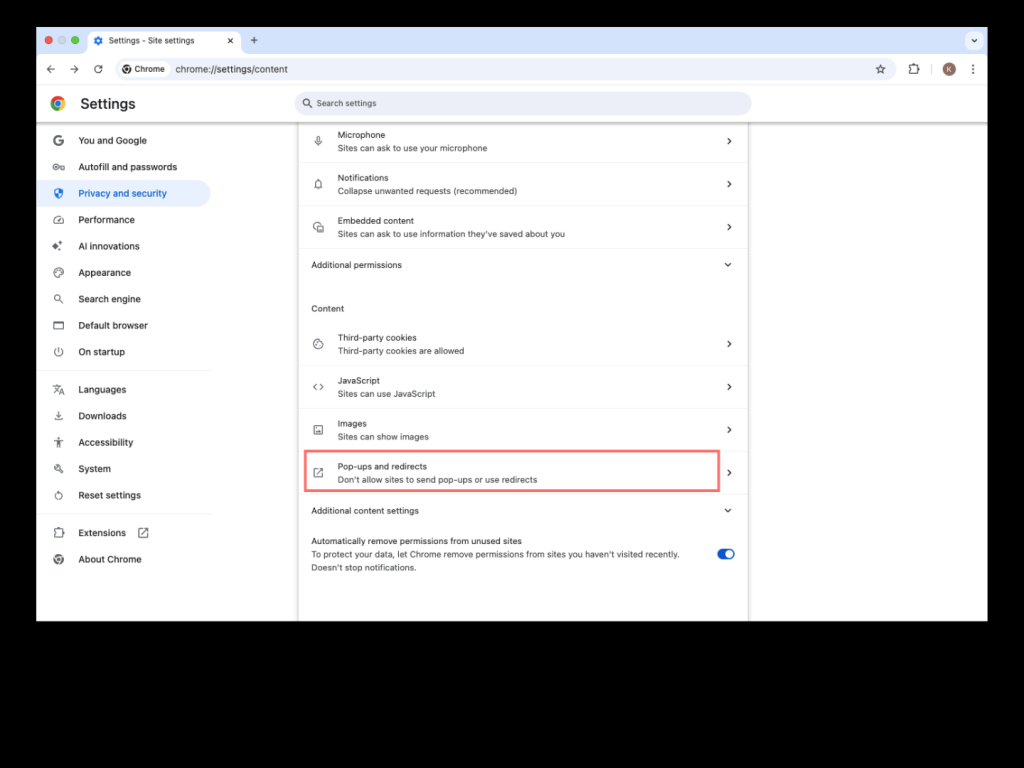
Then select Pop-ups and redirects Don’t allow sites to send pop-ups or use redirects
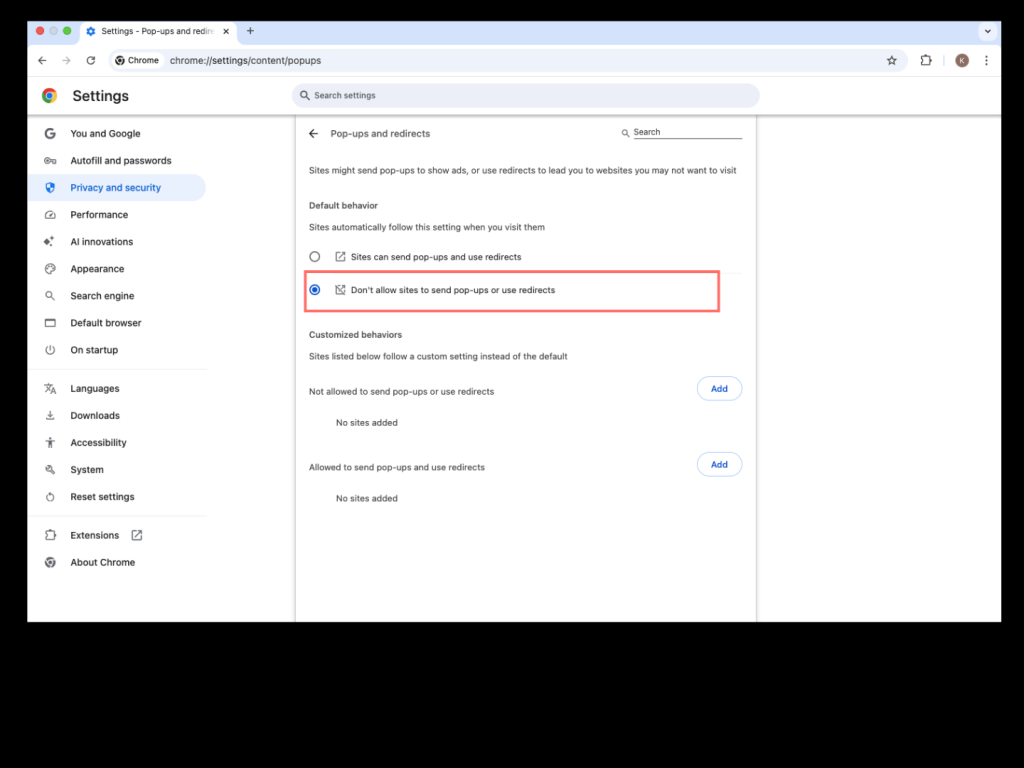
Don’t allow sites to send pop-ups or use redirects
- Use Chrome Password Manager Like a Pro
Chrome’s built-in password manager is safe and convenient.
Why use it?
• Generates strong passwords
• Saves login details securely
• Auto-fills passwords on websites
How to manage passwords
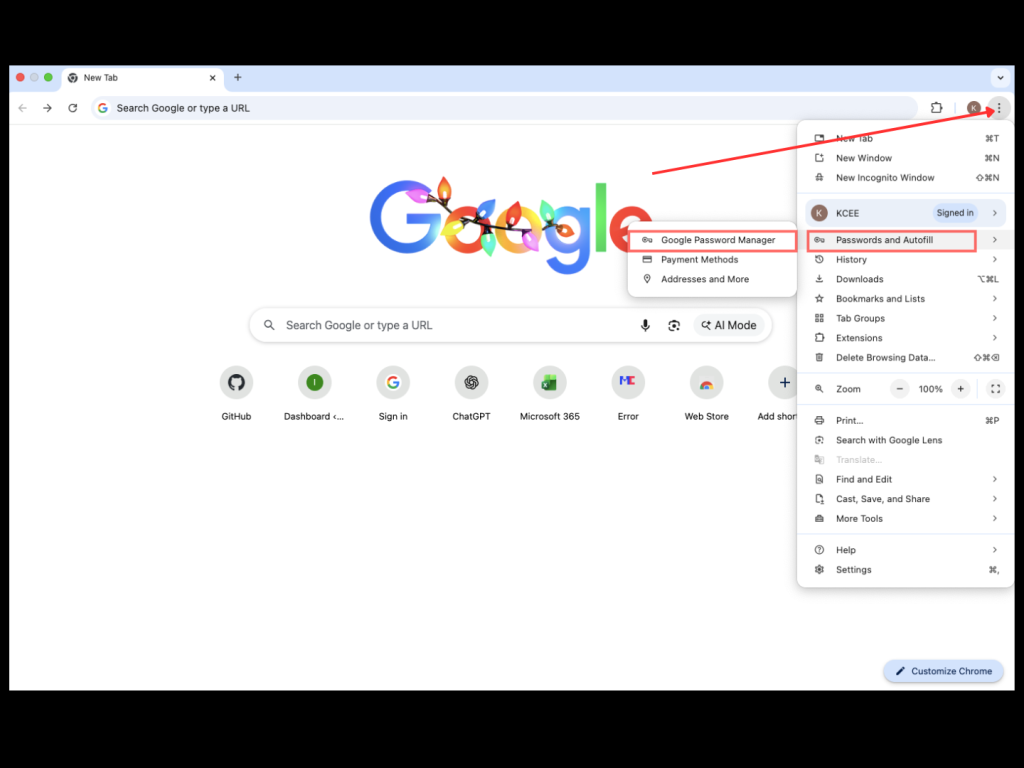
- Click the three dots (⋮) at the top-right
- Click Autofill and passwords
- Select Google Password Manager
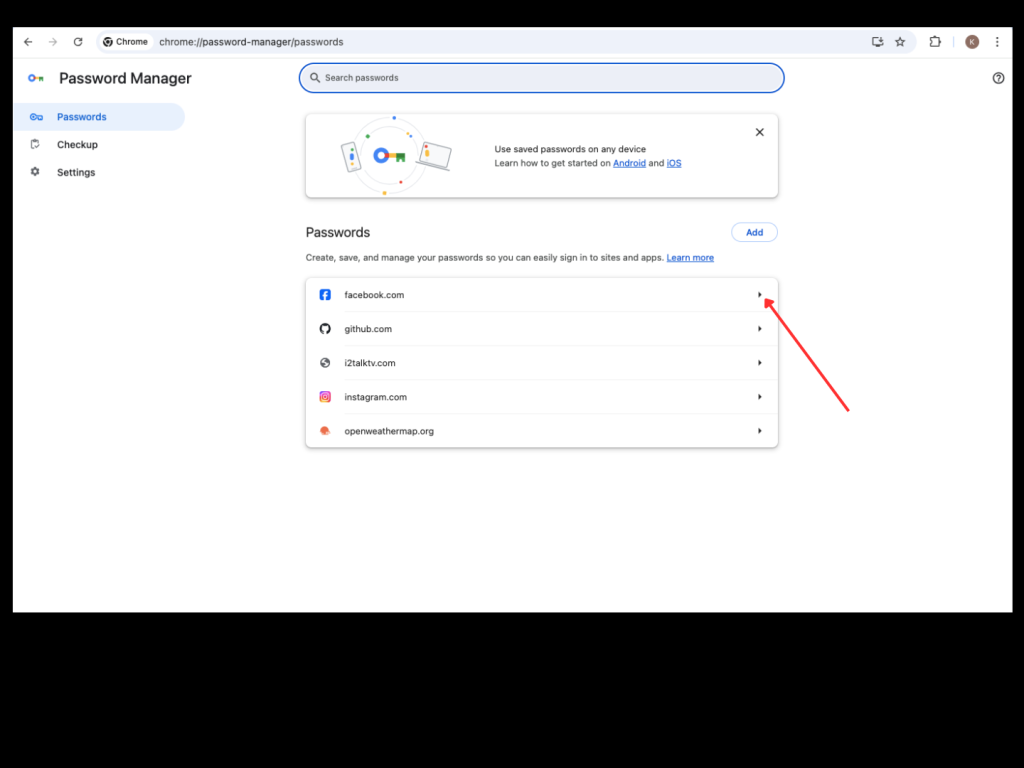
4. click on the password you want to review and enter your computer/pc/macOS password to access the details
- Speed Up Chrome for Better Performance
If Chrome feels slow, these changes can help.
Clear browsing data
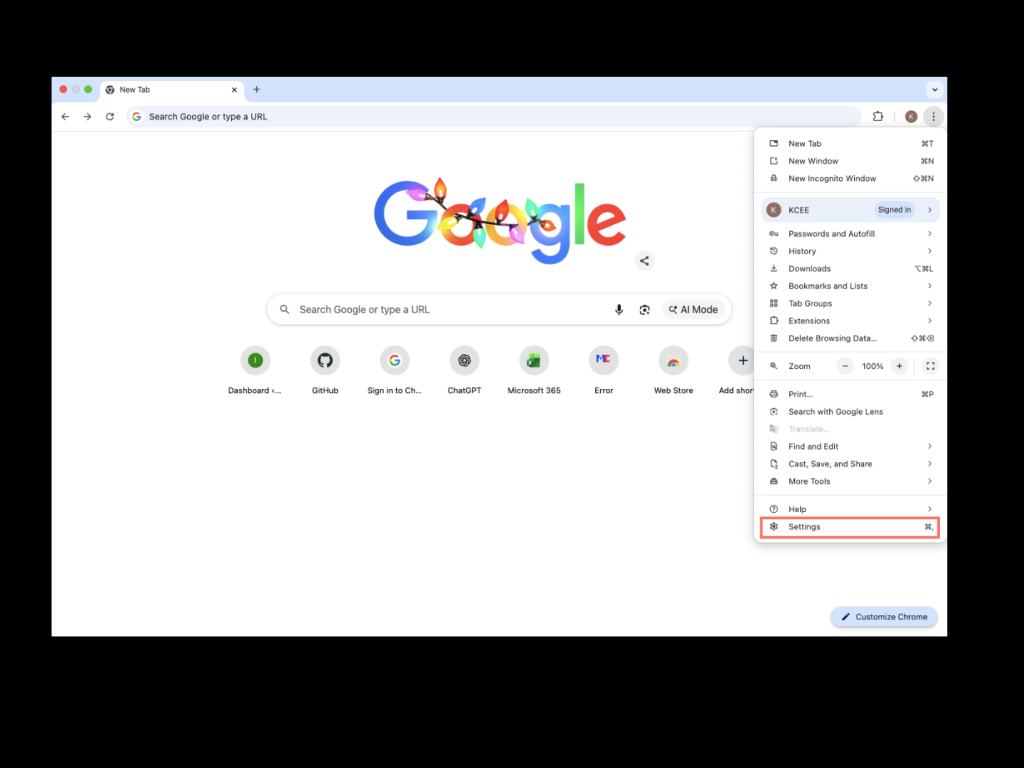
Go to Settings
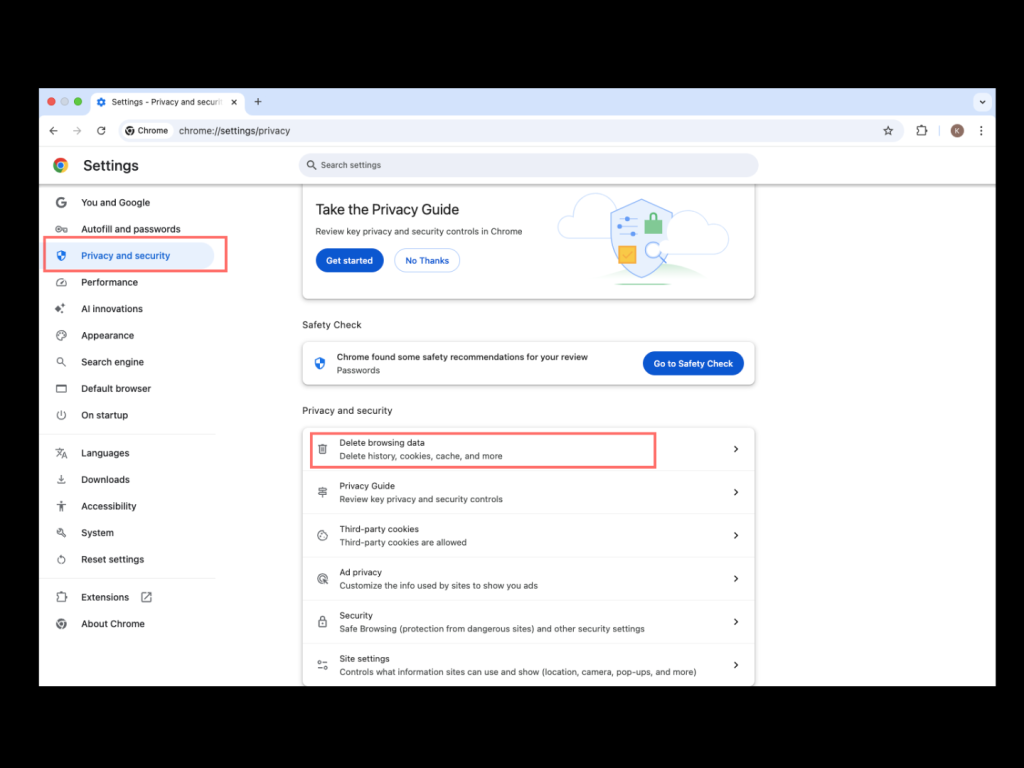
- Click Privacy and security
- Select Clear browsing data
- Choose:
• Cached images and files
• Cookies (optional) - Click Clear data
Disable unused extensions
- Go to Extensions → Manage extensions
- Turn off or remove extensions you don’t use.
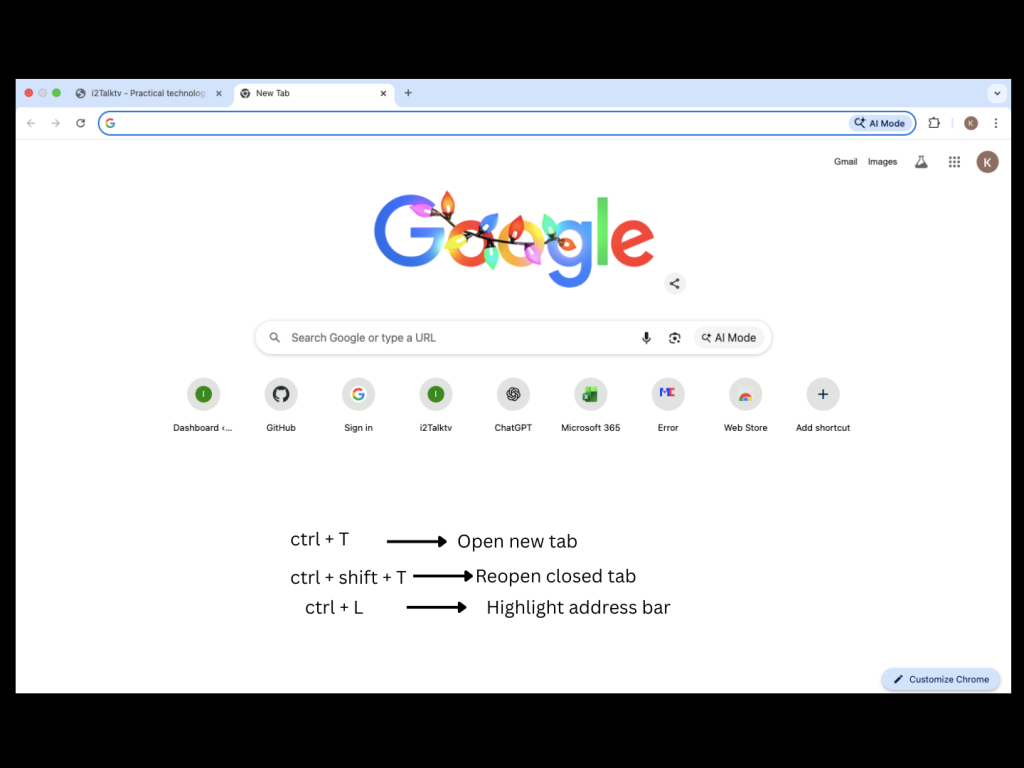
- Use Useful Chrome Keyboard Shortcuts
Keyboard shortcuts save time and make you browse faster.
Popular Chrome shortcuts
• Ctrl + T → Open new tab
• Ctrl + Shift + T → Reopen closed tab
• Ctrl + L → Highlight address bar
Learning these shortcuts can greatly improve productivity.
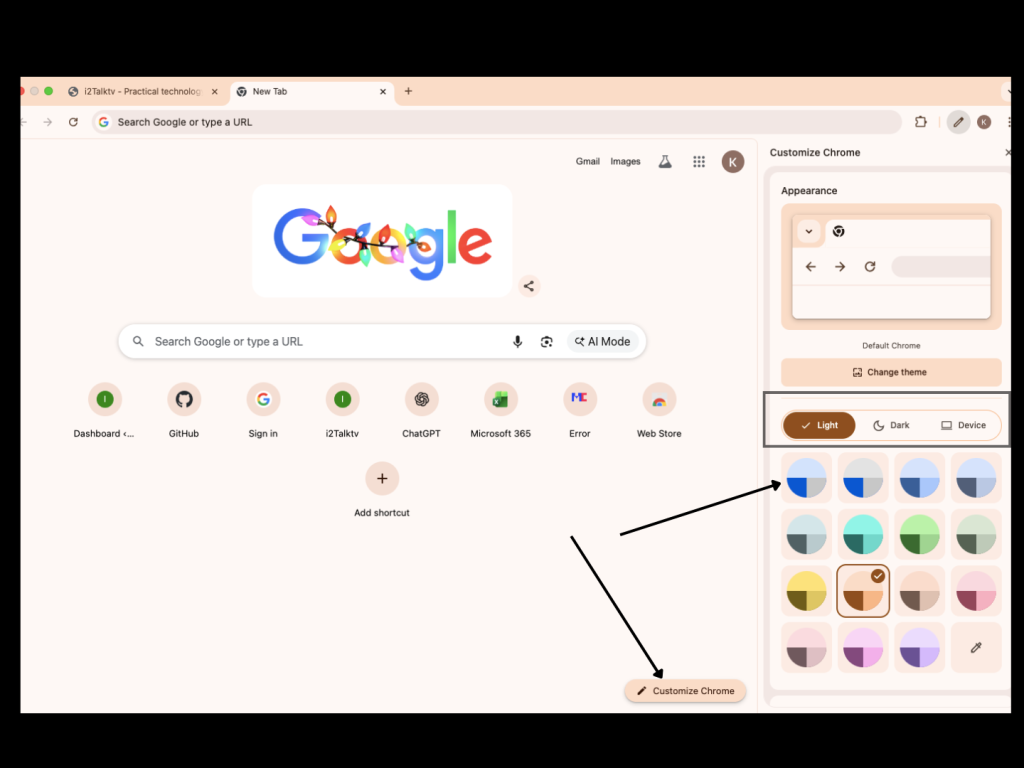
- Customize Chrome Appearance
A clean interface improves focus.
How to customize Chrome
- Click Customize Chrome
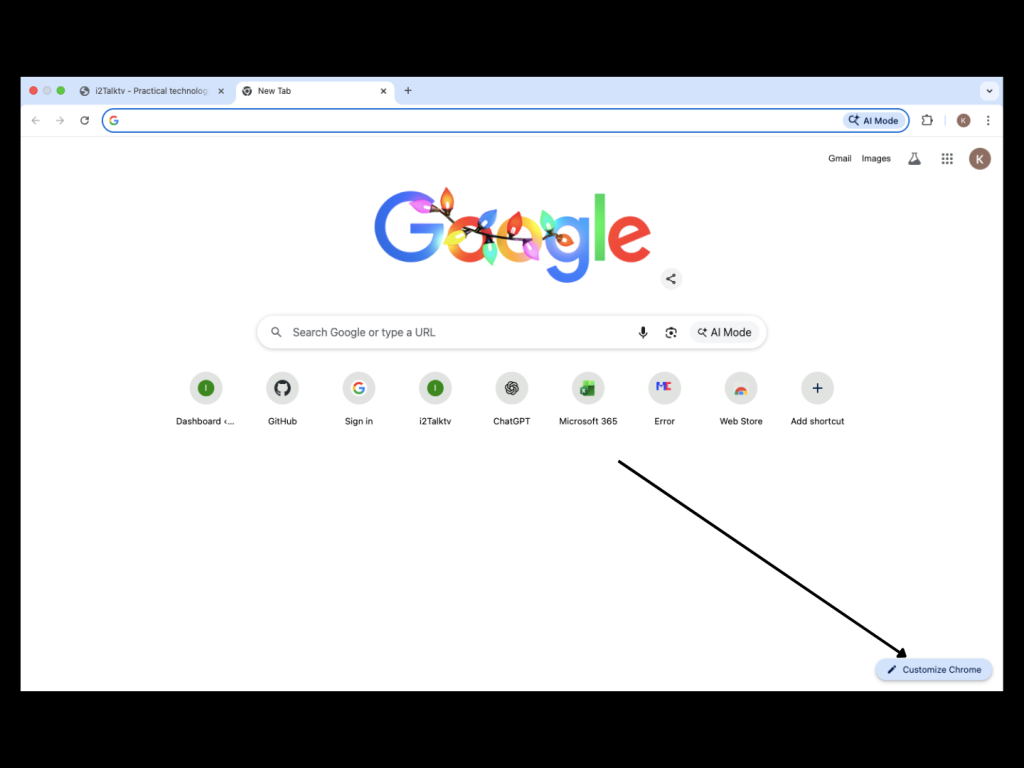
- Choose:
• Theme
• Background
• Color style
- Enable Safe Browsing and Privacy Controls
Chrome allows you to limit tracking.
Recommended settings
• Turn on Do Not Track
• Review cookies settings
• Block third-party cookies (optional)
This helps reduce online tracking while browsing.
Common Mistakes to Avoid
(i)Installing too many extensions
(ii)Ignoring Chrome updates
(iii)Allowing notifications from random websites
(iv)Using weak or repeated passwords
Avoiding these mistakes keeps Chrome fast and secure.
Frequently Asked Questions (FAQs)
Is Google Chrome safe to use?
Yes, especially when kept updated and security settings are enabled.
Can Chrome save passwords securely?
Yes, Chrome encrypts passwords and offers security alerts.
Does clearing cache delete passwords?
No, cached files can be cleared safely without deleting saved passwords.
Using Google Chrome like a pro doesn’t require technical skills. With a few smart settings and habits, you can enjoy a faster, safer, and smoother browsing experience.
Take a few minutes to apply these steps, and you’ll immediately notice the difference. Chrome is powerful you just need to unlock its full potential.