
Rounded buttons are common on modern websites. You can find them on login pages, registration forms, contact pages, shopping websites, and many other web interfaces. They make webpages look clean and can help buttons fit better into a website’s overall design.
The good news is that you do not need advanced CSS skills to create one. With a few simple CSS properties, you can turn an ordinary rectangular button into a rounded button that looks more attractive and professional.
In this tutorial, you will learn how to create a simple rounded button using HTML and CSS, understand the code step by step, adjust the roundness of the button, and add a hover effect to make it more interactive.
What Is a Rounded Button in CSS?
A rounded button is a clickable button with curved corners instead of sharp, square corners.
By default, a button’s appearance depends on the browser’s built-in styles. However, CSS allows you to customize its background color, text color, size, spacing, border, and corner shape.
The most important CSS property for creating rounded corners is border-radius.
For example:
button {
    border-radius: 10px;
}
This code gives the button rounded corners. The larger the value, the more curved the corners become, although the final appearance also depends on the button’s dimensions.
You can use this property on buttons, images, input fields, containers, cards, and many other HTML elements.
What You Need Before Starting
To follow this tutorial, you only need a basic understanding of HTML and CSS.
You will need:
- A code editor, such as Visual Studio Code.
- A web browser, such as Chrome, Firefox, or Edge.
- A basic HTML file.
- A CSS file or a
<style>section for writing your CSS.
For this example, we will use HTML to create the button and CSS to control its appearance.
Step 1: Create a Simple HTML Button
First, create a file named index.html and add the following code.
<!DOCTYPE html>
<html lang="en">
<head>
    <meta charset="UTF-8">
    <meta name="viewport" content="width=device-width, initial-scale=1.0">
    <title>Rounded Button</title>
</head>
<body>

    <button>Click Me</button>

</body>
</html>
This code creates a basic webpage containing a button with the text “Click Me”.
The <button> element is an HTML element used to create clickable buttons. At this stage, the button has no custom CSS styling, so it will mostly use the browser’s default appearance.
Save the file and open it in your browser to see how the button looks before adding CSS.
Step 2: Add CSS to Create Rounded Corners
Now that you have created the HTML button, the next step is to style it with CSS.
Inside the <head> section of your HTML file, add a <style> element and write the following CSS:
<style>
    button {
        background-color: #e63946;
        color: white;
        padding: 12px 24px;
        border: none;
        border-radius: 10px;
        font-size: 16px;
        cursor: pointer;
    }
</style>
Your complete HTML file should now look like this:
<!DOCTYPE html>
<html lang="en">
<head>
    <meta charset="UTF-8">
    <meta name="viewport" content="width=device-width, initial-scale=1.0">
    <title>Rounded Button</title>

    <style>
        button {
            background-color: #e63946;
            color: white;
            padding: 12px 24px;
            border: none;
            border-radius: 10px;
            font-size: 16px;
            cursor: pointer;
        }
    </style>
</head>
<body>

    <button>Click Me</button>

</body>
</html>
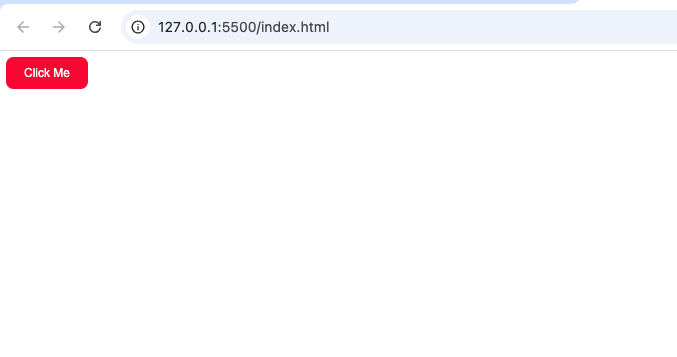
Save the file and refresh your browser. You should now see a red button with white text and rounded corners.
Step 3: Understand Each CSS Property
Let’s break down the CSS so you understand what each property does.
1. background-color
background-color: #e63946;This property sets the background color of the button. In this example, #e63946 creates a red shade.
You can change it to another color, such as:
background-color: blue;Or use a different hexadecimal color value.
2. color
color: white;The color property controls the text color inside the button.
We use white because it contrasts with the red background and makes the text easier to read. When choosing colors, ensure that the text remains readable against the background.
3. padding
padding: 12px 24px;Padding creates space inside the button, between the text and its edges.
In this example:
12pxadds space above and below the text.24pxadds space to the left and right of the text.
Increasing the padding makes the button larger without requiring you to change the text size.
4. border
border: none;This removes the button’s default border.
Without this property, the browser may display a border around the button, depending on its default styles.
5. border-radius
border-radius: 10px;This is the main property responsible for creating rounded corners.
The 10px value makes the corners slightly curved. You can experiment with different values to change the button’s appearance.
For example:
border-radius: 5px;This produces a subtle rounding effect.
border-radius: 15px;This produces more noticeably rounded corners.
border-radius: 25px;This creates a softer, more rounded appearance.
The best value depends on the design you want to achieve.
6. font-size
font-size: 16px;This controls the size of the button’s text.
You can increase the value to make the text larger or reduce it to make the text smaller.
7. cursor
cursor: pointer;This changes the mouse cursor to a pointer when a visitor moves it over the button. It helps communicate that the element is interactive.
Remember that this property does not make the button perform an action by itself. You need an appropriate HTML form behavior or JavaScript if the button must do something when clicked.
Step 4: Create a Fully Rounded Button
The previous example has gently rounded corners. But what if you want a button with a pill-shaped appearance?
You can achieve this by using a larger border-radius value.
Replace your current CSS with the following:
button {
    background-color: #e63946;
    color: white;
    padding: 12px 28px;
    border: none;
    border-radius: 50px;
    font-size: 16px;
    cursor: pointer;
}
The most important line is:
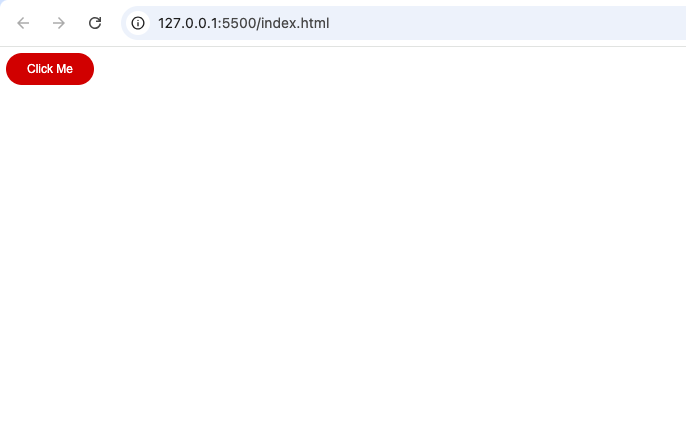
border-radius: 50px;This creates a much more rounded shape. Because the button is relatively short, the corners may become fully curved, producing a pill-shaped button.
This style is popular on modern landing pages, signup forms, call-to-action sections, and mobile-friendly interfaces.
You do not always need to use 50px. A smaller value may be more appropriate for a compact button or a design that uses subtle corners.
Step 5: Add a Hover Effect
A hover effect changes a button’s appearance when a visitor moves the mouse pointer over it.
It is not required to create rounded corners, but it can make the button feel more polished and responsive.
Add the following CSS below your existing button rule:
button:hover {
    background-color: #c1121f;
}
The :hover pseudo-class applies the specified style when the pointer is over the button.
Here, the background changes from the original red to a darker red.
You can also add a smooth transition:
button {
    background-color: #e63946;
    color: white;
    padding: 12px 28px;
    border: none;
    border-radius: 50px;
    font-size: 16px;
    cursor: pointer;
    transition: background-color 0.3s ease;
}

button:hover {
    background-color: #c1121f;
}
The transition property makes the background-color change happen smoothly over approximately 0.3 seconds instead of changing instantly.
Step 6: Center the Rounded Button on the Page
Sometimes, you may want your button to appear in the center of the webpage rather than at the top-left corner.
You can use CSS Flexbox to center it horizontally and vertically.
Update the CSS as follows:
body {
    margin: 0;
    min-height: 100vh;
    display: flex;
    justify-content: center;
    align-items: center;
    background-color: #f5f5f5;
}

button {
    background-color: #e63946;
    color: white;
    padding: 12px 28px;
    border: none;
    border-radius: 50px;
    font-size: 16px;
    cursor: pointer;
    transition: background-color 0.3s ease;
}

button:hover {
    background-color: #c1121f;
}
Here is what the additional properties do:
margin: 0removes the browser’s default body margin.min-height: 100vhmakes the body at least as tall as the browser’s viewport.display: flexactivates Flexbox layout.justify-content: centercenters the button horizontally.align-items: centercenters the button vertically.background-color: #f5f5f5gives the page a light gray background.
The button will now appear in the middle of the browser window.
You can keep this centered layout or remove it if you prefer the button to appear inside a navigation bar, form, card, or another section of your website.
Common Mistakes to Avoid
When creating rounded buttons, beginners sometimes make small mistakes that prevent the design from looking as expected.
1. Forgetting border-radius
If you style the background and text but forget border-radius, the button may retain square corners.
Solution: Add a border-radius declaration to your button’s CSS rule.
2. Using a Very Small Radius
A value such as 2px creates only a subtle curve.
Solution: Try values such as 8px, 12px, or 16px, depending on your preferred style.
3. Confusing Padding With Border Radius
Padding controls the space inside the button, while border-radius controls the roundness of its corners.
Solution: Adjust each property according to its purpose. Use padding to change the button’s size and border-radius to change its shape.
4. Forgetting to Save or Refresh
Sometimes, you may update your CSS but see no change in the browser.
Solution: Save the file and refresh the page. If the changes still do not appear, check that you are editing the correct file and that the browser is loading the latest version.
5. Removing All Focus Indicators
The border: none declaration removes the border, but it should not mean removing every visible keyboard-focus indicator.
Solution: Keep a clear focus style so visitors who navigate with a keyboard can identify the active button.
For example:
button:focus-visible {
    outline: 3px solid #222;
    outline-offset: 3px;
}
This adds a visible outline when the button receives keyboard focus in browsers that support :focus-visible.
Practice Project: Customize Your Own Rounded Button
Now that you understand the basics, try creating your own button design.
Experiment with the following changes:
- Change the red background to blue, green, or purple.
- Change
border-radiusfrom10pxto20pxor50px. - Increase the padding to create a larger button.
- Change the text from “Click Me” to “Get Started” or “Learn More”.
- Add a hover effect using a different background color.
- Center the button on the webpage.
You can also create multiple buttons with different classes if you want each button to have a different design.
For example, you could use a .primary-button class for your main action and a .secondary-button class for another action. This approach helps you reuse styles and keep your CSS organized.
Creating a simple rounded button with CSS is an easy beginner project that teaches you several useful styling concepts. The border-radius property creates the rounded corners, while background-color, color, padding, and font-size control the button’s appearance and size.
You can improve the design further with hover effects, smooth transitions, and Flexbox alignment. These techniques are useful when building navigation menus, contact forms, signup pages, landing pages, and other website interfaces.
Start with a simple button, experiment with different CSS values, and gradually build more advanced designs as your skills improve.