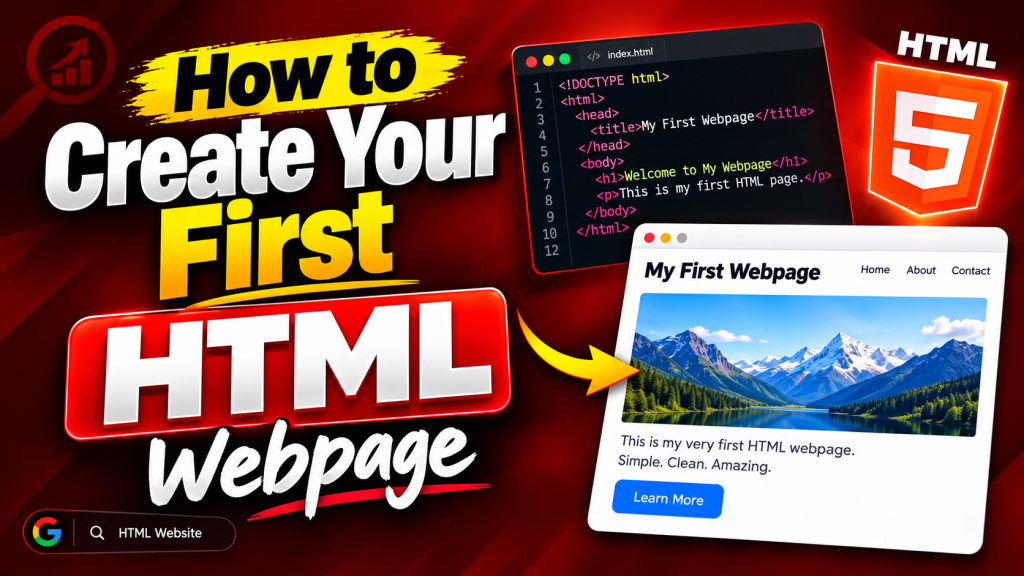
Have you ever wondered how websites are made? Every webpage you visit—whether it’s a personal blog, an online store, a news website, or a portfolio—starts with HTML. HTML is the foundation of the web, and learning it is the first step toward becoming a web developer.
The good news is that creating your first HTML webpage is much easier than many beginners think. You don’t need expensive software, advanced programming knowledge, or years of experience. All you need is a computer, a simple text editor, and a web browser.
In this beginner-friendly tutorial, you’ll learn how to create your very first HTML webpage from scratch. Along the way, you’ll understand the purpose of HTML, learn about the basic structure of a webpage, discover essential HTML elements, and gain confidence to build your own practice projects.
This guide focuses on clear explanations with only a few simple code examples, making it easy to follow even if you’ve never written a single line of code before.
What Is HTML?
HTML stands for HyperText Markup Language. It is the standard language used to create and organize the content of webpages.
Think of HTML as the framework of a house.
- The walls represent the structure.
- The rooms represent different sections.
- The doors and windows connect everything together.
Similarly, HTML gives structure to a webpage by organizing headings, paragraphs, images, links, buttons, and other content.
Without HTML, websites would have no organized structure.
Why Learn HTML First?
Before learning CSS or JavaScript, every beginner should understand HTML.
HTML helps you learn how webpages are built before adding styles or interactive features.
Some reasons to learn HTML include:
- It is beginner-friendly.
- It is the foundation of every website.
- It works together with CSS and JavaScript.
- It is required for web development careers.
- It helps you understand how browsers display webpages.
Mastering HTML makes learning other web technologies much easier.
What You Need Before You Start
One of the best things about HTML is that you don’t need expensive tools.
You’ll only need:
- A computer
- A text editor (such as Visual Studio Code or Notepad++)
- A modern web browser like Chrome, Firefox, or Edge
These tools are free and widely available.
Creating Your First HTML File
Your first webpage begins with creating a new file.
Create a new document and save it using the .html extension.
For example:
index.html
The .html extension tells the browser that the file contains HTML code.
The Basic HTML Structure
Every HTML webpage follows a basic structure.
A simple webpage contains:
- A document declaration
- An
<html>element - A
<head>section - A
<body>section
Here’s a simple example:
<!DOCTYPE html>
<html>
<head>
    <title>My First Webpage</title>
</head>

<body>

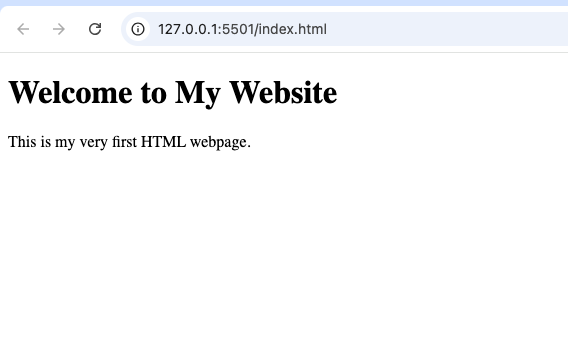
<h1>Welcome to My Website</h1>

<p>This is my very first HTML webpage.</p>

</body>
</html>
Don’t worry about memorizing everything immediately. As you continue practicing, this structure will become familiar.
Understanding the Main Parts of an HTML Page
Let’s look at the purpose of each section.
The <!DOCTYPE html> Declaration
This tells the browser that the webpage uses HTML5, the latest version of HTML.
It helps browsers display your webpage correctly.
The <html> Element
The <html> element wraps the entire webpage.
Everything you create belongs inside this element.
Think of it as the outer container for your document.
The <head> Section
The <head> section contains information about the webpage that visitors usually don’t see directly.
Examples include:
- Page title
- Character encoding
- CSS links
- Meta information
The browser uses this information behind the scenes.
The <title> Tag
The <title> element sets the name shown on the browser tab.
For example:
“My First HTML Webpage”
A good title helps users recognize your webpage and also supports search engine optimization (SEO).
The <body> Section
The <body> contains everything visitors see on the webpage.
Examples include:
- Headings
- Paragraphs
- Images
- Links
- Lists
- Buttons
- Tables
- Forms
Most of your HTML work will happen inside the <body>.
Adding a Heading
Headings introduce the main topic of your webpage.
HTML provides six heading levels.
The largest heading is <h1>, while <h6> is the smallest.
Example:
<h1>Welcome to My First Website</h1>
Your webpage should normally contain one main <h1> heading.
Adding Paragraphs
Paragraphs display blocks of text.
Example:
<p>Learning HTML is exciting and fun.</p>
Paragraphs make webpages readable and organized.
Adding Links
Links allow users to move between webpages.
Example:
<a href="https://example.com">Visit Website</a>
Links are one of the reasons the World Wide Web exists they connect pages together.
Adding Images
Images make webpages more engaging.
Example:
<img src="image.jpg" alt="Example Image">
Always include descriptive alternative text (alt) so your webpage remains accessible.
Saving and Viewing Your Webpage
After writing your HTML code:
- Save the file.
- Open it in your browser.
- Refresh the browser whenever you make changes.
This simple workflow allows you to see your progress immediately.
Common HTML Elements Every Beginner Should Learn
Once you’re comfortable with the basics, begin exploring other useful elements, including:
<h1>to<h6>– Headings<p>– Paragraphs<a>– Links<img>– Images<ul>and<ol>– Lists<table>– Tables<form>– Forms<button>– Buttons<div>– Containers<section>– Content sections
Learning these elements gradually will help you build more advanced webpages.
Organizing Your Webpage
Good organization makes webpages easier to read and maintain.
Instead of placing everything randomly, divide content into logical sections.
For example:
- Header
- Navigation
- Main content
- Sidebar
- Footer
Even a simple webpage benefits from good organization.
Naming Files Properly
Choose clear filenames.
Examples:
index.htmlabout.htmlcontact.htmlservices.html
Avoid filenames with spaces or unusual symbols.
Why Practice Is Important
Reading tutorials is helpful, but creating your own webpages is where real learning happens.
Each practice project improves your understanding.
Even simple webpages teach valuable lessons.
Beginner Practice Project Ideas
After creating your first webpage, try building:
- A personal profile page
- A simple portfolio
- A recipe webpage
- A travel page
- A movie review page
- A favorite books page
- A photo gallery
- A contact page
These projects strengthen your HTML skills.
Common Beginner Mistakes
Everyone makes mistakes while learning HTML.
Here are some common ones.
Forgetting Closing Tags
Many HTML elements require both opening and closing tags.
Always check that every element is properly closed.
Incorrect File Extension
Your file should end with:
.html
If you save it as .txt, the browser won’t treat it as an HTML webpage.
Poor Indentation
Indenting your code makes it easier to read.
Well-organized code also makes debugging much simpler.
Skipping Practice
Watching videos alone isn’t enough.
Build small projects regularly to improve your confidence.
Understanding Semantic HTML
As you continue learning, you’ll encounter semantic HTML elements such as:
<header><nav><main><section><article><aside><footer>
These elements help organize content more clearly than using generic containers alone.
Semantic HTML also improves accessibility and SEO.
HTML and CSS
HTML creates the structure.
CSS controls the appearance.
For example:
HTML creates a heading.
CSS changes:
- Color
- Font size
- Background
- Layout
Think of HTML as the skeleton and CSS as the clothing.
HTML and JavaScript
JavaScript adds interactivity.
Examples include:
- Buttons that respond to clicks
- Image sliders
- Forms with validation
- Interactive menus
HTML, CSS, and JavaScript work together to build modern websites.
Keeping Your Code Organized
As your projects grow, organization becomes increasingly important.
Good habits include:
- Writing clean code
- Using meaningful filenames
- Keeping indentation consistent
- Adding comments when necessary
- Grouping related content together
These habits make future projects easier to manage.
Browser Compatibility
Modern browsers such as Chrome, Firefox, Safari, Edge, and Opera all support standard HTML.
Testing your webpage in more than one browser helps ensure a consistent experience for visitors.
Accessibility Matters
Creating accessible webpages means everyone can use your website, including people who rely on assistive technologies.
Simple ways to improve accessibility include:
- Using meaningful headings
- Adding
alttext to images - Writing descriptive links
- Keeping content organized
Accessibility is an important part of modern web development.
SEO Benefits of Good HTML
Search engines understand webpages more easily when HTML is organized correctly.
Using:
- Proper headings
- Semantic elements
- Descriptive titles
- Meaningful content
can improve your webpage’s visibility over time.
Tips for Learning HTML Faster
Here are some suggestions:
- Practice every day, even for 20–30 minutes.
- Build small projects instead of only reading tutorials.
- Experiment with new HTML elements.
- Read other people’s code.
- Fix your own mistakes instead of giving up.
Consistent practice leads to steady improvement.
What to Learn After HTML
Once you’re comfortable creating HTML webpages, the next topics to explore include:
- CSS for styling
- Responsive design
- Flexbox
- CSS Grid
- JavaScript
- Git and GitHub
These skills will help you build complete websites.
Creating your first HTML webpage is an exciting milestone in your web development journey. Although the first few lines of HTML may seem unfamiliar, the concepts become easier with regular practice.
Remember that every professional web developer started by creating a simple HTML page just like this. As you continue experimenting with headings, paragraphs, images, links, and other HTML elements, you’ll gain confidence and discover how powerful HTML really is.
Keep practicing, build small projects, and don’t be afraid to make mistakes. Every webpage you create teaches you something new.
With patience and consistent effort, you’ll soon move from building simple pages to creating complete, responsive, and professional websites.
Try it yourself
Change the code, then run it to see the result.
I stumbled upon this site during my late night gaming sessions and was instantly hooked by the sleek design and fast loading times. The game selection is massive and the promotions keep things fresh all week long. Customer service is super helpful and always speaks like a real person rather than a robot. Give it a spin and see for yourself why regulars keep coming back. thwink666