Lists are one of the most useful features in HTML. Whether you’re building a personal blog, an online store, a portfolio website, or a documentation page, you’ll almost certainly use lists to organize information. Lists help present content in a clean, readable, and structured way, making it easier for visitors to understand your webpage.
Imagine visiting a website where every item is written in one long paragraph without any separation. It would be difficult to read and even harder to follow. HTML lists solve this problem by allowing developers to group related items together in an organized format.
The best part is that HTML lists are beginner-friendly. Once you understand the different types of lists and when to use them, you’ll be able to create webpages that look more professional and are easier to navigate.
In this beginner-friendly tutorial, you’ll learn what HTML lists are, the different types of lists available, where they are used in real-world websites, common mistakes beginners make, and best practices for using lists effectively. The explanations focus on understanding the concepts rather than overwhelming you with lots of code.
What Are HTML Lists?
An HTML list is a way of displaying related pieces of information in a structured format.
Instead of writing information in long sentences, lists separate each item, making the content easier to scan and understand.
Think about a shopping list:
- Bread
- Milk
- Eggs
- Butter
This is much easier to read than writing everything in one sentence.
HTML works the same way by allowing you to organize information into lists.
Why Are Lists Important?
Lists improve both the appearance and usability of a webpage.
Some benefits include:
- Better readability
- Easier navigation
- Improved organization
- Cleaner webpage layouts
- Better accessibility
- Easier maintenance
Well-organized information keeps visitors engaged because they can quickly find what they are looking for.
Types of HTML Lists
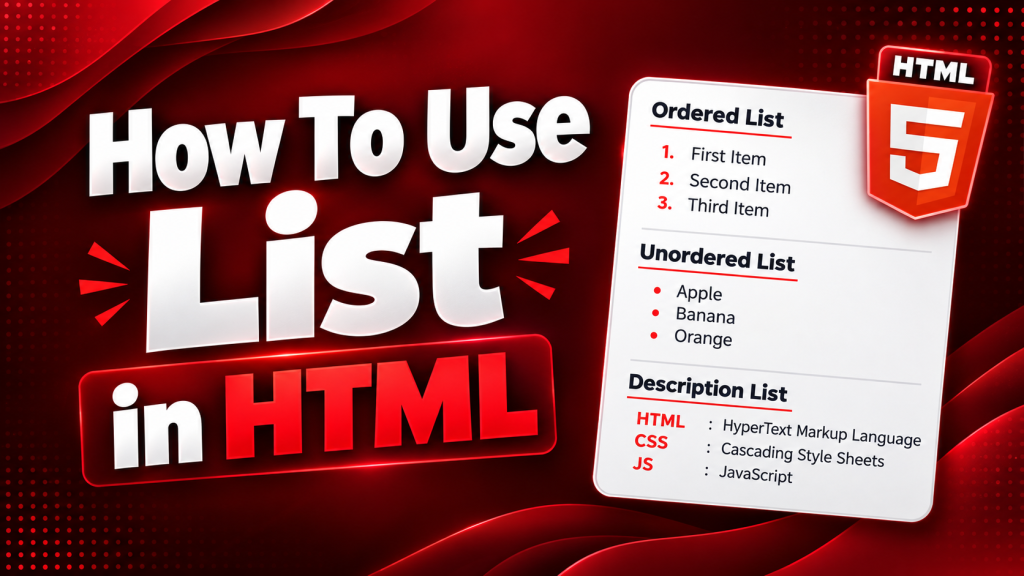
HTML provides three main types of lists:
- Unordered lists
- Ordered lists
- Description lists
Each serves a different purpose depending on the type of content you want to present.
Unordered Lists
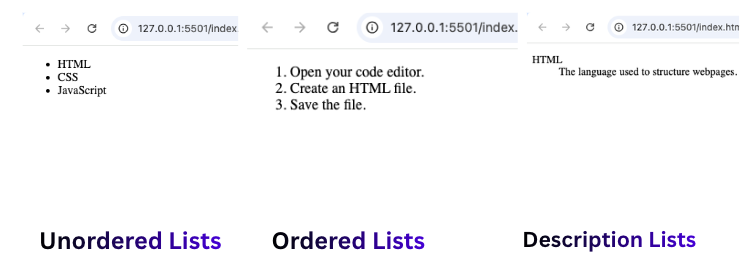
An unordered list displays items without any particular order.
Instead of numbers, each item usually appears with a bullet point.
Example:
<ul>
  <li>HTML</li>
  <li>CSS</li>
  <li>JavaScript</li>
</ul>
This type of list works well when the sequence of items does not matter.
Ordered Lists
An ordered list displays items in a specific sequence.
Each item is automatically numbered.
Example:
<ol>
  <li>Open your code editor.</li>
  <li>Create an HTML file.</li>
  <li>Save the file.</li>
</ol>
Ordered lists are useful whenever steps need to be followed in order.
Description Lists
A description list pairs a term with its explanation.
Example:
<dl>
  <dt>HTML</dt>
  <dd>The language used to structure webpages.</dd>
</dl>
Description lists are commonly used for glossaries, definitions, FAQs, and technical documentation.
Understanding List Items
Regardless of the list type, list items represent individual pieces of information.
For example, a travel packing list may include:
- Passport
- Phone charger
- Clothes
- Camera
Each item represents one entry in the list.
Keeping each item short and clear improves readability.
When Should You Use an Unordered List?
Use an unordered list whenever the order of the information does not matter.
Examples include:
- Website features
- Product categories
- Skills
- Ingredients
- Shopping lists
- Navigation menus
If rearranging the items would not change their meaning, an unordered list is usually the best choice.
When Should You Use an Ordered List?
Ordered lists are best when sequence is important.
Common examples include:
- Tutorials
- Recipes
- Installation guides
- Instructions
- Timelines
- Step-by-step lessons
Visitors immediately understand that the items should be followed in order.
When Should You Use a Description List?
Description lists are useful when explaining terms.
Examples include:
- Programming languages
- Technical definitions
- Product specifications
- Dictionaries
- Frequently asked questions
This structure clearly separates a title from its explanation.
Real-World Uses of HTML Lists
HTML lists appear on almost every website.
Let’s look at some practical examples.
Navigation Menus
Many website navigation menus are built using unordered lists.
For example:
- Home
- About
- Services
- Blog
- Contact
Although visitors may not notice it, many menus begin as simple HTML lists before CSS styles them.
Product Features
Online stores often use bullet lists to highlight product features.
For example:
- Waterproof
- Lightweight
- Fast charging
- Two-year warranty
Bullet points make features easy to scan.
Recipe Websites
Recipe websites rely heavily on lists.
Ingredients are usually displayed as unordered lists.
Cooking instructions are displayed as ordered lists.
This makes recipes much easier to follow.
Online Courses
Educational platforms frequently use lists for:
- Course modules
- Learning objectives
- Assignments
- Resources
Students can quickly see what they need to study.
Portfolio Websites
Personal portfolios often include skill lists such as:
- HTML
- CSS
- JavaScript
- React
- Git
This presents information clearly and professionally.
Why Lists Improve User Experience
Visitors rarely read every word on a webpage.
Instead, they scan.
Lists help readers:
- Find information faster
- Understand key points quickly
- Stay engaged longer
Large paragraphs can feel overwhelming, while lists make content feel lighter and easier to digest.
HTML Lists and Accessibility
Lists are not only useful for visual organization.
They also improve accessibility.
Screen readers recognize list structures and announce:
- The number of items
- Each individual entry
This helps users with visual impairments understand the content more effectively.
Using proper HTML list elements is much better than manually adding bullet symbols.
HTML Lists and SEO
Lists can also contribute to a better user experience, which indirectly supports SEO.
Search engines value well-structured pages because they are easier to understand.
Clear organization may also improve the chances of appearing in featured snippets when answering common questions.
While lists alone do not guarantee higher rankings, they make content more useful for readers.
Nesting Lists
Sometimes you need to organize information into categories and subcategories.
This is where nested lists become useful.
For example:
Programming Languages
- Front-end
- HTML
- CSS
- JavaScript
- Back-end
- PHP
- Python
- Node.js
Nested lists help present complex information without creating confusion.
Common Beginner Mistakes
Learning lists is simple, but beginners sometimes make a few mistakes.
1. Using Lists for Everything
Not every piece of content belongs in a list.
Use lists only when information naturally belongs together.
2. Mixing Ordered and Unordered Lists Incorrectly
Choose the list type that best matches the purpose.
If order matters, use an ordered list.
If it doesn’t, use an unordered list.
3. Writing Extremely Long List Items
Each list item should remain concise.
Very long paragraphs reduce readability.
4. Forgetting Consistency
If one list item begins with a verb, try to keep the others similar.
For example:
- Install HTML
- Learn CSS
- Practice JavaScript
Consistency makes content look more professional.
Lists and CSS
Although HTML creates the structure, CSS controls the appearance.
CSS can change:
- Bullet styles
- Number styles
- Spacing
- Colors
- Alignment
This means the same HTML list can look completely different depending on the website design.
Lists in Responsive Design
Lists naturally work well on:
- Smartphones
- Tablets
- Laptops
- Desktop computers
Their simple structure adapts well to different screen sizes, making them an important part of responsive web design.
Practice Project Ideas Using Lists
Here are some beginner-friendly projects where lists are useful.
Personal Portfolio
Create sections for:
- Skills
- Certifications
- Hobbies
- Programming languages
Restaurant Website
Display:
- Menu categories
- Food items
- Special offers
Travel Blog
Create lists for:
- Packing essentials
- Destinations
- Travel tips
Online Resume
Use lists to organize:
- Education
- Work experience
- Achievements
- Technical skills
Recipe Website
Display:
- Ingredients
- Cooking steps
- Kitchen equipment
This is one of the best projects for practicing HTML lists.
Best Practices for Using HTML Lists
Follow these tips to create cleaner webpages.
Keep Lists Short
Visitors prefer short, easy-to-read items.
Choose the Right List Type
Use the list that best matches your content.
Maintain Consistency
Use similar writing styles across all list items.
Avoid Overusing Lists
Mix lists with paragraphs so the page remains balanced.
Organize Related Information
Every item in a list should belong to the same topic.
Why Every Beginner Should Learn HTML Lists
Lists are one of the foundational building blocks of HTML.
You’ll encounter them constantly while building websites.
Learning how to use them properly helps you understand:
- Content organization
- Semantic HTML
- Accessibility
- Responsive design
- Professional webpage structure
Even advanced developers use HTML lists every day because they remain one of the simplest and most effective ways to organize information.
HTML lists are simple, powerful, and essential for building well-structured webpages. Whether you’re creating navigation menus, tutorials, recipes, portfolios, or online stores, lists help organize information in a way that is easy for visitors to read and understand.
As a beginner, mastering unordered lists, ordered lists, and description lists will improve the quality of your HTML projects and prepare you for more advanced web development concepts. Instead of presenting information as large blocks of text, you’ll be able to create clean, organized, and professional webpages that provide a better experience for users.
The more you practice using HTML lists in real projects, the more natural they will become. With time, you’ll discover that lists are one of the most valuable tools in your HTML toolkit for creating content that is both readable and user-friendly.
Try it yourself
Change the code, then run it to see the result.