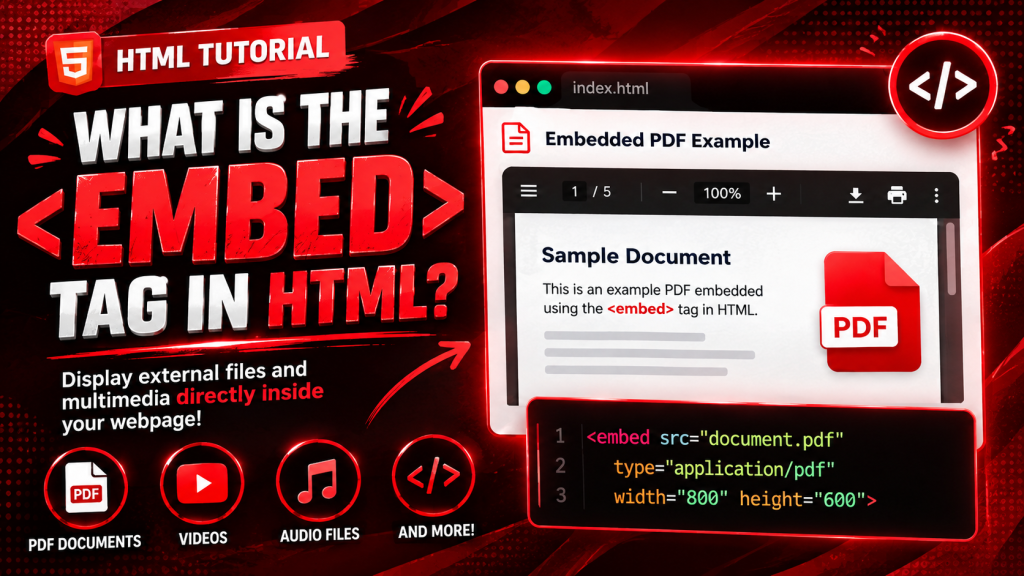
The HTML <embed> tag is used to display external content or multimedia directly inside a webpage.
In simple words, it allows a browser to load and display another file within the current page instead of asking the user to open it separately.
The external content can include:
- PDF documents
- Audio files
- Video files
- Interactive media
- Browser-supported plugins
- Other embedded resources
Unlike ordinary text or images, the content shown through the <embed> tag usually comes from another file.
Why is the <embed> Tag Important?
Imagine you have a PDF user manual for your website.
Without embedding it, visitors would have to download the file before reading it.
Using the <embed> tag, they can often view the document directly on the webpage.
This creates a smoother browsing experience.
The same idea applies to other types of supported media.
Basic Syntax of the <embed> Tag
Here is a simple example:
<embed src="document.pdf" width="600" height="500">
In this example:
srctells the browser which file to display.widthcontrols how wide the embedded content appears.heightcontrols its height.
The browser then attempts to display the file inside the webpage.
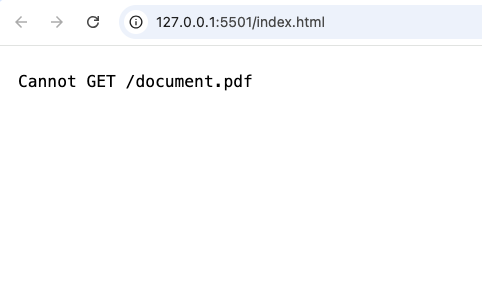
Note: The PDF Didn’t display because No file was added this just for how the embed tag works.
How Does the <embed> Tag Work?
The <embed> element acts like a window inside your webpage.
Instead of showing ordinary HTML content, that window displays another file.
For example, if the embedded file is a PDF, visitors can often scroll through the document without leaving the page.
If the embedded file is an audio clip, users may see audio controls.
The exact appearance depends on the browser and the type of file being displayed.
What Types of Files Can Be Embedded?
The <embed> element supports several kinds of content.
Common examples include:
- PDF documents
- MP3 audio files
- MP4 videos
- SVG graphics
- Interactive media
- Browser-supported plugins
Support depends on whether the browser can display the file type.
Common Uses of the <embed> Tag
The <embed> tag appears in many real-world situations.
Here are some of its most common uses.
1. Displaying PDF Documents
One of the most popular uses is embedding PDF files.
Examples include:
- User manuals
- Product catalogs
- Business reports
- Study materials
- E-books
Visitors can often read the document without downloading it first.
2. Showing Multimedia Content
Some websites use <embed> to display multimedia files directly.
Examples include:
- Audio recordings
- Short video clips
- Interactive presentations
3. Educational Websites
Learning platforms sometimes embed worksheets, lesson notes, or downloadable resources so students can preview them online.
4. Business Websites
Companies may embed:
- Product brochures
- Annual reports
- Company profiles
- Technical documentation
This keeps important documents accessible without forcing downloads.
Understanding the src Attribute
The most important attribute used with <embed> is src.
The src attribute tells the browser where the external file is located.
Without it, the browser has nothing to display.
Think of it as the address that points to the content you want to embed.
Understanding Width and Height
When displaying embedded content, size matters.
The width and height attributes determine how much space the embedded file occupies.
Choosing appropriate dimensions helps create a cleaner page layout.
Content that is too small may be difficult to read, while content that is too large may overwhelm the page.
Difference Between <embed> and <iframe>
Beginners often confuse these two elements.
Although they appear similar, they serve different purposes.
<embed> | <iframe> |
|---|---|
| Displays external files and media | Displays another webpage inside a webpage |
| Often used for PDFs and multimedia | Commonly used for websites, maps, and videos |
| Depends on browser support | Creates a separate browsing frame |
If your goal is to display another webpage, <iframe> is usually the better choice.
If you want to display a file like a PDF, <embed> may be more suitable.
Difference Between <embed> and <object>
Another similar element is <object>.
Here is a comparison.
<embed> | <object> |
|---|---|
| Simpler syntax | More flexible configuration |
| Common for media files | Supports fallback content |
| Easier for beginners | More advanced usage |
Both elements can display external resources, but <object> offers more customization.
Can You Embed Images?
Technically, some image files can be displayed using <embed>.
However, for normal webpage images, the <img> tag is almost always the better choice.
The <img> element is specifically designed for displaying images.
Browser Support
Modern browsers generally support the <embed> element.
These include:
- Google Chrome
- Mozilla Firefox
- Microsoft Edge
- Safari
- Opera
However, support for specific file types depends on whether the browser can handle those formats.
For example, PDF support may differ slightly between browsers.
HTML5 and the <embed> Tag
The <embed> element became part of the HTML5 specification.
Before HTML5, embedding multimedia often required browser plugins.
Today, browsers provide much better built-in support for many file types.
This makes the <embed> tag more reliable than it was years ago.
Practical Project Ideas Using <embed>
The <embed> tag can be useful in many beginner projects.
Here are some examples.
Online Resume Website
Instead of offering only a download link, you can embed your résumé so visitors can read it immediately.
Portfolio Website
Designers and developers often embed:
- PDF portfolios
- Design presentations
- Project documentation
This allows clients to preview work directly on the page.
Educational Website
You can embed:
- Study guides
- Lecture notes
- Assignment sheets
- Reading materials
Students can view the resources without downloading them first.
Company Website
Businesses often embed:
- Product manuals
- Warranty documents
- Annual reports
- User guides
This provides easy access to important information.
Advantages of the <embed> Tag
The <embed> element offers several benefits.
Easy to Use
Its syntax is simple and beginner-friendly.
Improves User Experience
Visitors can often view files without leaving the webpage.
Saves Time
Users do not always need to download documents first.
Supports Different Media Types
Depending on browser capabilities, many file formats can be displayed.
Limitations of the <embed> Tag
Like every HTML element, <embed> has some limitations.
Browser Differences
Not every browser supports every file type in the same way.
Limited Control
Some embedded content provides fewer customization options than other HTML elements.
Accessibility Considerations
Embedded content should never replace important webpage information.
Always make sure essential content is accessible in other ways when necessary.
Accessibility Tips
Accessibility is important for every website.
When using <embed>:
- Provide descriptive text nearby.
- Offer download links when appropriate.
- Ensure important information is available even if embedded content cannot be displayed.
- Consider users with assistive technologies.
Making content accessible improves the experience for everyone.
SEO Considerations
The <embed> element itself does not directly improve search engine rankings.
Search engines primarily understand regular HTML text rather than embedded documents.
If important information exists only inside an embedded file, search engines may not interpret it as effectively.
For important content:
- Use regular HTML whenever possible.
- Embed files as supporting resources rather than the main source of information.
Common Beginner Mistakes
Here are mistakes beginners often make when using <embed>.
1. Embedding Unsupported Files
Not every file format works in every browser.
Always test your embedded content.
2. Making Embedded Windows Too Small
If the viewing area is too small, documents become difficult to read.
Choose practical dimensions.
3. Forgetting Mobile Users
Embedded content should fit different screen sizes.
Always test on:
- Phones
- Tablets
- Desktop computers
4. Using <embed> for Everything
The <embed> tag has a specific purpose.
Other HTML elements may be better choices depending on what you’re displaying.
For example:
- Use
<img>for images. - Use
<video>for videos. - Use
<audio>for audio. - Use
<iframe>for webpages.
Choose the element that best matches your content.
Best Practices for Using <embed>
Here are some useful tips.
Use It Only When Appropriate
Reserve <embed> for files that truly benefit from being displayed inside the webpage.
Test Across Browsers
Always check whether the embedded content displays correctly.
Keep Layouts Clean
Avoid making embedded content dominate the entire page.
Leave enough space around it for comfortable reading.
Provide Alternative Access
Include a download link whenever possible so users have another option.
Use Modern HTML Elements When Available
If a dedicated HTML element exists for your content type, consider using it instead.
Why Every HTML Learner Should Understand <embed>
Even if you don’t use the <embed> tag every day, understanding its purpose is valuable.
It teaches you how browsers handle external resources and helps you choose the right HTML element for different situations.
As you continue learning HTML, you’ll discover that every element has a specific job.
Knowing when to use <embed> and when not to use it is part of becoming a skilled web developer.
The HTML <embed> tag is a useful element for displaying external files and multimedia directly inside a webpage. It allows visitors to interact with documents, audio, videos, and other supported resources without leaving the page, creating a smoother browsing experience.
While modern HTML offers specialized elements such as <img>, <audio>, <video>, and <iframe>, the <embed> tag still has an important place when displaying certain types of external content, especially PDF documents and browser-supported media.
For beginners, the most important lesson is understanding when the <embed> element is the right tool. By combining it with good webpage design, accessibility practices, and thoughtful layout choices, you can create websites that are both professional and easy for visitors to use.
Try it yourself
Change the code, then run it to see the result.
Simply wish to say your article is as surprising.
The clearness in your put up is just excellent and i could suppose you are a professional
in this subject. Well along with your permission let me to grab your feed to keep up to date with impending post.
Thanks a million and please continue the enjoyable work.
Excellent post. I used to be checking continuously this weblog and I am impressed!
Very helpful info specifically the closing phase 🙂 I care
for such information much. I was seeking this certain information for
a very lengthy time. Thanks and good luck.