
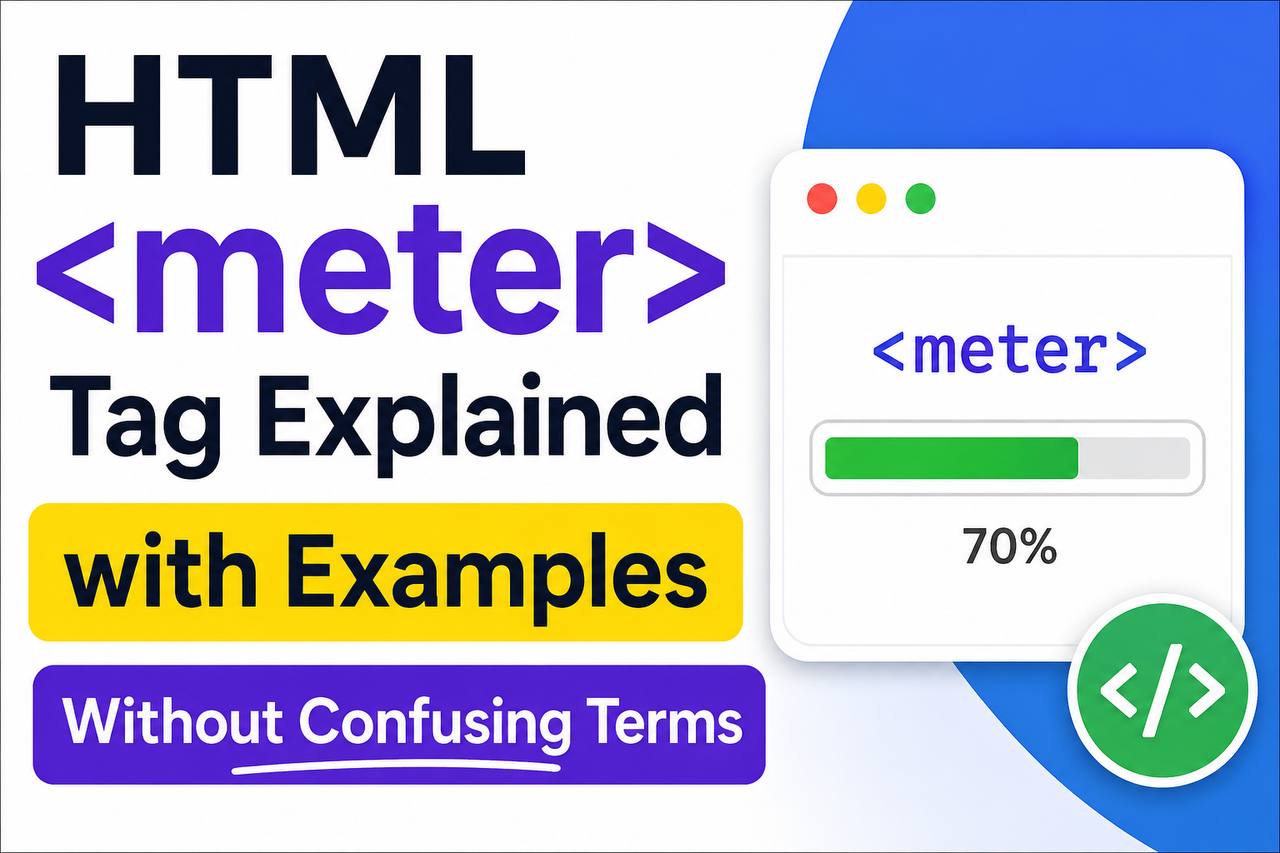
The HTML <meter> tag is used to display a measurement or value within a known range. It acts like a visual meter or gauge that shows progress, scores, levels, percentages, or measurements.
For example:
- Battery percentage
- Storage usage
- Skill levels
- Fuel levels
- Voting results
- Download capacity
The <meter> tag helps users quickly understand information visually instead of reading only numbers.
In this guide, you’ll learn:
- What the
<meter>tag is - How it works
- When to use it
- Important attributes
- Real-world examples
- Best practices for beginners
This article keeps everything simple and easy to understand without confusing technical terms.
What Is the <meter> Tag in HTML?
The <meter> tag creates a visual indicator representing a value within a fixed range.
Think of it like:
- A fuel gauge in a car
- A battery percentage bar on your phone
- A storage usage meter on a computer
It shows users how full, high, low, or complete something is.
Basic Syntax of <meter>
Here’s the simplest example:
<meter value="70" min="0" max="100"></meter>This creates a meter showing:
- Current value: 70
- Minimum value: 0
- Maximum value: 100
The browser automatically displays a visual bar.

How the <meter> Tag Works
The <meter> tag uses values to calculate the visual level.
Main parts include:
value→ current amountmin→ lowest valuemax→ highest value
Example:
<meter value="50" min="0" max="100"></meter>This means:
- 50 out of 100
- Half full
The browser displays a half-filled meter bar.
Real-Life Examples of <meter>
The <meter> tag is useful in many real-world situations.
Battery Level
A phone battery percentage.
Disk Storage
Showing used storage space.
Skill Ratings
Displaying skill levels on portfolios.
Poll Results
Showing voting percentages.
Health or Fitness Tracking
Calories, hydration, or energy levels.
Why the <meter> Tag Is Important
The <meter> tag improves websites because:
- Information becomes easier to understand
- Visual indicators are faster to read
- Users can quickly notice important values
- Pages look more interactive
Instead of reading only numbers, users see a visual representation.
Understanding the Main Attributes
The <meter> tag uses several important attributes.
1. value
This is the current measurement.
Example:
<meter value="80"></meter>The current level is 80.
2. min
Defines the minimum possible value.
Example:
<meter value="20" min="0"></meter>The meter starts from 0.
3. max
Defines the maximum possible value.
Example:
<meter value="20" min="0" max="100"></meter>
The maximum value is 100.
Simple Percentage Example
<label>Battery:</label>

<meter value="75" min="0" max="100"></meter>
This displays a battery level of 75%.
Difference Between <meter> and <progress>
Many beginners confuse these two tags.
Here’s the simple difference:
<meter> | <progress> |
|---|---|
| Measures a value within a range | Tracks task completion |
| Shows levels or measurements | Shows loading/progress |
| Example: battery level | Example: file upload |
Example of <progress>
<progress value="40" max="100"></progress>
This tracks progress toward completion.
Example of <meter>
<meter value="40" min="0" max="100"></meter>
This shows a measurement level.
Browser Appearance
Browsers automatically style <meter> bars.
Different browsers may display:
- Different colors
- Different shapes
- Different sizes
But the purpose stays the same.
Skill Level Example
A portfolio website may use <meter> like this:
<label>HTML Skill:</label>

<meter value="90" min="0" max="100"></meter>
This visually shows strong HTML skills.
Fuel Level Example
<label>Fuel Level:</label>

<meter value="60" min="0" max="100"></meter>
This displays a fuel level of 60%.
Accessibility Benefits
The <meter> tag helps accessibility because:
- Screen readers understand it as a measurement
- Users get clearer information
- Semantic HTML improves structure
Semantic HTML means using tags based on meaning.
SEO and Semantic HTML
The <meter> tag does not directly improve search rankings, but semantic HTML helps:
- Organize content better
- Improve accessibility
- Create cleaner webpages
Search engines understand well-structured pages more easily.
Styling the <meter> Tag
The default appearance is controlled mostly by browsers, but CSS can customize some parts.
Example:
meter {
  width: 300px;
  height: 25px;
}
This changes the size of the meter bar.
Common Beginner Mistakes
1. Forgetting max
Wrong:
<meter value="50"></meter>Without max, browsers may not display the meter correctly.
2. Using Invalid Values
Wrong:
<meter value="150" min="0" max="100"></meter>The value exceeds the maximum.
3. Confusing <meter> with <progress>
Remember:
<meter>= measurement<progress>= completion progress
Best Use Cases for <meter>
The <meter> tag works best when:
- Values have clear limits
- Users need visual measurements
- Percentages matter
Examples:
- Battery
- Storage
- Ratings
- Temperature ranges
Cases Where You Should NOT Use <meter>
Avoid using <meter> when:
- Tracking loading progress
- Creating advanced charts
- Displaying unlimited values
In those cases:
- Use
<progress> - Or use custom charts with JavaScript
Real Website Examples
You may see <meter> used in:
User performance systems
Fitness dashboards
Admin panels
Hosting storage trackers
Survey results
Modern User Experience
Visual indicators improve user experience because:
- They are faster to understand
- They reduce confusion
- They look more professional
A simple meter bar often communicates information better than plain text.
Example: Website Storage Usage
<label>Storage Used:</label>

<meter value="45" min="0" max="100"></meter>
This visually shows 45% storage usage.
Example: Student Score
<label>Exam Score:</label>

<meter value="88" min="0" max="100"></meter>
Why Beginners Should Learn <meter>
Learning the <meter> tag helps beginners:
- Understand semantic HTML
- Build interactive interfaces
- Create better dashboards
- Improve website design
Even though it is simple, it adds professionalism to webpages.
Combining <meter> with Labels
Always use labels for clarity.
Better example:
<label>Battery Level:</label>

<meter value="80" min="0" max="100"></meter>
This helps users understand what the meter represents.
Browser Support
The <meter> tag works in:
- Chrome
- Edge
- Firefox
- Opera
- Safari
Modern browsers support it well.
Advantages of <meter>
Easy to Understand
Visual measurements are simple for users.
Lightweight
No JavaScript required.
Beginner-Friendly
Very easy to implement.
Semantic HTML
Improves webpage structure.
Disadvantages of <meter>
Limited Styling
Browsers control much of the appearance.
Browser Differences
Appearance changes between browsers.
Basic Design Only
Not ideal for advanced charts.
Helpful Beginner Tip
Practice using <meter> with:
- Battery examples
- Skill bars
- Poll percentages
- Storage levels
These projects help you understand how measurements work visually.
Mini Real-World Example
Imagine a website showing internet data usage.
<label>Monthly Data Usage:</label>

<meter value="70" min="0" max="100"></meter>
This instantly tells users they have used 70% of their data.
Much easier than reading text alone.
The HTML <meter> tag is a simple but powerful way to display measurements visually on a webpage. It helps users quickly understand values like percentages, levels, ratings, or usage without reading complicated numbers.
For beginners, the <meter> tag is valuable because it introduces:
- Semantic HTML
- User-friendly design
- Interactive webpage elements
You do not need advanced coding skills to use it effectively.
The best way to learn is by practicing simple projects like:
- Battery indicators
- Skill ratings
- Storage bars
- Poll results
Once you understand how <meter> works, you’ll be able to create webpages that look cleaner, more modern, and easier for users to understand.
Had some amazing luck today! The site is very responsive and easy to navigate even for beginners. Cheers to phjljl16 for the big win.
The game variety here is insane. I love how everything is organized and the customer support is actually helpful. Check out tangandewalogin for some serious fun.