
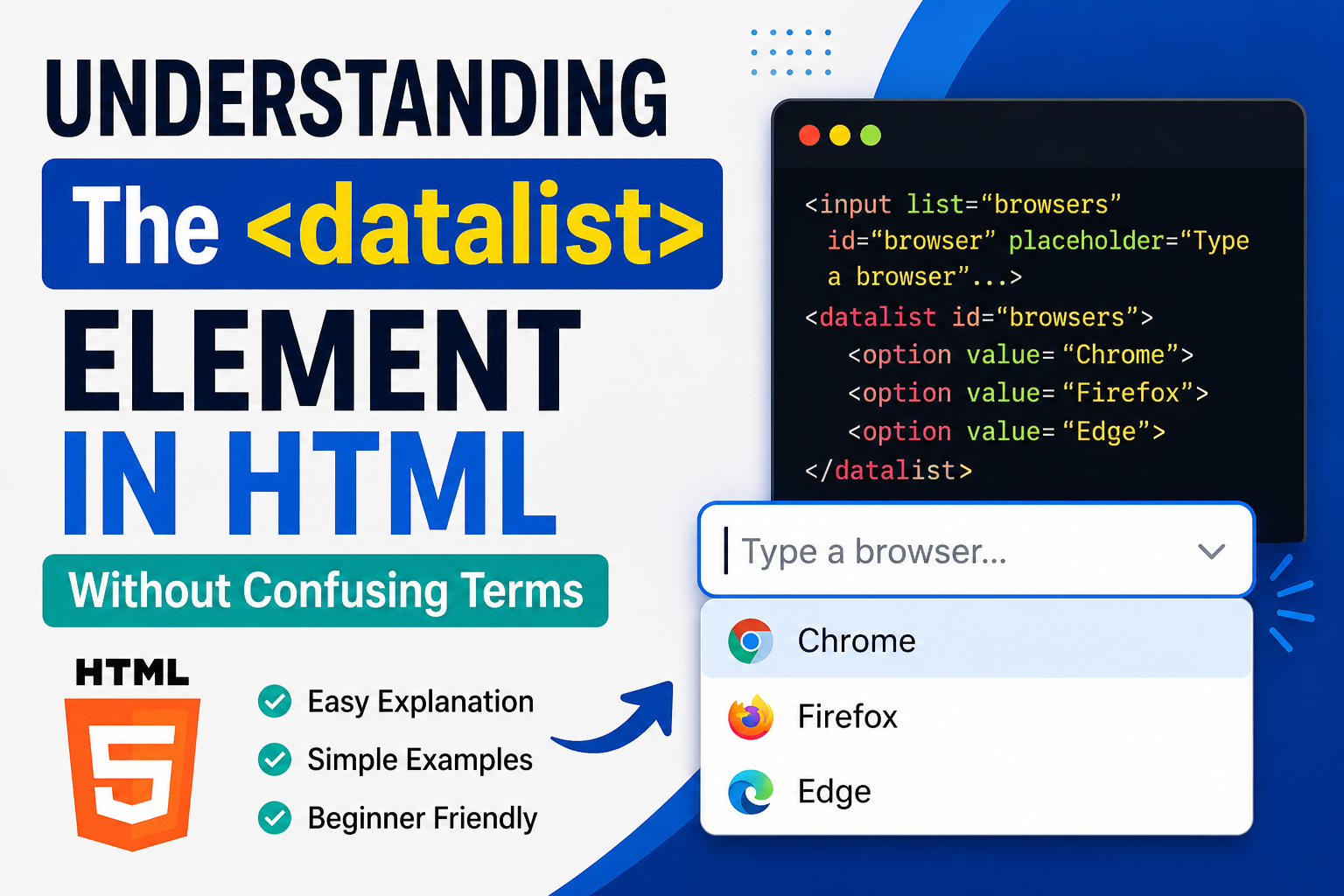
The <datalist> element in HTML is used to create a list of suggested options for an input field. It helps users type faster by showing recommendations while they are typing. Unlike a normal dropdown menu, users can either choose from the suggestions or type their own custom value.
If you have ever searched for something online and seen automatic suggestions appear while typing, then you already understand the basic idea behind <datalist>.
In this guide, you will learn:
- What the
<datalist>element is - How it works
- Why it is useful
- The difference between
<datalist>and<select> - Real-world examples
- Best practices for beginners
This article explains everything in simple terms without too much complicated code.
What Is the <datalist> Element?
The <datalist> element provides a list of predefined suggestions for an <input> field.
It works together with:
<input><option>
The user can:
- Select one of the suggestions
- Or type something completely different
This makes forms more flexible and user-friendly.
Simple Example of <datalist>
Here is the basic structure:
<input list="browsers">

<datalist id="browsers">
  <option value="Chrome">
  <option value="Firefox">
  <option value="Edge">
</datalist>
When users start typing inside the input field, browser suggestions appear automatically.

How <datalist> Works
The process is very simple:
- The
<input>field uses thelistattribute - The
listvalue connects to the<datalist>ID - The
<option>tags provide suggestions
Example:
<input list="countries">

<datalist id="countries">
  <option value="Nigeria">
  <option value="Canada">
  <option value="Brazil">
</datalist>
As users type:
- “N” may suggest Nigeria
- “C” may suggest Canada
But users can still type another country not listed.
Why the <datalist> Element Is Useful
The <datalist> element improves user experience in many ways.
1. Faster Typing
Users don’t need to type everything manually.
2. Reduces Mistakes
Suggestions help avoid spelling errors.
3. Flexible Input
Unlike dropdowns, users are not forced to select only listed options.
4. Cleaner Forms
It keeps forms simple and modern.
Difference Between <datalist> and <select>
Many beginners confuse these two elements.
Here is the difference:
<datalist> | <select> |
|---|---|
| Allows typing custom values | Only allows listed options |
| Shows suggestions while typing | Shows a dropdown menu |
| More flexible | More controlled |
Works with <input> | Works alone |
Example of <select>
<select>
  <option>Nigeria</option>
  <option>Canada</option>
</select>
Users must choose from the list.
Example of <datalist>
<input list="countries">

<datalist id="countries">
  <option value="Nigeria">
  <option value="Canada">
</datalist>
Users can type their own value too.
Real-Life Uses of <datalist>
The <datalist> element is useful in many situations.
Search Suggestions
Websites can suggest search terms.
Country Inputs
Users see country recommendations while typing.
Product Searches
Online stores can suggest products.
Email Suggestions
Forms can suggest common email providers.
Job Application Forms
Suggestions for skills or job titles.
Browser Support
Most modern browsers support <datalist> including:
- Chrome
- Edge
- Firefox
- Opera
- Safari (partial support in older versions)
Today, it works well in most modern web projects.
Making Forms More User-Friendly
Imagine a form asking users to type their favorite programming language.
Without suggestions:
- Users may type slowly
- Spelling mistakes can happen
With <datalist>:
- Suggestions appear instantly
- Typing becomes easier
This creates a smoother experience.
Example with Food Suggestions
<label for="food">Choose food:</label>

<input list="foods" id="food">

<datalist id="foods">
  <option value="Pizza">
  <option value="Burger">
  <option value="Rice">
</datalist>
This creates a helpful suggestion box.
Styling <datalist>
The <datalist> itself has limited styling options because browsers control most of its appearance.
However, you can style the input field.
Example:
<input list="cities" class="input-box">

<style>
.input-box{
  width:300px;
  padding:10px;
  border-radius:5px;
}
</style>
This improves the appearance of the input field.
Common Beginner Mistakes
1. Forgetting the list Attribute
Wrong:
<input>

<datalist id="cars">
Correct:
<input list="cars">

<datalist id="cars">
The input must connect to the datalist.
2. Mismatching IDs
Wrong:
<input list="food">

<datalist id="foods">
The names must match exactly.
3. Using Too Many Suggestions
Huge suggestion lists can confuse users.
Keep suggestions relevant and organized.
Accessibility Benefits
The <datalist> element helps accessibility because:
- Users get typing assistance
- Forms become easier to complete
- Input becomes faster
However, accessibility support may vary slightly between browsers and screen readers.
SEO and Semantic HTML
The <datalist> element does not directly improve SEO rankings, but it improves:
- User experience
- Form usability
- Interaction quality
Better user experience often helps websites perform better overall.
<datalist> vs Autocomplete
Some people think <datalist> and browser autocomplete are the same.
They are different.
Browser Autocomplete
Uses previously entered data.
<datalist>
Uses suggestions provided by the developer.
You can even combine both together.
Modern Website Usage
Today, many modern websites use <datalist> for:
- Search bars
- Booking forms
- Shopping filters
- Dashboard tools
- User registration forms
It creates a smoother and more professional experience.
Example: Movie Suggestion Input
<label for="movie">Favorite Movie:</label>

<input list="movies" id="movie">

<datalist id="movies">
  <option value="Avatar">
  <option value="Titanic">
  <option value="Inception">
</datalist>
As users type:
- Suggestions automatically appear
Simple and helpful.
Advantages of Using <datalist>
Easy to Use
Very beginner-friendly.
Lightweight
No JavaScript needed for basic suggestions.
Better User Experience
Makes forms feel modern.
Flexible
Users can type custom values.
Disadvantages of <datalist>
Limited Styling
Browser controls most of the design.
Browser Differences
Some browsers display suggestions differently.
Not Ideal for Huge Lists
Very large suggestion lists may slow things down.
Best Practices
Keep Suggestions Short
Avoid overwhelming users.
Use Relevant Suggestions
Only include useful options.
Test Across Browsers
Check appearance and functionality.
Use Clear Labels
Tell users what the field is for.
Example:
<label for="country">Country:</label>Combining <datalist> with Forms
The <datalist> element works perfectly inside forms.
Example:
<form>

<label for="city">Choose a city:</label>

<input list="cities" id="city">

<datalist id="cities">
  <option value="Lagos">
  <option value="Abuja">
  <option value="Kano">
</datalist>

<button type="submit">Submit</button>

</form>
This creates an interactive form field.
When NOT to Use <datalist>
Avoid using <datalist> when:
- Users must choose only specific values
- You need advanced dropdown styling
- You need complex search systems
In those cases, custom JavaScript solutions may work better.
Helpful Tip for Beginners
Start simple.
Practice with:
- Country suggestions
- Food suggestions
- Search boxes
Once you understand how the connection between <input> and <datalist> works, everything becomes much easier.
The <datalist> element is one of the easiest ways to improve HTML forms without using JavaScript. It helps users type faster, reduces mistakes, and creates a cleaner experience.
Even though it is simple, it can make your forms feel much more modern and interactive.
As a beginner, learning <datalist> is valuable because:
- It teaches form interaction
- It improves user experience
- It introduces smart input suggestions
The best way to master it is by practicing small projects and experimenting with different suggestion lists.
Once you become comfortable using <datalist>, you’ll be able to build more user-friendly and professional-looking web forms with ease.