
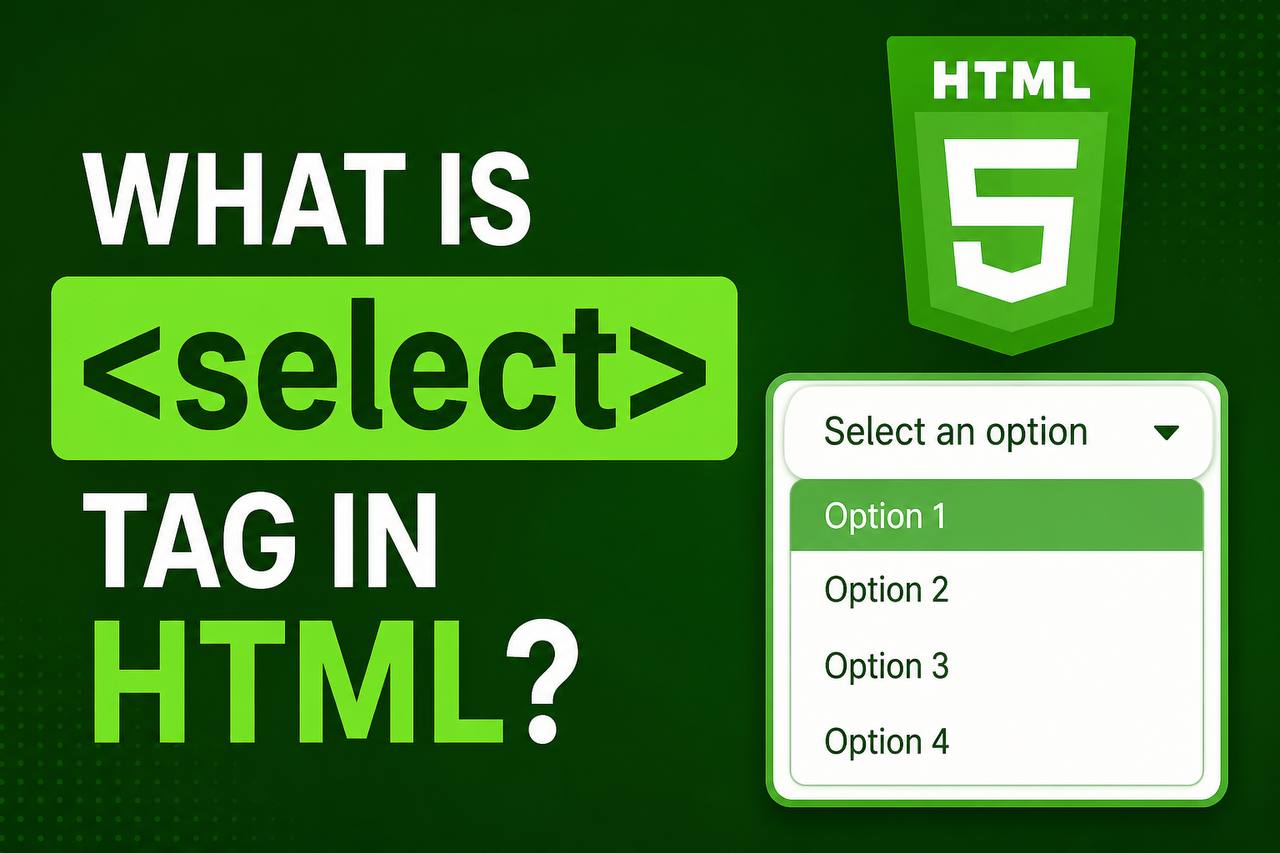
The <select> tag in HTML is used to create a dropdown list that allows users to choose one or more options from a list. It is commonly used in forms when you want users to pick from predefined choices instead of typing manually.
You’ll see <select> used in things like:
- Choosing a country
- Selecting gender
- Picking a category
- Choosing a product size or color
It helps keep user input clean, structured, and easy to manage.
Basic Syntax of <select>
Here’s the simplest way to use the <select> tag:
<select>
  <option>Option 1</option>
  <option>Option 2</option>
  <option>Option 3</option>
</select>
How it works:
<select>creates the dropdown<option>defines each selectable item

Adding Labels and Using in a Form
The <select> tag is usually placed inside a <form> with a label:
<form>
  <label for="country">Choose a country:</label><br>
  <select id="country" name="country">
    <option value="ng">Nigeria</option>
    <option value="us">United States</option>
    <option value="uk">United Kingdom</option>
  </select>
</form>
Explanation:
labelhelps users understand the fieldidconnects label and dropdownnameis used when submitting the formvalueis what gets sent to the server
Setting a Default Selected Option
You can make an option selected by default:
<select>
  <option value="html">HTML</option>
  <option value="css" selected>CSS</option>
  <option value="js">JavaScript</option>
</select>
Here, CSS will be selected automatically.
Creating a Disabled Option
You can disable an option so users can’t select it:
<option value="" disabled selected>Select an option</option>This is useful as a placeholder.
Grouping Options with <optgroup>
You can organize options into groups:
<select>
  <optgroup label="Frontend">
    <option>HTML</option>
    <option>CSS</option>
  </optgroup>
  <optgroup label="Backend">
    <option>PHP</option>
    <option>Node.js</option>
  </optgroup>
</select>
This improves readability when you have many options.
Allowing Multiple Selections
You can allow users to select more than one option:
<select multiple>
  <option>HTML</option>
  <option>CSS</option>
  <option>JavaScript</option>
</select>
Hold Ctrl (Windows) or Cmd (Mac) to select multiple items.
Controlling Size of Dropdown
You can show multiple options at once using size:
<select size="4">
  <option>Option 1</option>
  <option>Option 2</option>
  <option>Option 3</option>
  <option>Option 4</option>
</select>
Important Attributes of <select>
1. name
Used when submitting form data
<select name="city"></select>2. id
Used to connect with label
<select id="city"></select>3. multiple
Allows multiple selections
<select multiple></select>4. required
Makes selection mandatory
<select required></select>5. disabled
Disables the dropdown
<select disabled></select>Styling the <select> Tag with CSS
By default, dropdowns look different across browsers. You can style them using CSS.
<style>
select {
  width: 100%;
  padding: 10px;
  font-size: 16px;
  border: 2px solid #333;
  border-radius: 5px;
}
</style>
This makes your dropdown:
- Wider
- More readable
- Visually clean
select {
  appearance: none;
  background: url('arrow.png') no-repeat right center;
  background-size: 15px;
}
Example: Complete Form with <select>
<!DOCTYPE html>
<html>
<head>
  <title>Select Example</title>
</head>
<body>

<h2>Registration Form</h2>

<form>
  <label for="gender">Gender:</label><br>
  <select id="gender" name="gender" required>
    <option value="" disabled selected>Select gender</option>
    <option value="male">Male</option>
    <option value="female">Female</option>
  </select><br><br>

  <label for="country">Country:</label><br>
  <select id="country" name="country">
    <option>Nigeria</option>
    <option>Ghana</option>
    <option>Kenya</option>
  </select><br><br>

  <input type="submit" value="Submit">
</form>

</body>
</html>
Difference Between <select> and <input>
| Feature | <select> | <input> |
|---|---|---|
| Input type | Predefined options | Free text input |
| Use case | Dropdown choices | Typing data |
| Control | Limited input | Flexible input |
Common Use Cases
The <select> tag is widely used in:
- Registration forms
- Payment forms
- Filters (e-commerce sites)
- Survey forms
- Settings menus
- Booking systems
Accessibility Tips
To make your dropdown user-friendly:
- Always use a
<label> - Add a default placeholder option
- Use meaningful option names
- Avoid too many options without grouping
Example:
<label for="plan">Choose a plan:</label>
<select id="plan" name="plan">
  <option value="" disabled selected>Select plan</option>
  <option>Basic</option>
  <option>Premium</option>
</select>
Using JavaScript with <select>
You can get the selected value using JavaScript:
<select id="mySelect">
  <option value="1">One</option>
  <option value="2">Two</option>
</select>

<script>
let value = document.getElementById("mySelect").value;
console.log(value);
</script>
Getting Selected Option Text
let select = document.getElementById("mySelect");
let text = select.options[select.selectedIndex].text;
console.log(text);
Best Practices
- Keep options short and clear
- Use grouping for long lists
- Avoid too many dropdowns on one page
- Use
requiredwhen needed - Provide a default disabled option
Common Mistakes to Avoid
1. Forgetting <option>
<select></select> <!-- No options -->2. Not using value
<option>Nigeria</option> <!-- No value -->
Better:
<option value="ng">Nigeria</option>
3. No label
Always describe your dropdown.
Browser Support
The <select> tag is supported in all major browsers:
- Chrome
- Firefox
- Safari
- Edge
No extra setup needed.
Advanced Example with Multiple Features
<select name="skills" multiple size="4">
  <optgroup label="Frontend">
    <option value="html">HTML</option>
    <option value="css">CSS</option>
  </optgroup>
  <optgroup label="Backend">
    <option value="php">PHP</option>
    <option value="node">Node.js</option>
  </optgroup>
</select>
Why <select> is Important
The <select> tag helps:
- Reduce user errors
- Improve form usability
- Standardize input
- Speed up form completion
Instead of typing, users just choose.
The <select> tag is one of the most useful form elements in HTML. It allows users to choose from a list of predefined options, making forms cleaner and easier to use.
Key Takeaways:
<select>creates dropdown lists<option>defines each choice- Supports attributes like
multiple,required, anddisabled - Can be styled with CSS
- Works well with forms and JavaScript
Once you understand how to use <select>, you can build better forms and improve user experience on your website.
Read More
Anyone familiar with rồng bạch kim chấm net? I came across it looking for something else. It’s worth looking into, but want to get a sense of what others think first. rồng bạch kim chấm net
3 ketqua net gets the job done. Simple to understand and quick. I appreciate that a lot! Check it out: 3 ketqua net
Alright, I came across ‘r0ng bach kim’ recently. I kinda dig the unique spelling, haha! Take a look: r0ng bach kim