
The <video> tag in HTML is used to embed video content directly into a web page. It allows you to display and control videos without needing external plugins like Flash. This makes it a core part of modern web development, because browsers now support video playback natively.
Before the <video> tag was introduced in HTML5, adding video to a website was difficult. Developers had to rely on third-party tools or plugins, which were not always reliable or supported on all devices. With the <video> tag, everything is built into the browser, making it easier, faster, and more consistent.
This article explains what the <video> tag is, how it works, its attributes, supported formats, and how to use it properly.
Basic Syntax of the <video> Tag
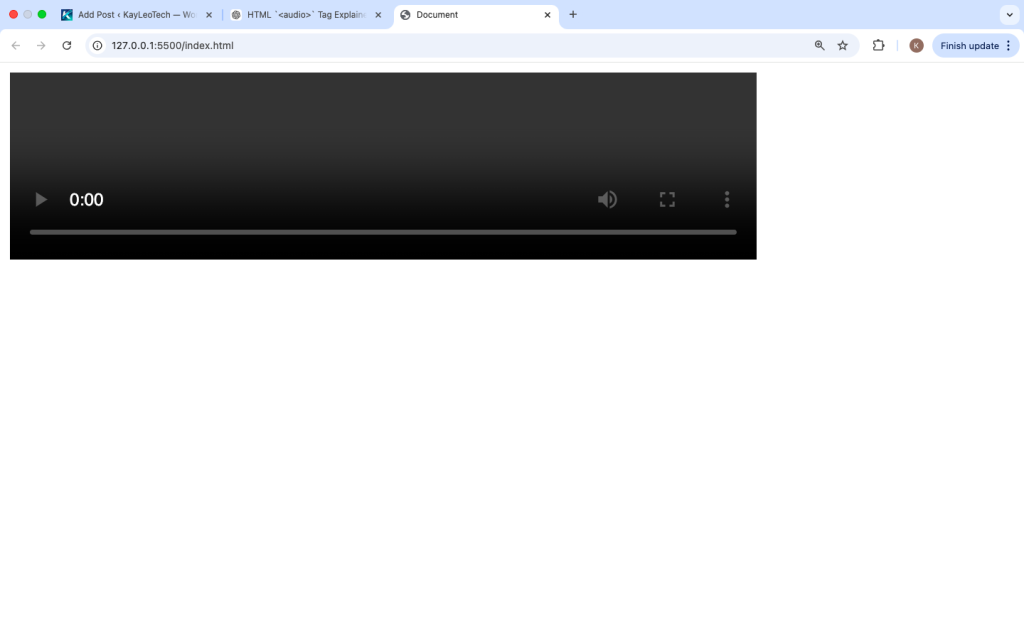
The simplest way to use the <video> tag looks like this:
<video src="movie.mp4" controls></video>
This code tells the browser to load a video file called movie.mp4 and display playback controls like play, pause, and volume.
However, this is just the basic usage. The <video> tag supports many options that give you more control.
A More Complete Example
Here is a better way to use the <video> tag:
<video width=”600″ controls>
<source src=”movie.mp4″ type=”video/mp4″>
<source src=”movie.webm” type=”video/webm”>
Your browser does not support the video tag.
</video>
Explanation:
<video>: The container for the video player<source>: Defines different video filescontrols: Adds playback controls- Fallback text: Shows if the browser does not support video
Using multiple <source> elements helps ensure compatibility across different browsers.
Why Use the <video> Tag
The <video> tag is important because it:
- Removes the need for plugins
- Works on mobile and desktop browsers
- Supports multiple formats
- Provides built-in controls
- Improves performance and security
It is now the standard way to add video content to websites.
Common Attributes of the <video> Tag
The <video> tag comes with several attributes that control how the video behaves.
1. controls
<video src="movie.mp4" controls></video>
Adds default video controls like play, pause, and volume.
2. autoplay
<video src="movie.mp4" autoplay></video>
Starts playing the video automatically when the page loads.
Note: Many browsers block autoplay unless the video is muted.
3. muted
<video src="movie.mp4" muted></video>
Mutes the video audio by default. Often used with autoplay.
4. loop
<video src="movie.mp4" loop></video>
Makes the video repeat automatically after it ends.
5. width and height
<video src="movie.mp4" width="500" height="300"></video>
Sets the size of the video player.
6. poster
<video src="movie.mp4" poster="thumbnail.jpg" controls></video>
Displays an image before the video starts playing.
7. preload
<video src="movie.mp4" preload="auto"></video>
Controls how the video loads before playback.
Values:
auto: Load the entire videometadata: Load only video infonone: Do not preload
Using Multiple Video Sources
Different browsers support different video formats. To make sure your video works everywhere, use multiple sources:
<video controls>
<source src=”video.mp4″ type=”video/mp4″>
<source src=”video.webm” type=”video/webm”>
<source src=”video.ogg” type=”video/ogg”>
</video>
The browser will use the first format it supports.
Supported Video Formats
Here are the most common formats:
- MP4 (H.264) – Most widely supported
- WebM – Open-source and supported by modern browsers
- Ogg – Less common but still used
MP4 is usually the best choice for compatibility.
Adding Subtitles with <track>
You can add subtitles or captions using the <track> tag:
<video controls>
  <source src="movie.mp4" type="video/mp4">
  <track src="subtitles.vtt" kind="subtitles" srclang="en" label="English">
</video>
Explanation:
src: Subtitle filekind: Type of track (subtitles, captions, etc.)srclang: Languagelabel: Name shown to users
Subtitles improve accessibility and user experience.
Fallback Content
Not all browsers may support video. You can add fallback text:
<video controls>
  <source src="movie.mp4" type="video/mp4">
  Your browser does not support HTML video.
</video>
This ensures users still see a message if the video cannot play.
Controlling Video with JavaScript
You can control the <video> element using JavaScript.
Example:
<video id=”myVideo” src=”movie.mp4″></video>
<button onclick=”playVideo()”>Play</button>
<script>
function playVideo() {
document.getElementById(“myVideo”).play();
}
</script>
Common methods:
play()pause()load()
Common properties:
currentTimedurationpaused
This allows you to build custom video players.
Best Practices for Using <video>
1. Use Multiple Formats
Always provide at least MP4 and WebM for better support.
2. Keep File Size Small
Large videos slow down your website. Compress videos when possible.
3. Use a Poster Image
A poster gives users a preview before playing the video.
4. Avoid Autoplay with Sound
Autoplaying videos with sound can annoy users and may be blocked.
5. Add Subtitles
Subtitles improve accessibility and help users understand content better.
6. Optimize for Mobile
Make sure your video is responsive:
<video controls style="max-width: 100%; height: auto;">
<video> vs <iframe>
Sometimes developers use <iframe> to embed videos (like from YouTube). But there is a difference:
| Feature | <video> Tag | <iframe> |
|---|---|---|
| Self-hosted | Yes | No |
| Full control | Yes | Limited |
| External video | No | Yes |
Common Mistakes to Avoid
- Not adding
controls - Using only one video format
- Large uncompressed files
- Missing fallback text
- Forgetting accessibility (subtitles)
Avoiding these mistakes makes your video more reliable.
Browser Support
The <video> tag is supported in all modern browsers, including:
- Chrome
- Firefox
- Safari
- Edge
Older browsers may have limited support, but this is rarely an issue today.
The <video> tag is a powerful and essential part of HTML. It allows you to embed videos directly into your website without relying on external plugins. With support for multiple formats, built-in controls, and customization options, it gives developers full control over video content.
By understanding how to use attributes like controls, autoplay, and poster, and by providing multiple video sources, you can create a smooth and professional video experience for users.
If you follow best practices like optimizing file size, adding subtitles, and ensuring mobile responsiveness, your videos will load faster and work better across all devices.
In modern web development, the <video> tag is the standard way to deliver video content. Learning how to use it properly is an important step for building high-quality websites.