
When learning HTML, you’ll come across different tags used to organize content on a web page. One of the less commonly discussed but very useful tags is the <dl> tag. If you want to present information in a structured, descriptive format like definitions, FAQs, or glossaries this tag is exactly what you need.
In this guide, you’ll learn what the <dl> tag is, how it works, when to use it, and how to implement it properly. Everything is explained in a simple, clear way so you can start using it right away.
What is the <dl> Tag?
The <dl> tag in HTML stands for Description List. It is used to group a list of terms and their corresponding descriptions.
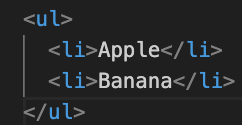
Unlike unordered lists (<ul>) or ordered lists (<ol>), which display simple bullet points or numbered items, the <dl> tag is specifically designed for pairs of items—a term and its explanation.
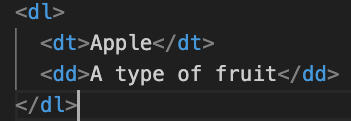
Structure of a <dl> list
A description list is made up of three main elements:
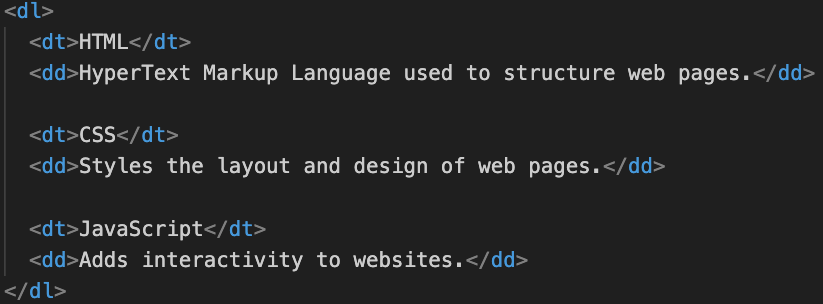
<dl>→ wraps the entire list<dt>→ defines the term (title or name)<dd>→ defines the description (details about the term)
Basic Example of <dl>
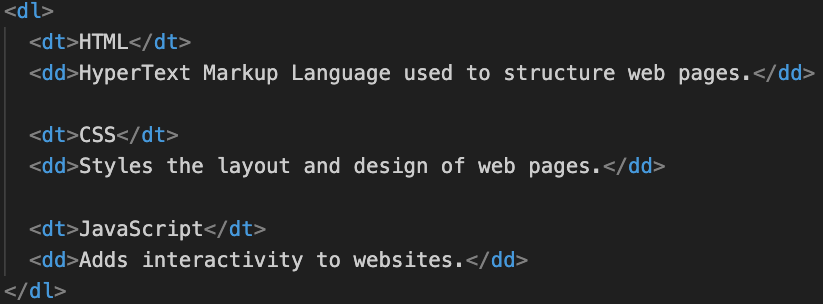
Here’s a simple example to understand how it works:
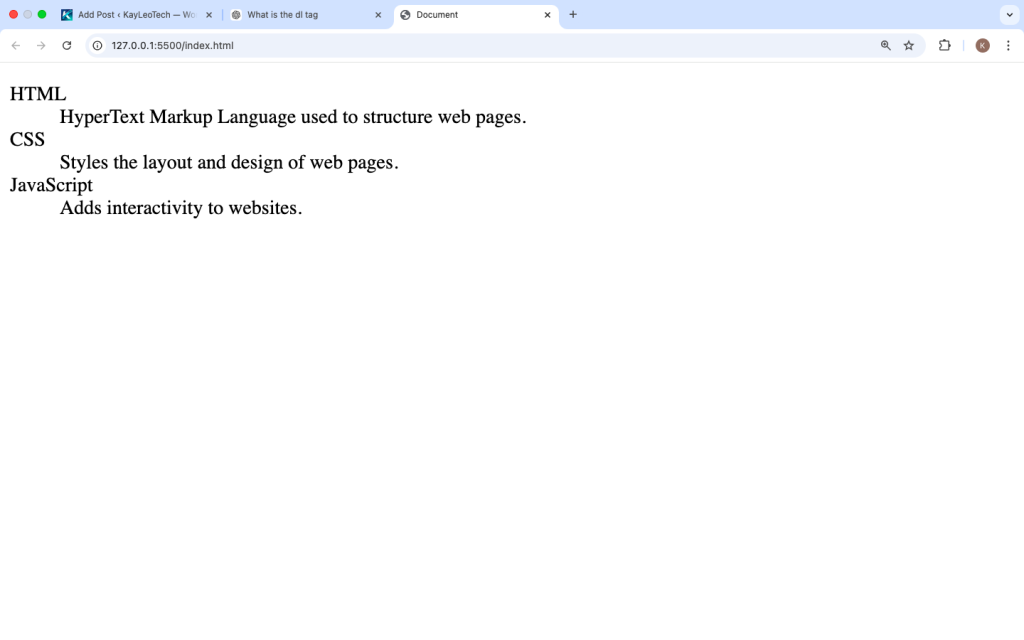
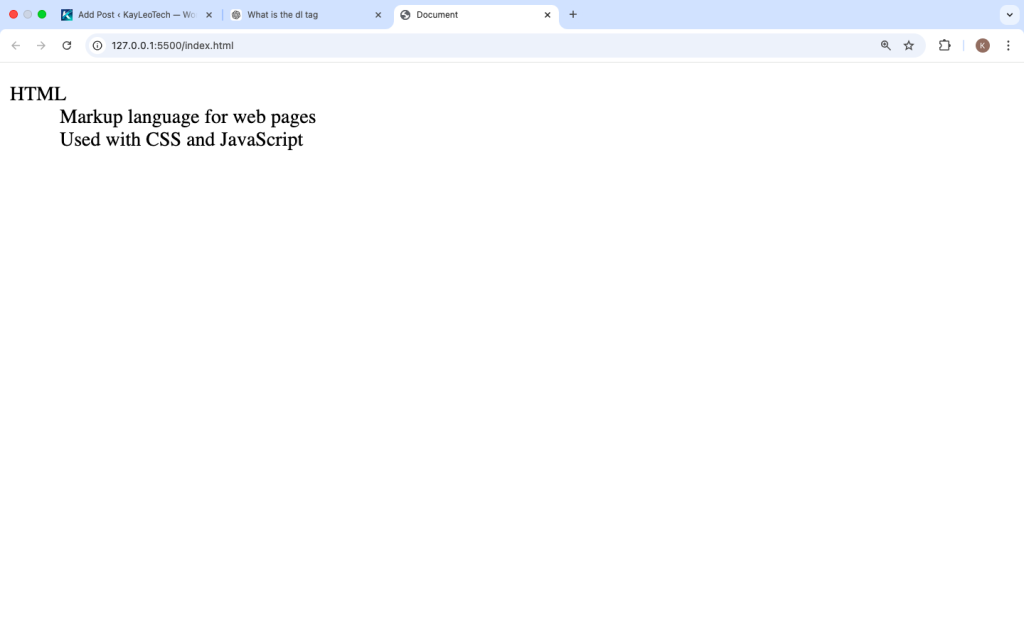
Output:
- HTML → HyperText Markup Language used to structure web pages
- CSS → Styles the layout and design of web pages
- JavaScript → Adds interactivity to websites
When Should You Use the <dl> Tag?
The <dl> tag is best used when you want to display pairs of related information.
Common use cases:
- Glossary of terms
- FAQs (Questions and Answers)
- Metadata descriptions
- Product details
- Definitions or dictionaries
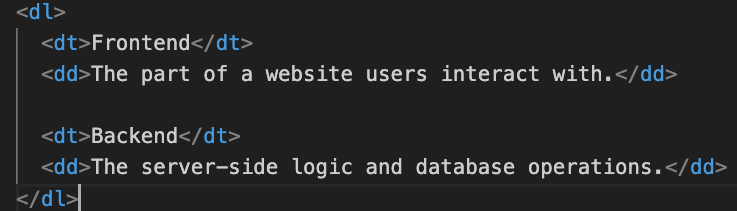
Example 1: Glossary
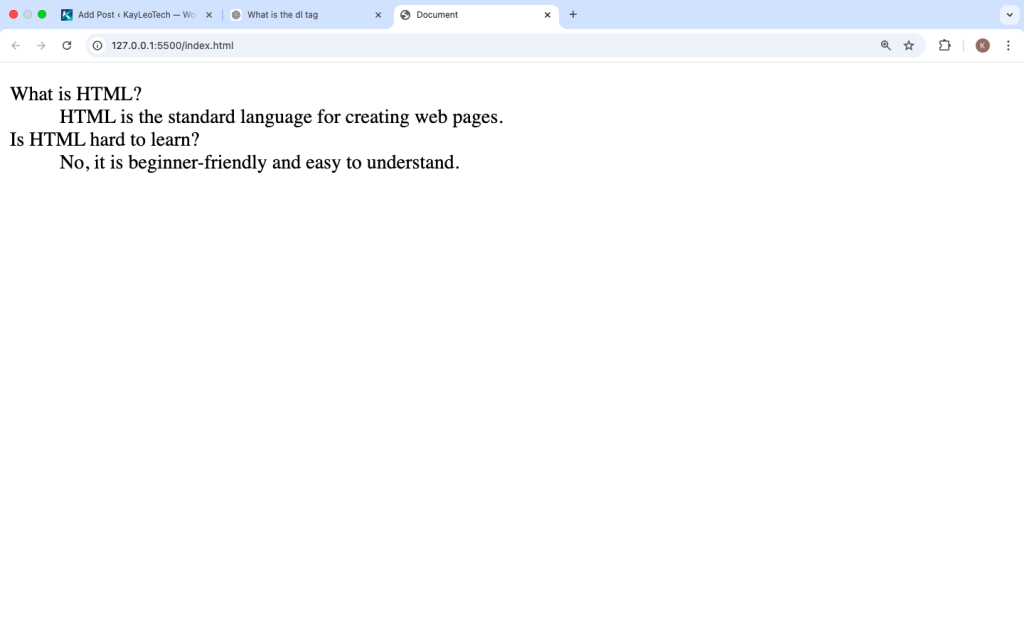
Example 2: FAQ Section
Key Difference Between <dl> and Other Lists
| Tag | Purpose | Structure |
|---|---|---|
<ul> | Unordered list | Bullet points |
<ol> | Ordered list | Numbered items |
<dl> | Description list | Term + description |
Example Comparison:
Multiple Descriptions for One Term
You can have more than one <dd> for a single <dt>.
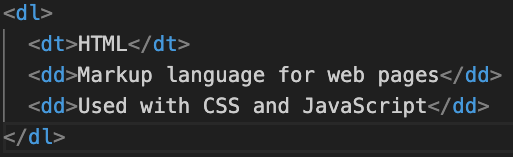
Multiple Terms for One Description
You can also define multiple <dt> elements followed by a single <dd>.
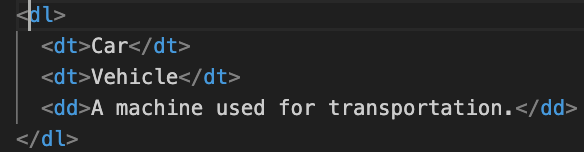
This is useful when different terms share the same meaning.
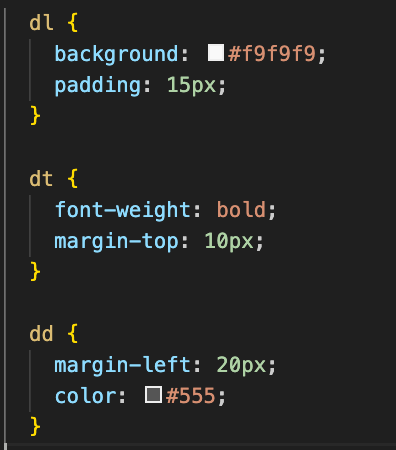
Styling <dl> with CSS
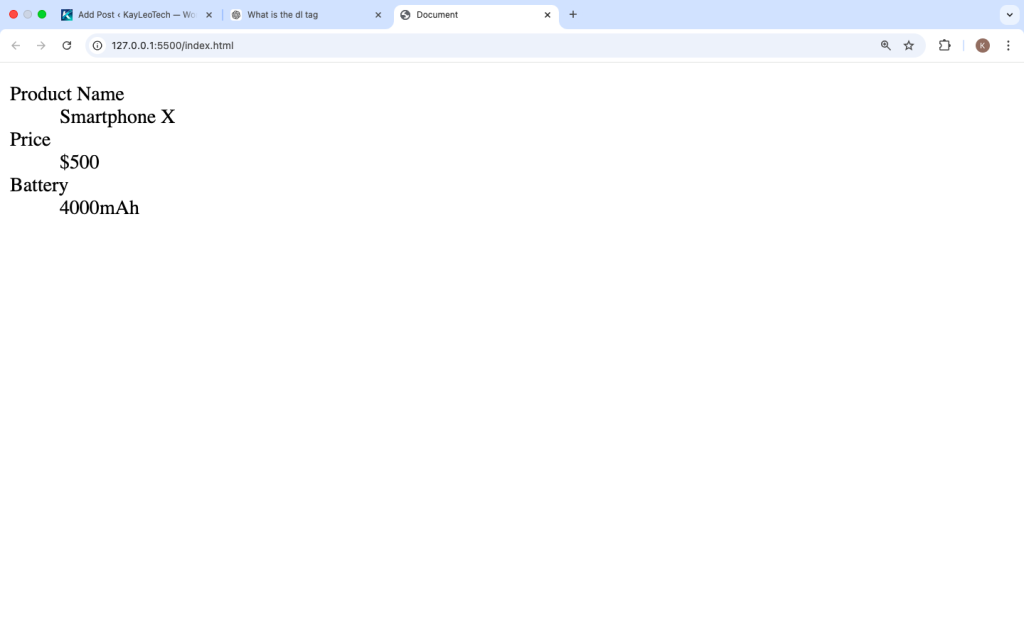
By default, browsers add spacing and indentation. But you can customize it using CSS.
Example:
Real-Life Example: Product Details
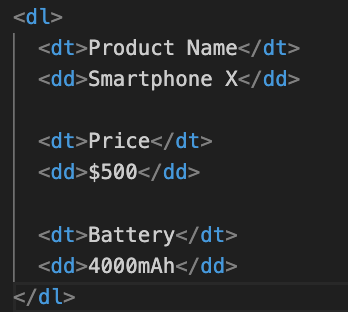
This is cleaner than using plain paragraphs.
Accessibility Benefits of <dl>
Using <dl> properly helps:
- Screen readers understand content better
- Improves semantic structure
- Makes your website more accessible
Instead of using random <div> tags, <dl> gives meaning to your content.
Common Mistakes to Avoid
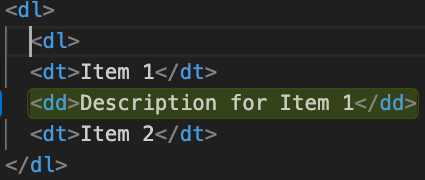
1. Using <dl> for simple lists
Wrong:
Correct:
Use <ul> instead if there are no descriptions.
2. Skipping <dt> or <dd>
Both elements should always be used properly.
3. Overusing <dl>
Not every list needs <dl>. Use it only when there is a clear relationship between term and description.
<dl> vs <table>
Sometimes people use tables for structured data, but <dl> is better when:
- Data is not tabular
- You don’t need rows and columns
- You’re showing definitions
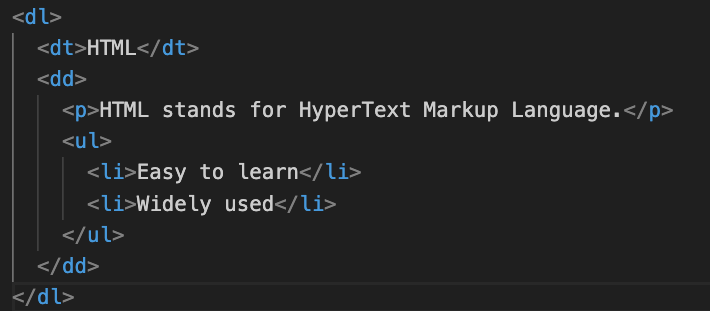
Advanced Example: Nested Content
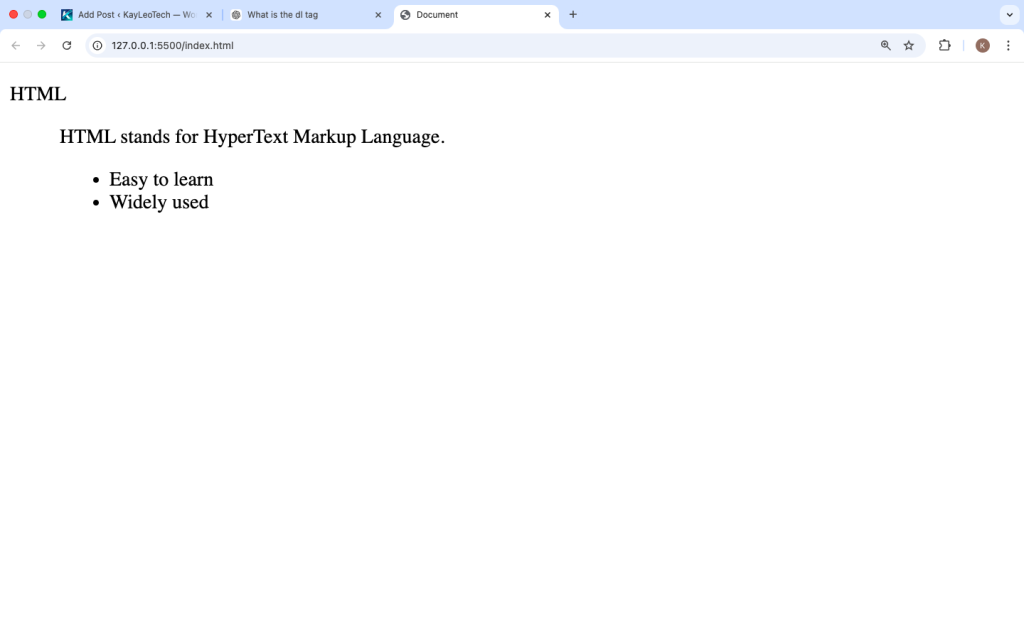
You can include other HTML elements inside <dd>:
Browser Support
The <dl> tag is supported in all modern browsers:
- Chrome
- Firefox
- Edge
- Safari
So you don’t need to worry about compatibility.
Why You Should Learn <dl>
Even though it’s not used as often as other tags, it is important because:
- It improves content structure
- Makes your HTML semantic
- Helps with accessibility
- Useful for real-world UI (FAQs, glossaries, product info)
Quick Summary
<dl>= Description List<dt>= Term<dd>= Description- Best used for definitions, FAQs, and structured info
- More semantic than using
<div>
The <dl> tag is a simple but powerful way to organize related information in HTML. While beginners often skip it, knowing how to use it properly gives you an advantage when building clean and structured web pages.
If you’re creating a glossary, FAQ section, or any content where one item explains another, <dl> is the right choice. Keep practicing by combining it with CSS styling and real-world examples, and you’ll quickly get comfortable using it.
Tried 161bet7 out, you know. Pretty standard stuff, nothing amazing but it does the job. Give it a look 161bet7
200coinssuperbet? Sounds fancy! Gave it a go, actually. Seemed alright, not a bad shout for a bit of a gamble 200coinssuperbet
20betto, hmmm. Had a bit of a play there. Nothing special, but alright for a quick go. Pop over there sometime 20betto