
Background images are one of the most common design features in modern websites. They are used in hero sections, headers, banners, cards, and full-page layouts. A background image sits behind content and helps create visual appeal without affecting the structure of your HTML.
To set a background image on a webpage, you use CSS. The CSS background-image property allows you to place an image behind an element.
This guide explains everything step by step — from basic setup to positioning, sizing, repeating, and common problems beginners face.
What Is a Background Image in CSS?
A background image is an image applied to an HTML element using CSS. It appears behind the element’s content.
You can apply a background image to:
- the entire page
- a section
- a div container
- a header
- a card component
- any HTML element
The image does not appear inside the element like an <img> tag. Instead, it becomes part of the element’s background layer.
Basic CSS Syntax for Background Image
The simplest way to set a background image is:

This tells the browser:
- target an element
- load an image
- display it behind content
The url() function specifies the file location.
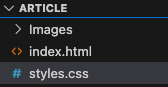
Correct file placement is very important. Many background issues happen because the file path is wrong.
Step 2 — Apply Background Image to the Page
To set a background image for the entire webpage, target the body element.
Example:

Now the image appears behind everything on the page.

Understanding Image Path (Very Important)
The path tells CSS where to find the image.
Same folder as CSS file

Inside images folder

One folder up

If path is wrong, image will not display.
Always double-check spelling and folder names.
Step 3 — Prevent Background From Repeating
By default, background images repeat to fill space.
Small images may tile across the screen.
To stop repetition:

Example:
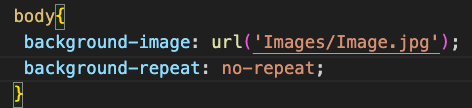
Now image appears once.
Step 4 — Control Background Size
Sometimes the image is too small or too large.
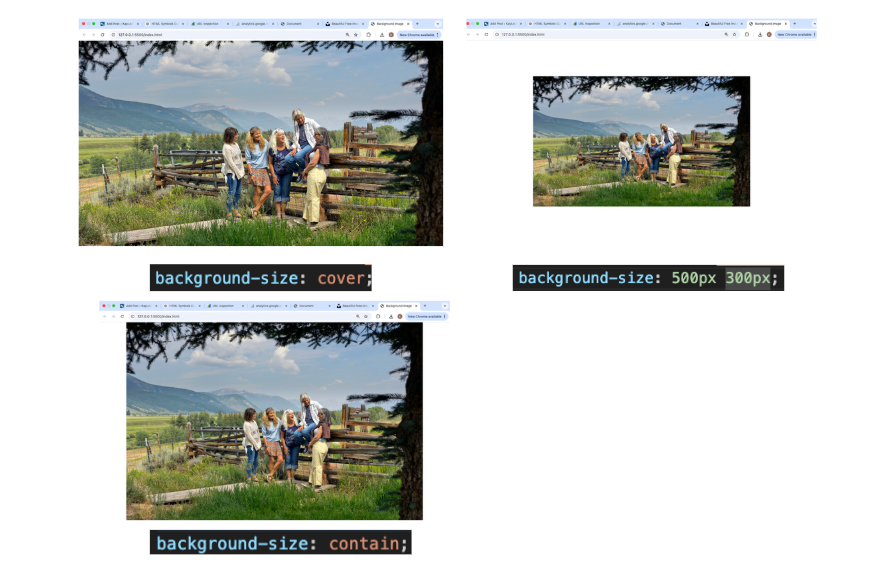
Use background-size to control scaling.

Image fills entire element while maintaining proportions. Some cropping may happen.
Most commonly used option.

Entire image is visible. Empty space may appear.
Exact Size

Sets fixed dimensions.
Step 5 — Position the Background Image
Background images can be placed anywhere inside an element.
Use background-position.
Examples:
Center image:

Top left:

Bottom right:

Custom position:

This moves image horizontally and vertically.
Step 6 — Fix Background While Scrolling
You can make the image stay still when the page scrolls.

Example:
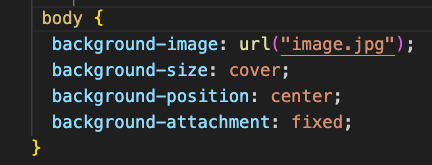
This creates a parallax-like effect.
Step 7 — Use Background Shorthand Property
Instead of writing many lines, CSS allows shorthand.
Example:

This combines:
- image
- repeat
- position
- size
Cleaner and faster.
Setting Background for a Specific Section
You do not have to apply background to the entire page.
Example HTML:

css
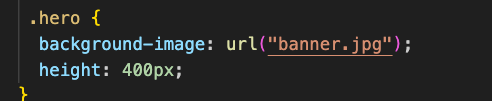
The background appears only in that section.
Height must be defined, otherwise element may collapse.
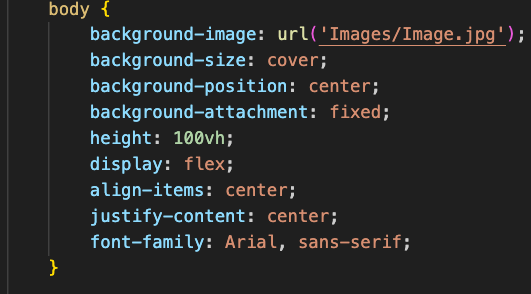
Text becomes centered over image.
Common Beginner Problems and Fixes
Problem — Image Not Showing
Check:
- file path
- file extension
- CSS syntax
- spelling
- image location
Most issues are path errors.
Problem — Image Repeating Unexpectedly
Solution:

Problem — Image Looks Stretched
Use:

Problem — Background Not Filling Section
Ensure element has height.

Performance Tips
Large images slow page loading.
Use:
- compressed images
- optimized formats
- reasonable dimensions
Fast loading improves user experience
Best Practices for Clean Design
Use high-quality images.
Ensure text contrast is readable.
Avoid distracting patterns.
Match image with website theme.
Backgrounds should support content, not overpower it.
Real World Use Cases
Hero section background
Landing page banner
Call-to-action section
Portfolio showcase
Full-screen intro
Product highlight
Background images are core visual design tools.
Simple Practice Exercise
Create a page with:
- full-screen background
- centered text
- no repeat
- cover sizing
Experiment with different images.
Practice helps you understand behavior quickly.
Key Concepts to Remember
Background image is applied with CSS.
Image path must be correct.
Repeat can be controlled.
Size controls scaling.
Position controls placement.
Element height must exist.
These six ideas solve most problems.
Setting a background image in CSS is simple once you understand the basic structure and supporting properties.
You start with background-image, then control how it behaves using repeat, size, position, and attachment. You can apply backgrounds to entire pages or individual sections. You can overlay colors, control scrolling, and adjust scaling to fit your layout.
Most issues beginners face come from incorrect file paths, missing element height, or misunderstanding size behavior.
Once you practice these fundamentals, background images become a powerful tool for creating visually appealing layouts that support your content without disrupting structure.