
CSS controls how HTML looks. It defines colors, spacing, layout, fonts, and overall visual style. But one thing many beginners struggle with is understanding how CSS is applied to a webpage.
CSS can be added in three main ways:
- Inline CSS
- Internal CSS
- External CSS
Each method works differently, and choosing the wrong one can cause styling problems, confusion, or messy code.
This guide explains how each type works, when to use it, and how to solve common issues developers face when applying CSS.
The Core Idea: CSS Needs a Place to Live
Before CSS can style anything, it must be connected to HTML.
CSS needs:
- a location
- a rule
- a target element
Example of a CSS rule:
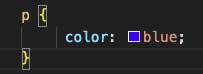
This rule targets all paragraph elements and changes their text color.
The only difference between inline, internal, and external CSS is where the rule is written.
Method 1 — Inline CSS
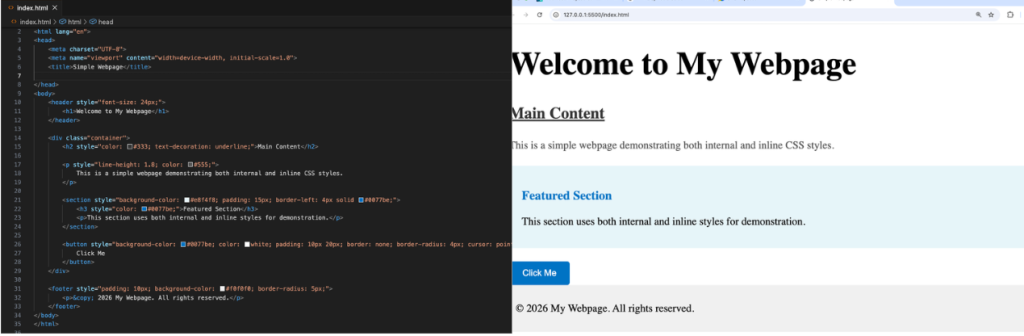
Inline CSS is written directly inside an HTML element.
It uses the style attribute.
Example:

The styling applies only to that single element.
How Inline CSS Works
When the browser reads HTML and sees a style attribute, it immediately applies that styling to the element.
This means inline CSS has very strong priority. It overrides many other styles.
When Inline CSS Is Useful
Inline CSS is helpful when:
- testing quick changes
- styling one unique element
- overriding other styles
- debugging design problems
Example:

Problem With Inline CSS
Beginners often overuse inline CSS, which causes problems:
❌ Hard to manage many elements
❌ Repeating styles everywhere
❌ Difficult to update design
❌ Messy HTML code
Imagine styling 100 paragraphs individually. That is not practical.
Problem Solving Tip
If you repeat the same style more than once, do not use inline CSS.
Use internal or external CSS instead.
Inline CSS should be temporary or rare.
Method 2 — Internal CSS
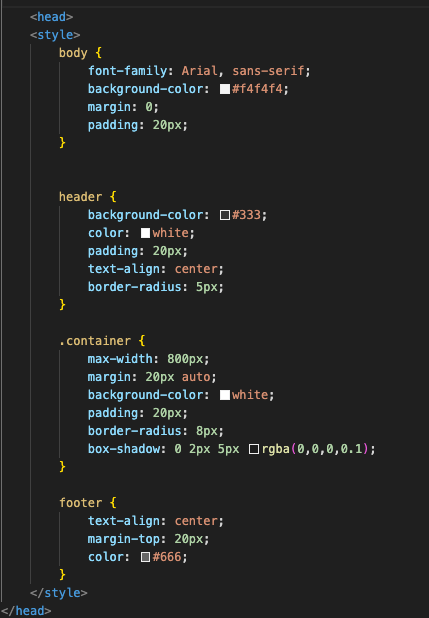
Internal CSS is written inside the <style> tag within the <head> section of an HTML file.
Example:
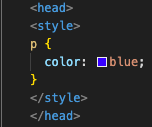
This styling applies to the entire page.
How Internal CSS Works
The browser reads the style rules before rendering page content.
Then it applies those styles to matching elements.
Unlike inline CSS, internal CSS affects multiple elements at once.
When Internal CSS Is Useful
Internal CSS works well when:
- building a single page website
- testing layout designs
- creating quick demos
- learning CSS basics
It keeps styling organized but still inside one file.
Problem With Internal CSS
Internal CSS becomes difficult when a website grows.
Problems include:
❌ Cannot reuse styles across multiple pages
❌ Large style blocks clutter HTML file
❌ Repeated code across pages
❌ Harder maintenance
If you have 10 pages, each page needs the same style block. That is inefficient.
Problem Solving Tip
Use internal CSS only for single-page projects or learning.
For real websites, external CSS is better.
Method 3 — External CSS
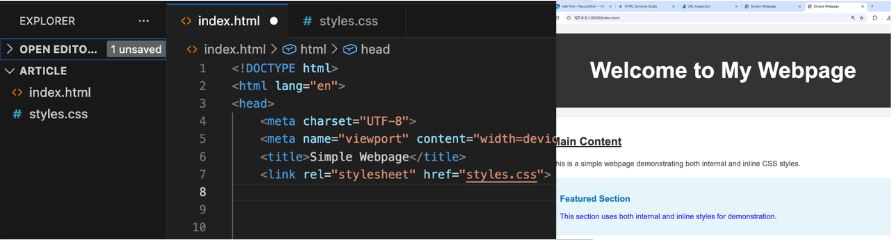
External CSS is stored in a separate file, usually with .css extension.
Example file:

It is linked to HTML using the <link> tag.

How External CSS Works
Browser process:
- Read HTML file
- See link to CSS file
- Download CSS file
- Apply styles to elements
This separates design from structure.
When External CSS Is Best
External CSS is the standard for real websites.
Use it when:
- building multi-page websites
- maintaining consistent design
- working on large projects
- collaborating with teams
- updating design frequently
Change one CSS file → entire site updates.
Problem With External CSS
Beginners often face linking errors.
Common mistakes:
❌ Wrong file path
❌ Misspelled file name
❌ CSS file not saved
❌ Missing link tag
Result: styles do not apply.
Problem Solving Tip — CSS Not Working?
Check these steps:
- Confirm file name matches exactly
- Check folder location
- Verify link tag spelling
- Refresh browser
- Inspect browser console
Most CSS issues come from incorrect linking.
CSS Priority — Which Style Wins?
Sometimes multiple styles target the same element.
Example:
- external CSS says blue
- internal CSS says green
- inline CSS says red
Which one applies?
CSS follows priority order.
Highest to lowest:
- Inline CSS
- Internal CSS
- External CSS
Browser always applies strongest rule.
Example Conflict

Internal style:

Inline style:

Result: text appears red.
Problem Solving Tip — Unexpected Style?
If styling looks wrong:
- inspect element in browser
- check which rule overrides
- remove inline styles first
Inline styles often cause conflicts.
When to Use Each Method — Quick Decision Guide
Use Inline CSS when:
- testing small changes
- styling one unique element
Use Internal CSS when:
- working on single HTML page
- building temporary layout
Use External CSS when:
- building real websites
- managing many pages
- maintaining long-term projects
External CSS is professional standard.
Real World Example
Imagine building a blog website.
Inline CSS:
You style every heading manually. Hard to manage.
Internal CSS:
Each page has its own styles. Still repetitive.
External CSS:
One design file controls entire site. Easy updates.
That is why most developers use external CSS.
Best Practice for Beginners
Follow this simple rule:
Start learning with internal CSS.
Move to external CSS for projects.
Use inline CSS only when necessary.
This builds good habits early.
Common Beginner Problems and Solutions
Problem 1 — Styles Not Applying
Check CSS file path.
Problem 2 — Wrong Style Showing
Check CSS priority.
Problem 3 — Repeating Same Style
Move to external CSS.
Problem 4 — Messy HTML
Remove inline styles.
Key Concept to Remember
CSS location determines scope.
Inline → single element
Internal → single page
External → entire website
This is the foundation of how CSS works.
CSS controls appearance, but where you place CSS determines how widely it applies and how easy it is to manage.
Inline CSS is direct but limited.
Internal CSS styles one page.
External CSS manages entire websites efficiently.
Understanding these three methods helps you avoid common mistakes, fix styling problems quickly, and build scalable web projects.
Once you understand how CSS connects to HTML, styling becomes predictable and easier to control.
This is cool