
Social media has become an essential part of online presence. Linking your website to your social media profiles not only helps visitors connect with you but also improves your website’s credibility and engagement. Adding clickable social media icons to your website is a simple yet effective way to encourage visitors to follow or share your content.
In this guide, we will explain what social media icons are, why they are important, and exactly how to add them to your website with working links. Each step includes spaces where you can add screenshots to make it easy for beginners to follow.
What Are Social Media Icons?
Social media icons are small, clickable images or buttons that link directly to your social media profiles, like Facebook, Twitter, Instagram, LinkedIn, or YouTube.
Why they are important:
- Easy access: Visitors can quickly reach your social media profiles.
- Brand visibility: Helps you promote your social media presence.
- User engagement: Encourages followers, shares, and interaction.
- Professional appearance: Gives your website a polished look.
Typically, these icons are placed in the header, footer, or sidebar of a website. Most web designers use small, recognizable icons that match the colors and style of the social media platforms.
Step 1: Choose Your Social Media Icons
Before adding links, you need to choose or create the icons you want to use.
Options for icons:
- Free icon libraries: Font Awesome, Flaticon, or Icons8.
- Custom icons: You can design your own using tools like Canva, Photoshop, or Illustrator.
- SVG or PNG formats: SVGs are scalable and lightweight, while PNGs are easier to use if you’re just starting.
Tip: Make sure your icons are small and consistent in size, usually 32×32 or 40×40 pixels for clarity.

Step 2: Save Icons to Your Website Folder
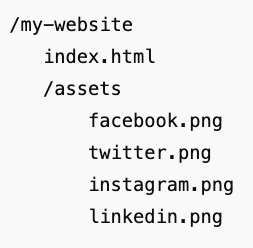
Once you have your icons ready, save them in your website folder so they can be used on your pages.
Steps:
- Open your website folder where
index.htmlis stored. - Create a folder called
imagesorassetsto organize your files. - Place all your social media icons inside that folder.
Step 3: Add Icons to Your HTML
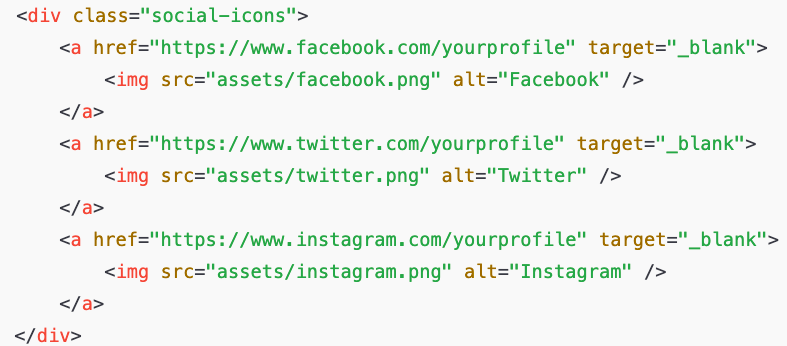
Now you need to display the icons on your website. This is done using the <img> tag in HTML.
Basic code:

Explanation:
<a>creates a clickable link.hrefis the URL of your social media profile.target="_blank"opens the link in a new tab.<img>displays the icon.alttext helps accessibility and SEO.
Example for multiple icons:
Step 4: Style Icons With CSS
Adding CSS styling makes your icons look neat and consistent on the page.
Example CSS:
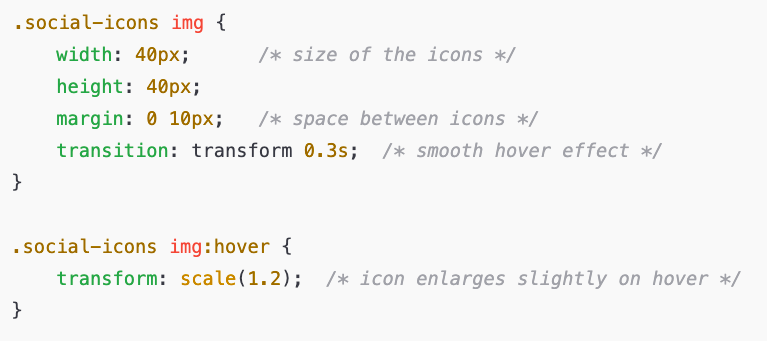
Explanation:
widthandheightcontrol icon size.marginadds space between icons.transitionandhovercreate a subtle animation effect when users hover over the icon.
Step 5: Add Responsive Layout
Make sure your social media icons look good on mobile and desktop.
Example CSS for responsiveness:
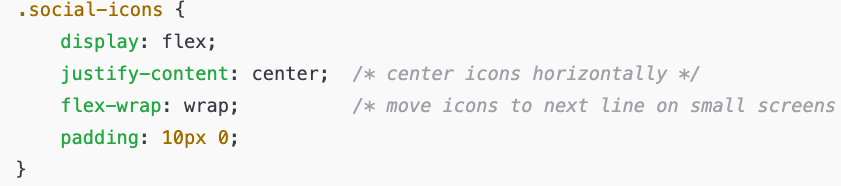
Bonus: Test on different devices to ensure icons are touch-friendly and easy to click on phones or tablets.
Step 6: Test All Links
After adding your icons, test every link to make sure it opens the correct social media page.
Steps:
- Click each icon on your live website.
- Confirm it opens in a new tab.
- Check that the icons appear correctly on desktop and mobile.
Step 7: Optional – Use Font Icons Instead of Images
For more flexibility, you can use Font Awesome icons instead of image files. Font icons are scalable, lightweight, and customizable with CSS.
Steps to use Font Awesome:
- Add Font Awesome CDN link in
<head>:
<link rel=”stylesheet” href=”https://cdnjs.cloudflare.com/ajax/libs/font-awesome/6.4.0/css/all.min.css”>
2. Use the icons in your HTML:
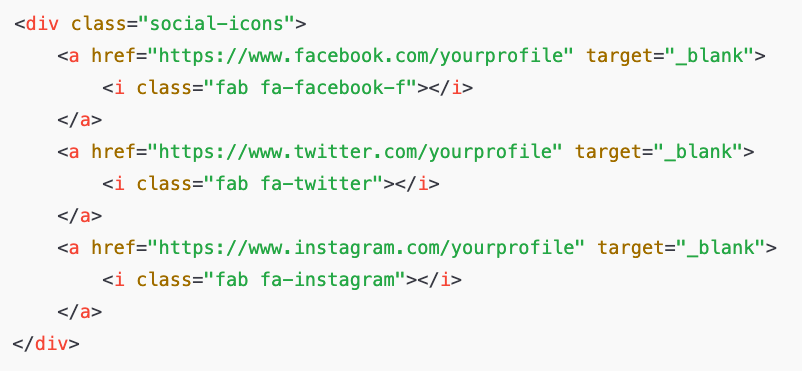
3.Style with CSS:
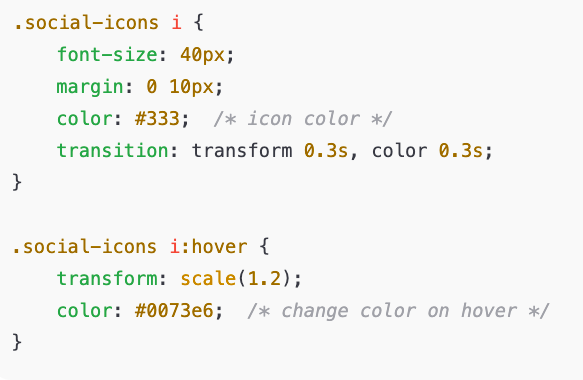
Step 8: Troubleshooting Common Issues
Sometimes icons may not appear or links don’t work. Here’s how to fix common problems:
- Icon not showing:
- Check the file path in the
<img>tag. - Make sure the image file exists in your folder.
- Check the file path in the
- Link opens in the same tab:
- Ensure you added
target="_blank"in the<a>tag.
- Ensure you added
- Icons not aligned properly:
- Use CSS
flexboxorgridfor layout. - Check for extra margins or padding in your code.
- Use CSS
- Hover effect not working:
- Confirm your CSS selectors match your HTML structure.

Step 10: Summary
Adding clickable social media icons to your website is simple, beginner-friendly, and highly effective.
Quick recap:
- Choose or create social media icons.
- Save them in your website folder.
- Add icons to your HTML with proper links.
- Style icons with CSS for size, spacing, and hover effects.
- Ensure responsiveness for mobile devices.
- Test all links and hover effects.
- Optionally, use font icons like Font Awesome for more flexibility.
By following these steps, your website will look professional, and visitors will have easy access to your social media profiles, which improves engagement and brand recognition.
Why Adding Social Media Icons is Essential for Your Website
Adding social media icons to your website may seem like a small detail, but in reality, it is one of the most effective ways to connect your website with your online presence. These icons serve as visual cues that guide visitors directly to your social media profiles, making it easy for them to follow, share, or engage with your brand. In today’s digital world, where users interact across multiple platforms, integrating social media links into your website is no longer optional—it’s essential.
One of the most important benefits of social media icons is that they enhance user experience. Visitors no longer need to search for your social media pages manually. Instead, a simple click on an icon provides instant access. This not only makes navigation convenient but also encourages more interaction with your content. When users find it easy to connect with you, they are more likely to follow your updates, share your posts, and return to your website, which can lead to increased traffic and engagement over time.
Another critical advantage is brand visibility and recognition. Each social media platform has its own unique audience, and by linking your website to these platforms, you broaden your reach. Social media icons act as mini ambassadors for your brand, signaling that your website is active, modern, and connected. For businesses, bloggers, and personal brands alike, these icons help create a cohesive online identity. Visitors are able to associate your website with your social media presence, which reinforces your branding and builds trust.
Social media icons also contribute to the professionalism of your website. A website with well-designed, functional icons appears complete and carefully crafted. On the other hand, a site without social media links might feel incomplete or outdated. By placing these icons strategically in the header, footer, or sidebar, you ensure that every visitor can easily access your social media profiles without cluttering your website’s design. This balance between functionality and aesthetics improves the overall impression your website leaves on visitors.
Furthermore, using social media icons can support your marketing goals. Each click on an icon is a potential follower, share, or engagement opportunity. Over time, these small interactions accumulate, helping you grow your social media audience and drive traffic back to your website. For businesses, this can translate into more leads, sales, and loyal customers. For content creators or bloggers, it can mean a stronger community, more shares, and better content visibility.
Finally, implementing social media icons is simple, cost-effective, and scalable. With basic HTML and CSS skills, you can add clickable icons, style them to match your website’s look, and ensure they are responsive on all devices. Whether you choose image icons or font-based icons like Font Awesome, the process is straightforward and can be completed in just a few steps. Once added, these icons require minimal maintenance, making them a long-term asset for your website.
In summary, social media icons are much more than decorative elements. They are powerful tools that enhance user experience, strengthen brand identity, improve professionalism, and support growth across multiple platforms. Adding these icons ensures that your website is not only functional and visually appealing but also connected to the broader digital ecosystem where your audience spends their time. By following the step-by-step guide provided in this article, even beginners can quickly implement social media links and enjoy the benefits of a fully integrated online presence.
Every website, no matter how small or new, can benefit from social media icons. They are a simple but impactful way to make your website interactive, engaging, and professional. By adding them thoughtfully and testing their functionality, you create a seamless experience for your visitors while enhancing your online reach.