
A “broken” website is one that does not appear or behave the way it is supposed to. Text may overlap, images may not load, layouts may collapse, buttons may stop working, or the site may look fine on one device but completely unusable on another. This issue is more common than many people realize and can affect both new and established websites.
A website looking broken does not always mean the site is hacked or permanently damaged. In most cases, it happens because something is not loading, not configured correctly, or not compatible with the user’s browser, device, or screen size. Understanding the real causes helps website owners fix problems faster and prevent them from happening again.
Broken Layouts Caused by CSS Issues
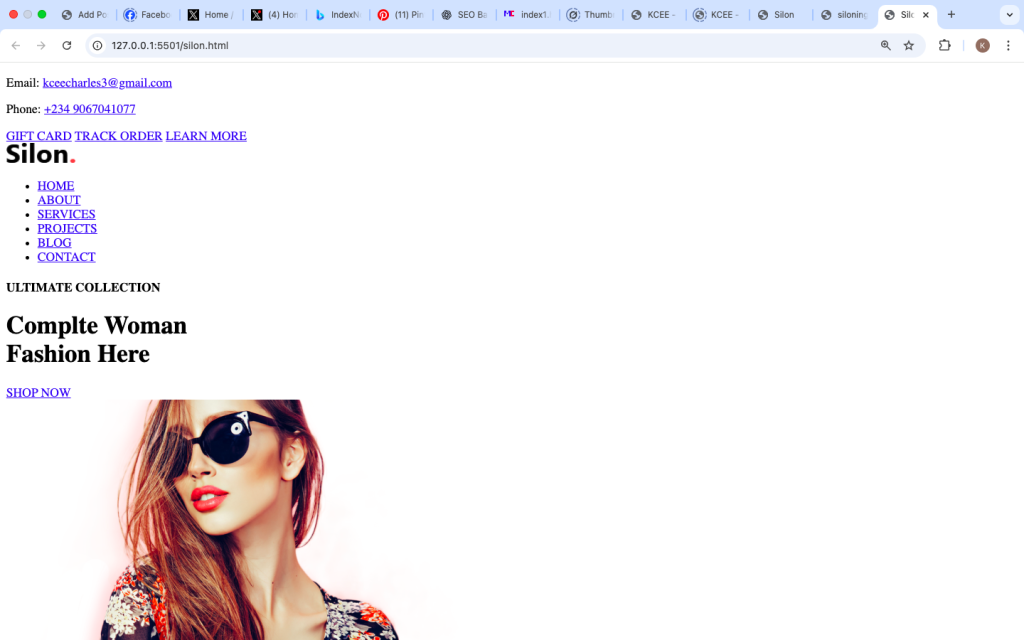
One of the most common reasons websites look broken is a problem with CSS (Cascading Style Sheets). CSS controls how a website looks: layout, colors, spacing, fonts, and responsiveness. When CSS fails to load or contains errors, the website may appear as plain text stacked on top of each other.
This can happen if:
• The CSS file is missing or deleted
• The file path to the CSS is incorrect
• The CSS file fails to load due to server or network issues
• There are syntax errors inside the CSS file
When CSS is not applied correctly, the browser displays only raw HTML content, which looks messy and unstructured.

JavaScript Errors Breaking Functionality
JavaScript controls interactions on a website such as menus, sliders, pop-ups, forms, and dynamic content. If JavaScript fails, parts of the site may stop working or appear frozen.
Common JavaScript-related causes include:
• Script loading errors
• Conflicts between multiple JavaScript files
• Outdated scripts incompatible with modern browsers
• Errors introduced during updates or plugin installation
When JavaScript errors occur, users may see broken menus, unresponsive buttons, or blank sections on the page.
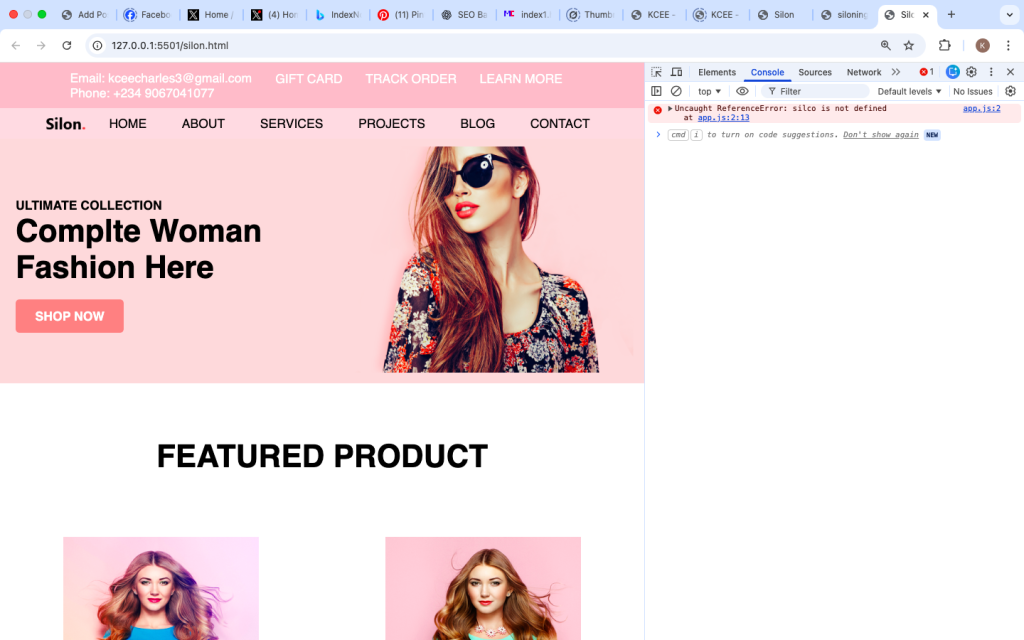
This screenshot of this console helps readers how to indicate an error in browser developer tools.
Plugin or Theme Conflicts (Especially on WordPress)
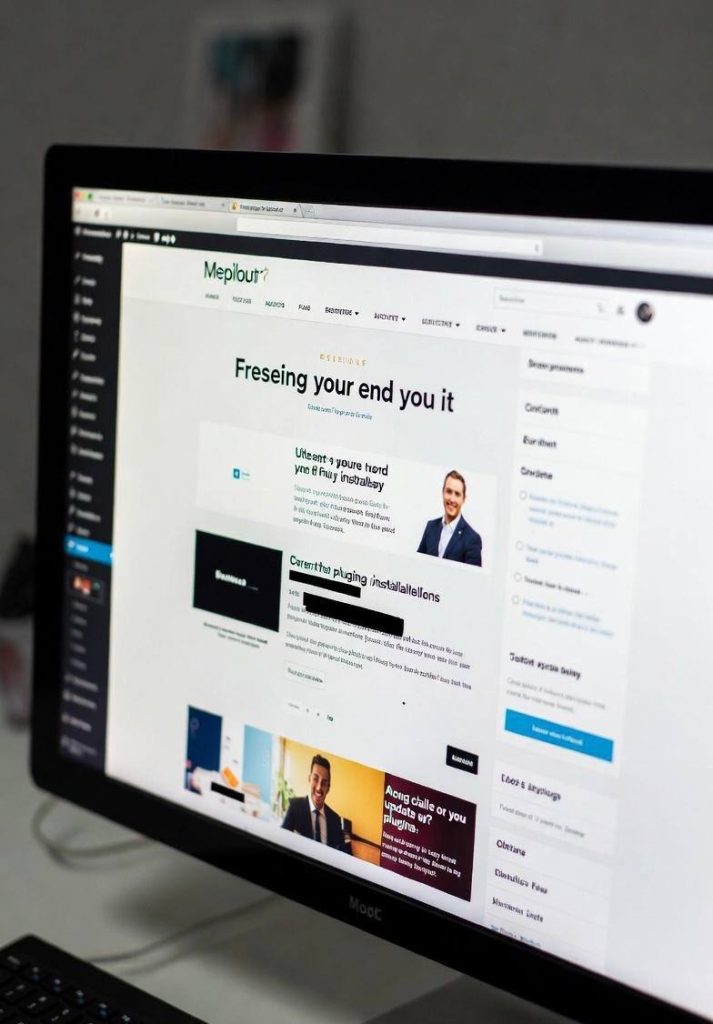
For WordPress websites, plugin and theme conflicts are a major cause of broken layouts and functionality. Plugins extend features, while themes control design. When one plugin conflicts with another or with the theme, the site can break.
This often happens after:
• Installing a new plugin
• Updating a plugin or theme
• Using poorly coded or outdated plugins
• Using too many plugins that do similar things
A plugin conflict can cause layout shifts, missing elements, or even a completely white screen.
Missing or Broken Image and File Links
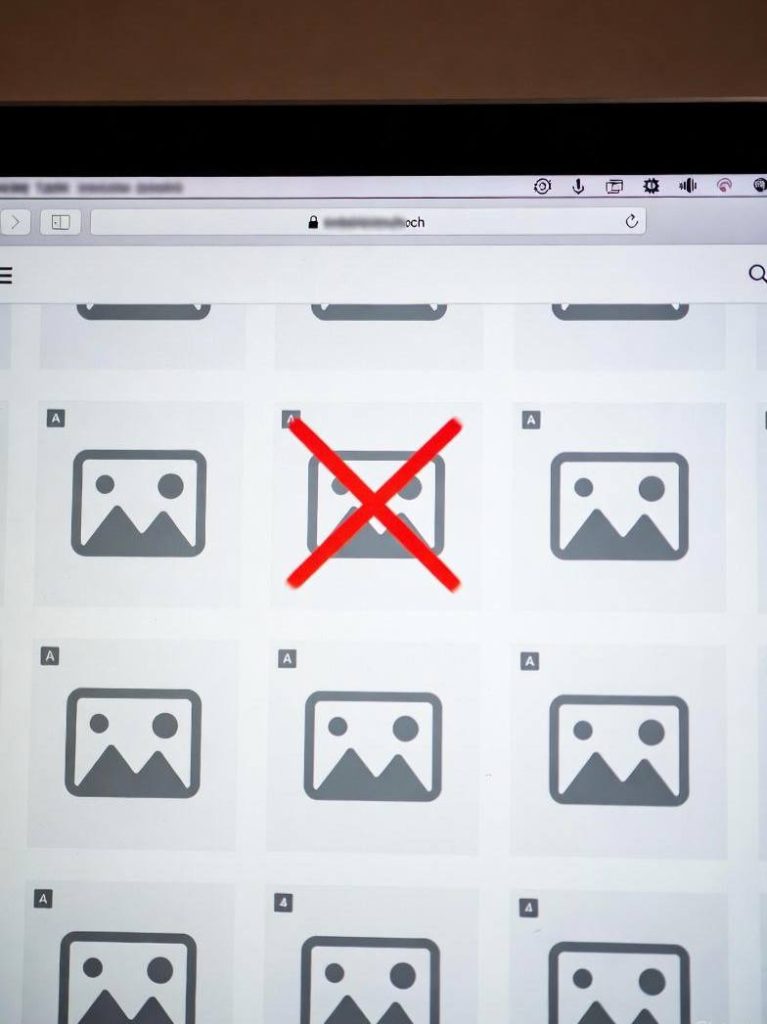
Websites rely on images, fonts, and other media files. If these files are missing or their paths are incorrect, the site may display broken image icons or empty spaces.
Common reasons include:
• Files deleted accidentally
• Incorrect file paths after migration
• Changing folder names without updating links
• Upload errors
Broken images make a website look unprofessional and unfinished.
Responsive Design Issues on Different Devices
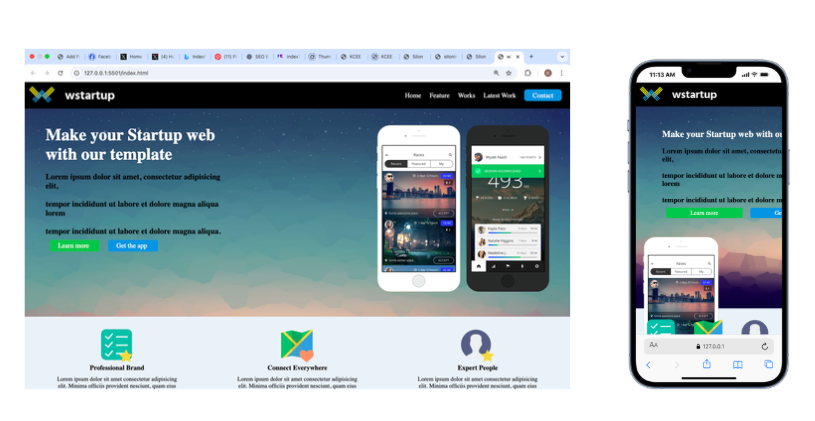
A website may look perfect on a desktop but broken on mobile or tablet devices. This happens when responsive design is not properly implemented.
Causes include:
• Fixed-width layouts instead of flexible layouts
• Missing viewport meta tags
• CSS media queries not working correctly
• Large images or elements that do not scale
Mobile users may experience overlapping text, cut-off content, or horizontal scrolling.
Browser Compatibility Problems
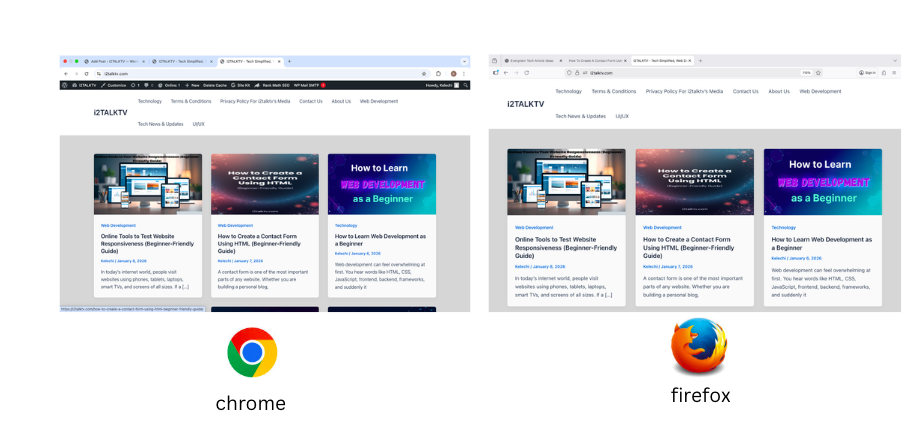
Different browsers interpret code slightly differently. A website may work well on one browser but appear broken on another.
This can happen due to:
• Use of unsupported CSS or JavaScript features
• Browser-specific bugs
• Lack of cross-browser testing
• Outdated browser versions
Older browsers may not support modern web features, causing layout or functionality issues.
Caching and CDN Problems
Caching improves website speed by storing copies of files. However, caching issues can cause broken layouts if outdated files are served.
Common caching-related causes:
• Old CSS or JavaScript files being cached
• CDN serving outdated versions of files
• Cache not clearing after updates
Users may see a broken version of the site while the owner sees a normal version.
Server or Hosting Issues
Sometimes the problem is not the website itself but the server hosting it. Server issues can prevent files from loading correctly.
Examples include:
• Server downtime
• Permission errors
• Misconfigured server settings
• Insufficient server resources
If files such as CSS or JavaScript cannot be delivered, the site may partially load and appear broken.
Incorrect HTML Structure
HTML provides the structure of a website. When HTML tags are not properly closed or nested, the browser may misinterpret the layout.
Common mistakes include:
• Missing closing tags
• Incorrect nesting of elements
• Using outdated HTML elements
• Copying code incorrectly
Even small HTML errors can cause large layout problems.

this is the correct way and make sure you close tags

Content Overload and Large Media Files
Large images, videos, or unoptimized content can slow down loading and cause layout shifts. Pages may appear broken while loading or never fully load on slow connections.
This happens when:
• Images are not optimized
• Videos autoplay without optimization
• Too many fonts or scripts load at once
Performance issues often look like design issues to users
How to Fix a Broken Website Step by Step
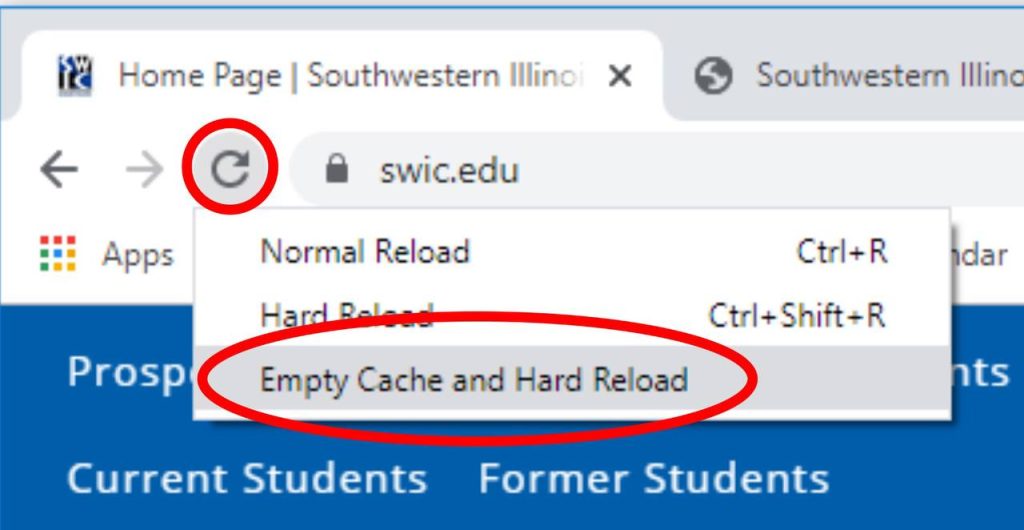
1. Refresh the Page and Clear Browser Cache
Start with the basics to rule out client-side issues like outdated files. Refresh the page using Ctrl + R (Windows) or Cmd + R (Mac). For a hard refresh, use Ctrl + Shift + R or Cmd + Shift + R. Clear cache in your browser settings under privacy options.
2. Check the Site on Another Device or Browser
Verify if the problem is isolated. Open the site in a different browser or on another device like a phone or tablet to test compatibility.
3. Inspect the Page Using Browser Developer Tools
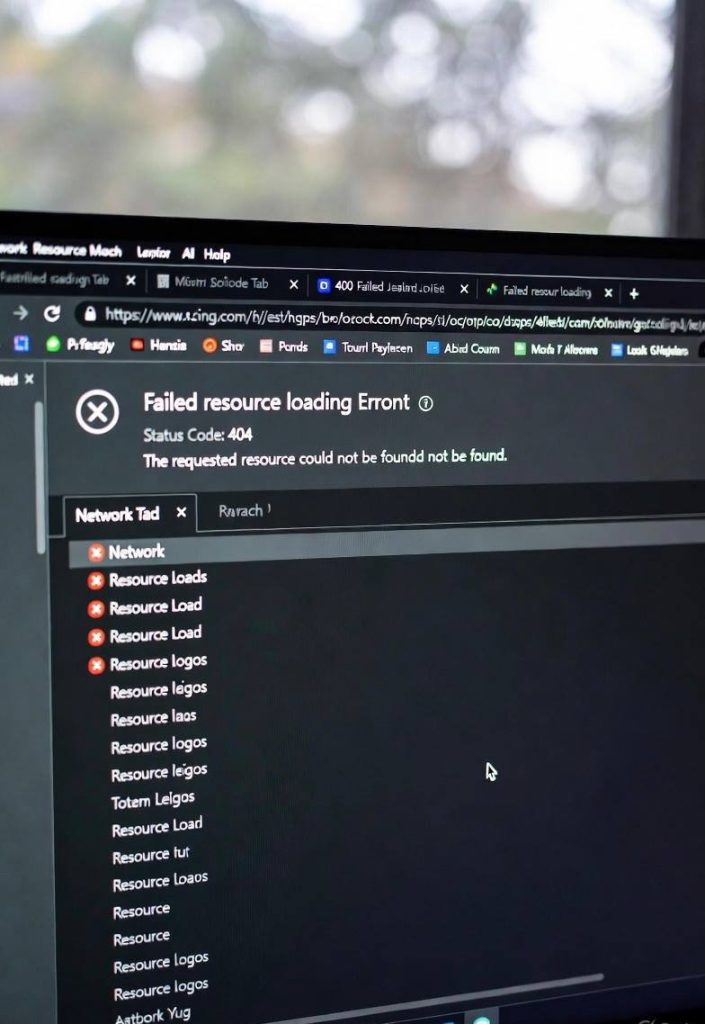
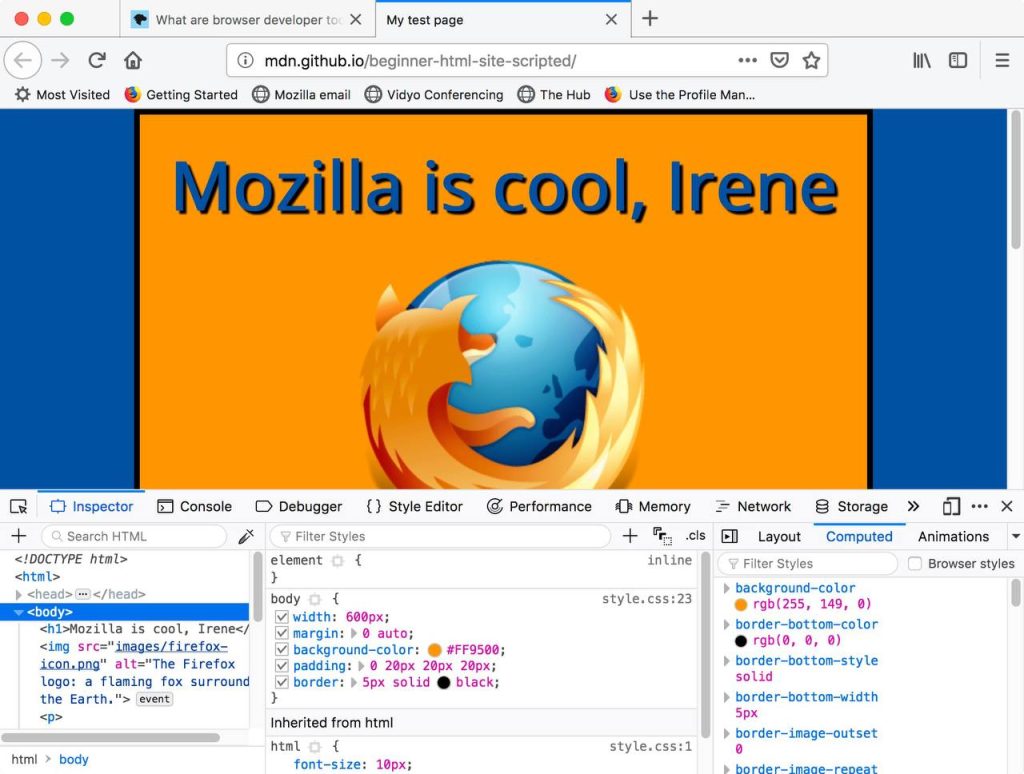
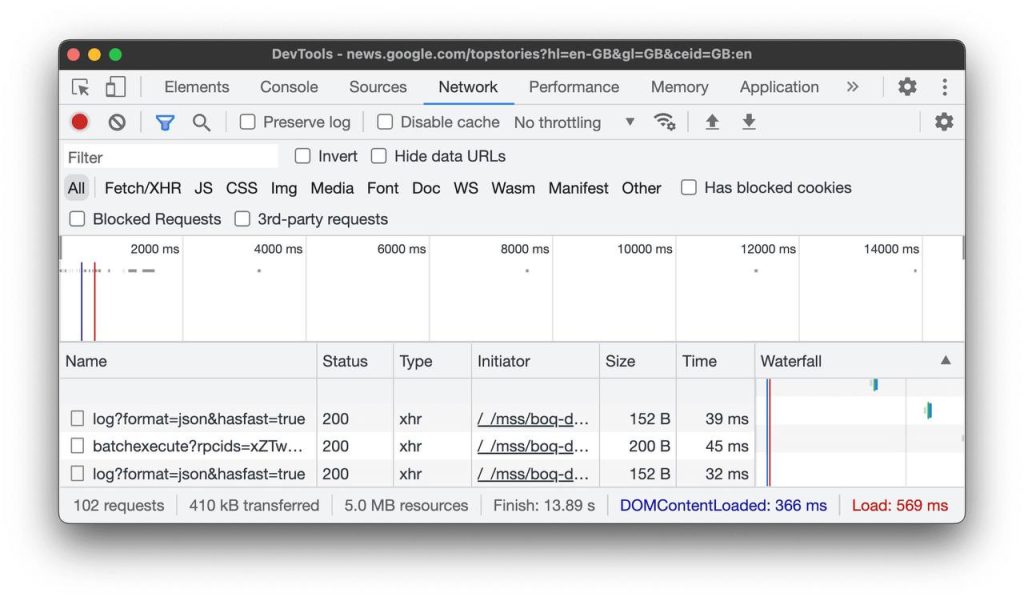
Right-click on the page and select “Inspect” (or Ctrl + Shift + I). Check the Console for errors, Network tab for failed loads, and Elements tab for HTML/CSS issues.
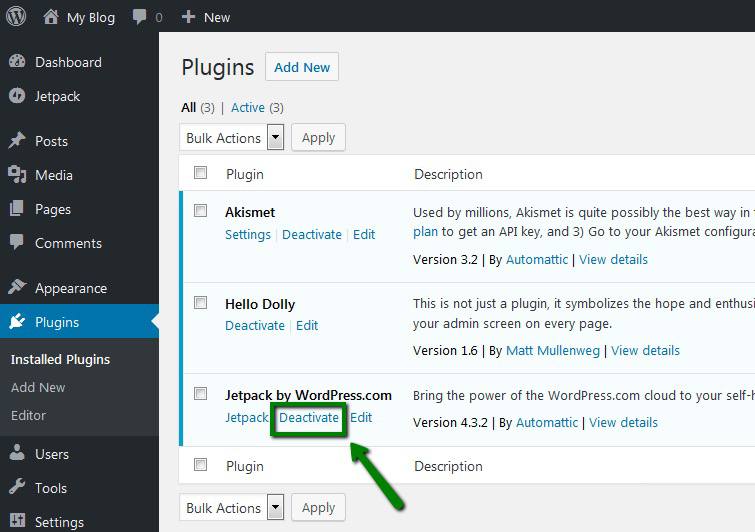
4. Disable Plugins One by One (for WordPress Sites)
Log into your WordPress dashboard, go to Plugins > Installed Plugins, and deactivate them individually to identify conflicts.
5. Check CSS and JavaScript File Loading
In dev tools’ Network tab, ensure CSS/JS files load with 200 status codes. Look for errors like 404s.
6. Review Recent Updates or Changes
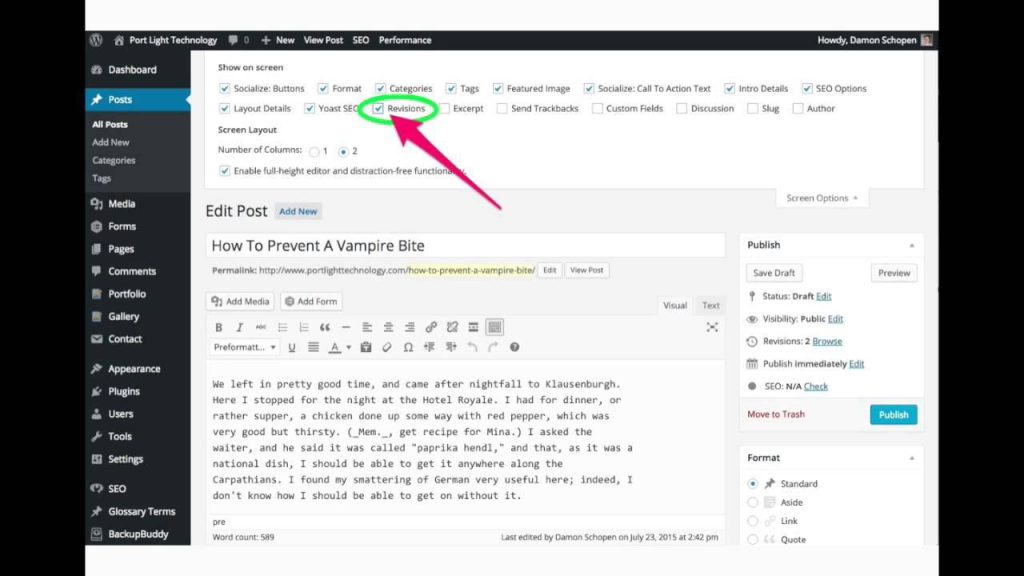
Check update history in your CMS dashboard or server logs to pinpoint what might have caused the issue.
7. Restore a Backup if Needed
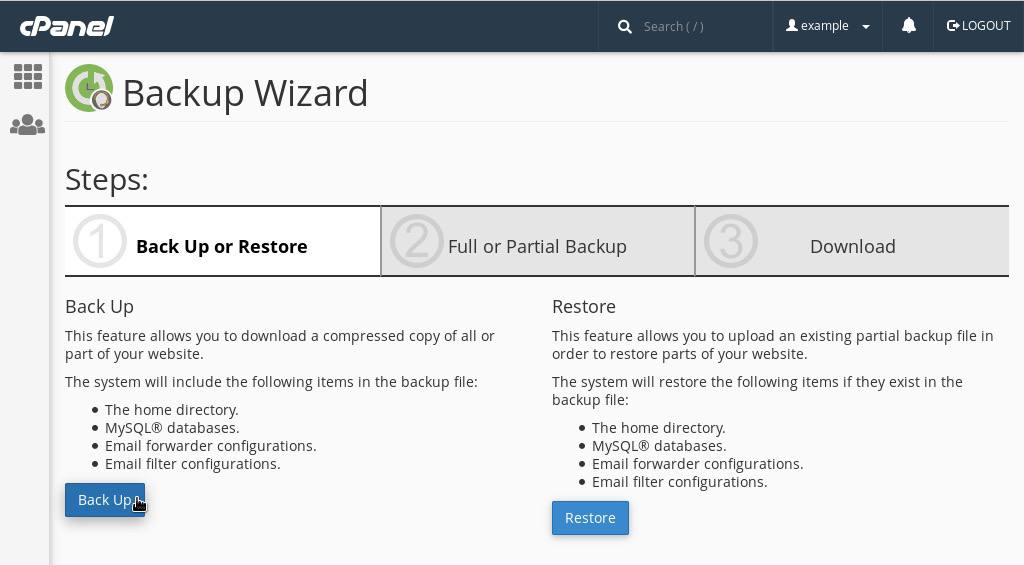
Use your hosting panel or a plugin to revert to a previous working version of the site.
Websites look broken for many reasons, but most causes are technical and fixable. Issues with CSS, JavaScript, plugins, responsive design, caching, or servers are far more common than serious damage or hacking. The key is understanding how websites are built and knowing where to look when something goes wrong.
A broken website is not a failure; it is a signal that something needs attention. With the right knowledge and step-by-step approach, most website issues can be identified and resolved efficiently.
If the problem persists, contact your hosting support or a developer for deeper investigation.